Archive for the ‘Networking’ Category

Locate and Troubleshoot Dropped Network Connections

Network disconnects can generally be diagnosed with tools like ping, tracert, and pathping, but connections that frequently and randomly disconnect can be difficult to diagnose. Often you may suspect an ISP issue, or a router to modem link, but when you contact your ISP the reply always seems to be; “it’s working now”. To be fair to the ISP, it usually is working now. You would be far more likely to get assistance if you could provide a log showing which network segment was down, for how long, and how frequently. 

Netgong, formerly IPMonitor, is a simple little tool that can be helpful in documenting disconnects. It is really nothing more than a fancy ping tool with logging, but that log can be very useful when diagnosing connections from a PC to the Internet, Virtual Private Networks, or within a LAN through various routers. Basically any connection involving multiple network segments. 

Netgong can be set up to ping multiple IPs at set time intervals of one minute or greater. Ideally you want to monitor different devices in different network segments between the client and host such as a LAN based IP like a router, an interim point like the ISP’s gateway (find from your routers status page), and an IP somewhere “in the cloud”. It does not log every ping but rather only when the connection state changes which maintains a reasonable log file size. You can see the current state in the console, or view the recorded log file in text or Html format. 

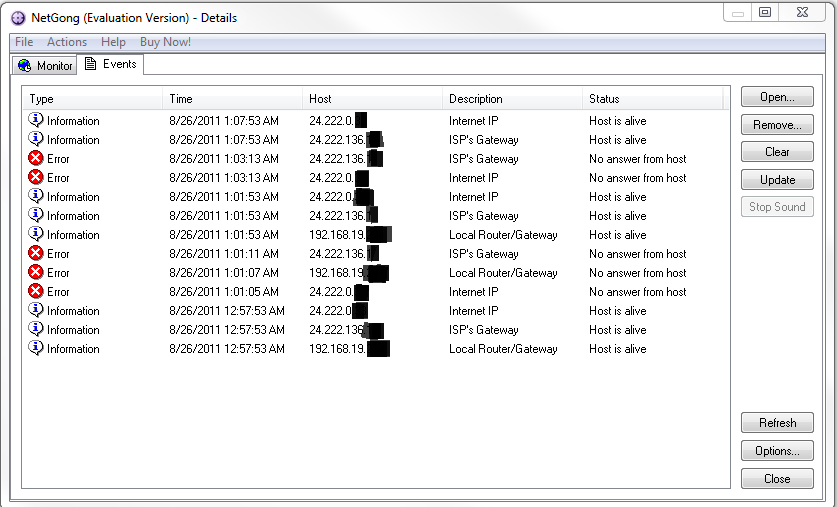
The following is a sample screen shot of the console “events” page:
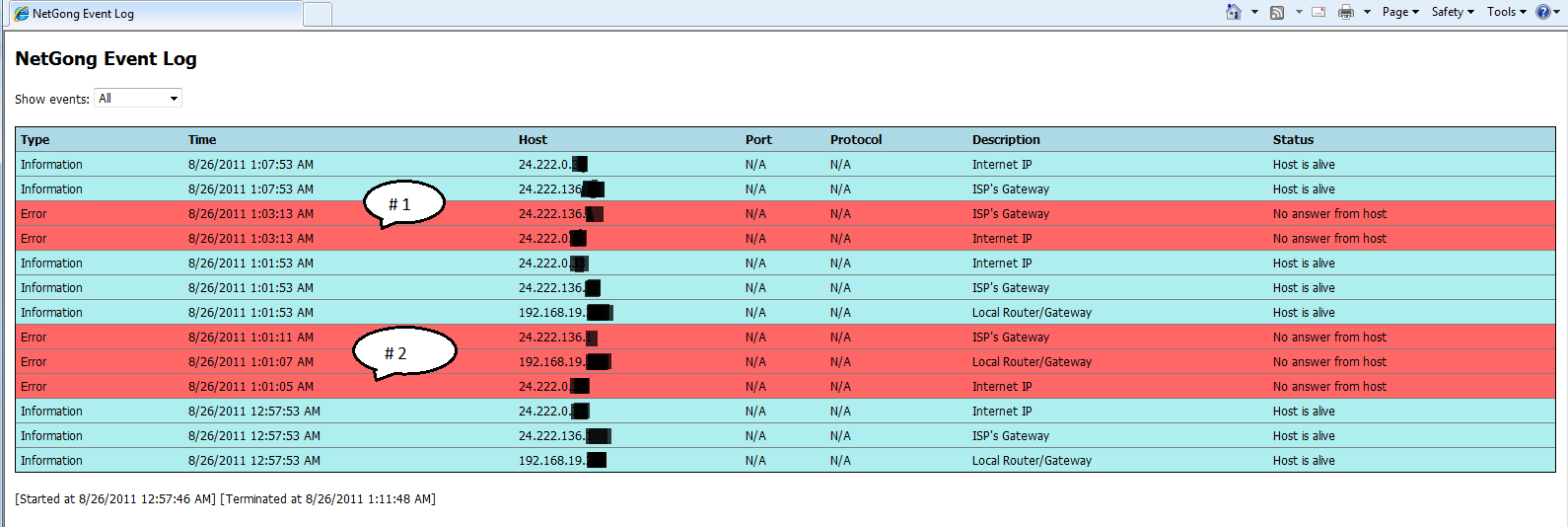
The next image is a sample Html log file.  Item #1 indicates the ISP’s gateway (modem) and Internet were unavailable but the router could be pinged, showing the connection was lost between the local router and the ISP’s modem.  Item #2 shows all 3 IP’s unavailable indicating a loss of connectivity between the client and local router.
To configure Netgong simply add the hosts as shown in the example, and set the ping “interval”

Then configure the logging options

The console will almost instantly show the current status

Netgong can also be used to trigger alerts if needed and is great for simply monitoring if numerous dveices are online. There is a trial period available for Netgong but you may find it a handy tool to have in your “toolbox”. It can be downloaded from: http://netgong.tsarfin.com/download.html

Create an isolated network using one ISP connection and modem

Option 1:   If you have two public IP’s from your service provider you can simply install a
switch between the router and the modem, connect as per the diagram below, and
then configure each separately as if it were two different businesses in different buildings. Router 1 and 2 can be wired or wireless.

—————————————————————————————————————————————————-

Option 2:  If you only have one public IP available from the service provider you need to use 3
routers
. Router1 would normally be a wired only, and Routers 2 and 3 can be wired or wireless depending on your needs. This configuration completely isolates the 192.168.200.0/24  network from the 192.168.300.0/24 network. No users are to be connected wired or wirelessly to Router1.

Note: If you want to connect clients to Router1 or make it wireless and allow clients to connect, keep in mind users of the .200 and .300 networks will be able to see the devices connected to Router1 (thus no privacy other than their personal firewalls), however users of Router1 will not be able to see devices on the .100 and .200 networks. They are protected because they are on the LAN (private) side of the router/firewall. 

In this case each router is configured as it would normally be except you need to adjust the IP configurations for LAN and WAN of each router as shown in the diagram below.

Note: Keep in mind if you have incoming services such as Remote desktop, you will need to port forward the appropriate ports, such as 3389, from Router1 to Router2, and then from Router2 to the appropriate
server/PC/device.

Warning: This method does not work for incoming VPN connections. Generally VPN’s will not work with multiple NAT devices (routers).

—————————————————————————————————————————————————-

Option 3:  If you want to configure a guest network, which protects the corporate network, but it is not necessary to protect the guest network from the corporate network, you can do so with only 2 routers. In this case the guests, connected to Router1, are exposed to the corporate network, similar to that of an Internet café, but the corporate network is completely protected from the guest network because it is behind the firewall/Router2. Router 1 and 2 can be wired or wireless.

In this case each router is configured as it would normally be except you need to adjust the IP configurations for LAN and WAN of each router as shown in the diagram below.

Note: Keep in mind if you have incoming services such as Remote desktop, you will need to port forward the appropriate ports, such as 3389, from Router1 to Router2, and then From Router2 to the appropriate server/PC/device. 

Warning: This method does not work for incoming VPN connections. Generally VPN’s will not work with multiple NAT devices (routers).

Add a wireless router/access point to an existing network

You can add a simple <$50 wireless router of any make to your your existing network infrastructure and configure it as an Access Point rather than a Gateway. This allows access to all resources by wired and wireless users. To do so, see the following instructions and the diagram of the physical connections below:

  • Reset the new router’s wireless WAN connection to default, i.e. un-configured
  • Assign the new router’s LAN side an IP address in the same subnet as the existing router (see diagram below).  Make sure the IP does not conflict with your existing DHCP service, whether using the router or a server as a DHCP server, and make sure it doesn’t conflict with any statically
    assigned devices, if any, such as printers
  • Disable DHCP on the new router
  • Configure the wireless connections on this router in the normal manor. If your primary router is wireless the second router will need to use a different SSID
  • Connect a cable from one of the LAN ports of the primary router to one of the LAN (not WAN) ports of the new router. If the lights do not light up indicating a connection you may need a cross-over cable (usually only necessary on older units)
  • Now all devices should have Internet access and be able to easily connect to one another to share resources.