Recently on one system the client received an error when opening Outlook; “Error Something went wrong. [1001]”. Sometimes with Error Tag: 48v35, and others with Error Tag 58tm1.

Google suggests this is a very common problem with many suggestions as to how to resolve. In almost all cases, comments advise the suggestions did not correct the problem. I knew this PC had been offline for more than a month, so I suspected an authentication issue. In the end I found signing out of Outlook (File | Office Account | sign out), close Outlook, then reopen Outlook which prompted sign in again, resolved the problem. It also forced re-activating Office apps, and re-authenticating OneDrive, but all working fine when complete.

Twice I have run into nonstop Windows 10/11 false notifications on the right of the screen.  In both cases they were mostly McAfee alerts, with no McAfee installed.  Interesting, after connecting remotely with LogMeIn’s GoToAssist, I then received some identically formatted notifications, but with a header of GoToAssist and a message, your computer is being accessed from Russia.  Obviously, it is monitoring activity and adjusting.  One client noted it started after downloading a document from a Pinterst site.

This a Chrome browser issue.  In trouble shooting determined it is linked to one Chrome profile.  Searching the Internet shows the common fix is to completely disable notifications in Chrome (Settings / Privacy and security /  Site settings / Notifications / don’t allow sites to send notifications).  I feel this is dealing with the symptoms not the problem.  The solution was to delete the user’s profile.  To do so, when Opening Chrome it will show available profiles.  On the affected profile click on the 3 dots in the top right of the icon and select delete.  As it will warn, be aware this will delete all user information such as passwords, cookies, bookmarks, and browsing history.  You may want to export Bookmarks before deleting.

Sage Not Updating

Updating Sage should be a very simple procedure.  On the server click update and on the PCs, assuming auto update is enabled, just approve when closing Sage.  However, two clients report the do not receive the update available notification, and when trying the update option from the server a pop-up message appears stating; “The following error has occurred.  Make sure you have an Internet connection and that you have enough disk space…. Error (403) Forbidden”.

Sage has very specific firewall rules.  Years ago you had to manually configure these or use a script Sage Simply Accounting (Sage 50) Firewall Rules | LAN-Tech Network Management but in recent years Sage will automatically configure the Windows firewall.  In the two cases mentioned above it seems the hardware firewall was blocking the necessary ports.  Since Sage does not list the port numbers for each service the simple solution is to manually download the update.

  • You should have received an e-mail from Sage with the update information and download link.  If not log into your Sage account, locate, and download.
  • Download the .exe file, do not extract. 
  • Copy the file, in this case SA_20240CP1.exe to folder  C:\Users\Public\Documents\Sage Software\Simply Accounting\Download
  • Now when you run update from the server or close Sage on a workstation the auto-install will run as it would normally. 

During the past couple of months numerous users sending e-mail from Microsoft 365 accounts have reported when sending bulk e-mails, such as to 10-100 recipients, every Gmail address bounces.  Sending to a single recipient does not seem to be an issue.  In each case these are established recipient groups which have been used for several years without a problem.   Though the solution is the same for all, the bounce messages differ quite a bit.

  • Remote server returned ‘550 5.4.300 Message expired -> 421 4.7.28 [2a01:111:f400:****::***15] Our system has detected an unusual rate of unsolicited mail originating from your IP address. To protect our users from spam, mail sent from your IP address has been temporarily rate limited.
  • Your message couldn’t be delivered. Despite repeated attempts to contact the recipient’s email system it didn’t respond.
  • Your message was rejected by gmail-smtp-in.l.google.com for the following reason:
    • 5.7.26 The MAIL FROM domain [xyz.com] has an SPF record with a hard fail
    • 5.7.26 policy (-all) but it fails to pass SPF checks with the ip:
    • 5.7.26 [209.71.208.25 Note: not the sending address]. To best protect our users from spam and phishing,
    • 5.7.26 the message has been blocked.

During the past week Microsoft has posted the following alerts:

All of the clients with delivery issues have always had tested SPF records, but it seems adding DKIM and DMARC DNS records, resolved the problem in each case. 

The following are some links to assist you with creating and testing your DKIM and DMARC records:

How to configure DKIM with Office 365:

How to Configure DKIM for Office 365 — LazyAdmin

How to use DKIM for email in your custom domain | Microsoft Learn

Test your DKIM entries:

Home – Microsoft 365 admin center  

Network Tools: DNS,IP,Email (mxtoolbox.com)

How to configure DMARC with Office 365:

How to Configure Office 365 DMARC — LazyAdmin

DMARC Record Generator tools | EasyDMARC

Network Tools: DNS,IP,Email (mxtoolbox.com)

Most people reporting this error are running the AnyWhere Access on Essentials 2016, or possibly 2012, for the first time. However, I have run into this twice in the past few months, rerunning the wizard to renew the public access SSL certificate on older Essentials 2016 servers. Perhaps this is caused by a recent update. Many report waiting a while resolves the issue, but I have not found this to be true.

100% credit for the solution goes to JVH Consulting https://jvhconsulting.com/2022/01/02/2016-essentials-anywhere-access-setup-fails/

JVH advise you need to add 2 registry entries to each of 4 registry keys. NOTE: if you are not familiar with doing so, editing the registry incorrectly can destroy your server. As always, back up the registry before starting.

[HKEY_LOCAL_MACHINE\SOFTWARE\Microsoft\.NETFramework\v2.0.50727]
“SystemDefaultTlsVersions”=dword:00000001
“SchUseStrongCrypto”=dword:00000001

[HKEY_LOCAL_MACHINE\SOFTWARE\Microsoft\.NETFramework\v4.0.30319]
“SystemDefaultTlsVersions”=dword:00000001
“SchUseStrongCrypto”=dword:00000001

[HKEY_LOCAL_MACHINE\SOFTWARE\Wow6432Node\Microsoft\.NETFramework\v2.0.50727]
“SystemDefaultTlsVersions”=dword:00000001
“SchUseStrongCrypto”=dword:00000001

[HKEY_LOCAL_MACHINE\SOFTWARE\WOW6432Node\Microsoft\.NETFramework\v4.0.30319]
“SystemDefaultTlsVersions”=dword:00000001
“SchUseStrongCrypto”=dword:00000001

JVH suggest a reboot may be necessary, but I found simply restarting the Essentials Console was sufficient.

An HP desktop computer recently kept displaying a message: “Failed to create Conexant Audio Factory, the SmartAudio will now exit” every 3-5 minutes.

HP has a web page addressing the issue with 3 possible solutions but none seemed to work.

https://support.hp.com/ca-en/document/c05078910

Ultimately, reinstalling the Conexant application immediately resolved the problem. No need to download, just browse to the executable and double click to run. The file location is: “C:\Program Files\CONEXANT\SA3\HP-NB-AIO\setup64.exe”

Windows 10 will not shut down

Recently after applying Windows updates on a Win10 machine the unit would reboot every time no matter whether “Shut down” or an other option was chosen. Even using a command prompt and “Shutdown /f” resulted in a reboot. Looking into the issue it seems this is somewhat common. The simple fix was to turn off “Fast Start Up” by going to: Control Panel / Power Options / Choose what the power buttons do / uncheck – Turn on fast start up.

A built in feature of Server Essentials, till 2019, is the ability of the server to send a daily “Health Report”. This contains information about the last backup, storage, services and more. I always configure this on all Essentials servers and set to send at 7:00 am for my review later. On 4 of the Essentials servers I manage it seems on the morning of the Daylight Savings change, at 1:00 am it tried to send a report for some reason, failed, and has failed the 7:00 am report ever since.

Though the error shows the problem is the “Windows Server Essentials Management Service” is not running, checking the Services management console shows it is. Simply restarting the service resolves the problem. You can right click on the last report and choose “send e-mail” to verify.

Unfortunately QuickBooks error messages are often misleading and of little help. A prime example of this is the relatively common error message which reads;

“It appears that the QuickBooks software on computer ________ is set up to allow shared access to the company file, but the QuickBooks software on your computer is unable to communicate with it.”

Which also provides the suggested solution;

“The communication problem could be due to a firewall issue. If a firewall is installed on your network, you may need to reconfigure the firewall software.”

Granted the firewall, whether the Windows firewall or a 3rd party firewall, does have to be configured to allow QuickBooks data access, in most cases where people are seeing this message the file has been accessible for some time. Generally during QuickBooks installation the Windows firewall is automatically configured but if you need to review, the QuickBooks site has detailed documentation https://quickbooks.intuit.com/learn-support/en-ca/apps-integrations/set-up-firewall-and-security-settings-for-quickbooks-desktop/00/262400

The message does indicate QuickBooks can “see” the data but cannot access it, indicating the firewall is at least partially configured. Test if one user can access the file but not multiple. If only one user can connect, fist make sure QuickBooks is not in single user mode. If not, it usually indicates a problem with the QuickBooks Database Server Manager. First make sure the QuickBooks service is running in the Services management console. It will show as QuickBooksDBxx where xx indicates your version (see below). You can also run the “File Doctor’ tool and/or scan for QuickBoks files using the QuickBooks Database Manager console. The latter often fixes this and other connection isssues.

All of those suggestions can be found on many sites, however I recently came across a different issue. When you install Quickbooks it creates a QuickBooks user/service account and a QuickBooks service with a suffix indicating the QuickBooks version/year. See the list below. If you do not uninstall the previous year’s QuickBooks, which is fine, you end up with multiple QuickBooks services in the Services management console. Normally the most recent one will start, but If instead one of the older versions starts, you can receive the aforementioned error message. To permanently resolve, set all older versions to disabled and the newest to automatic.

QuickBooks services created by each version/year of Quickbooks:

QuickBooks ver 2012 QuickBooksDB22
QuickBooks ver 2013 QuickBooksDB23
QuickBooks ver 2014 QuickBooksDB24
QuickBooks ver 2015 QuickBooksDB25
QuickBooks ver 2016 QuickBooksDB26
QuickBooks ver 2017 QuickBooksDB27
QuickBooks ver 2018 QuickBooksDB28
QuickBooks ver 2019 QuickBooksDB29
QuickBooks ver 2020 QuickBooksDB30
QuickBooks ver 2021 QuickBooksDB31

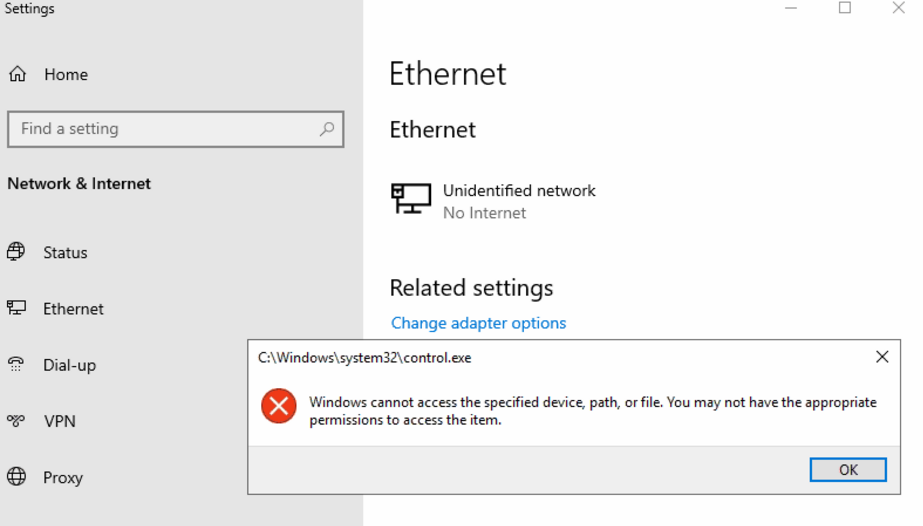
There seems to be an issue with recent server versions where after promoting a server to be a Domain Controller you loose access to several key functions. The main one seems to occur when trying to access “Change adapter Options” which results in a pop up “Windows cannot access the specified device, path, or file. You may not have the appropriate permissions to access the item”. In addition, in some cases when you try clicking on management tools such as Gpedit.msc and Control Panel, nothing happens. You can to try to access these using “run as administrator” which doesn’t always work, or create a desktop icon for the app and click the advanced options check box for run as administrator, but I see these as tedious work arounds.

The issue seems to be related to UAC (User Access Control) which can be “tweaked” with Group Policy. Since this occurred after promoting to a DC, one should use the Group Policy Management console rather than the Local Group Policy editor.

Run the GP Management console and edit the Default Domain Policy or a Computer OU of your choice. Locate the following policy, and enable:

Computer Configuration | Windows Settings | Security Settings | Local Policies | Security Options || User Account Control: Admin approval mode for the built-in administrator account

Once changed, from an elevated Command prompt run:

gpupdate /force

If not prompted to do so, you will need to log out and back in.

You should now be able to access your various admin tools that were blocked before.