Archive for the ‘Troubleshooting’ Category

Office 2010 Protected View using a VPN client

When opening Office 2010 documents such as Word and Excel using a VPN client, you will receive a warning on the menu bar which reads; ” Protected View This file originated from an Internet location and might be unsafe. Click for more details. Enable Editing”.

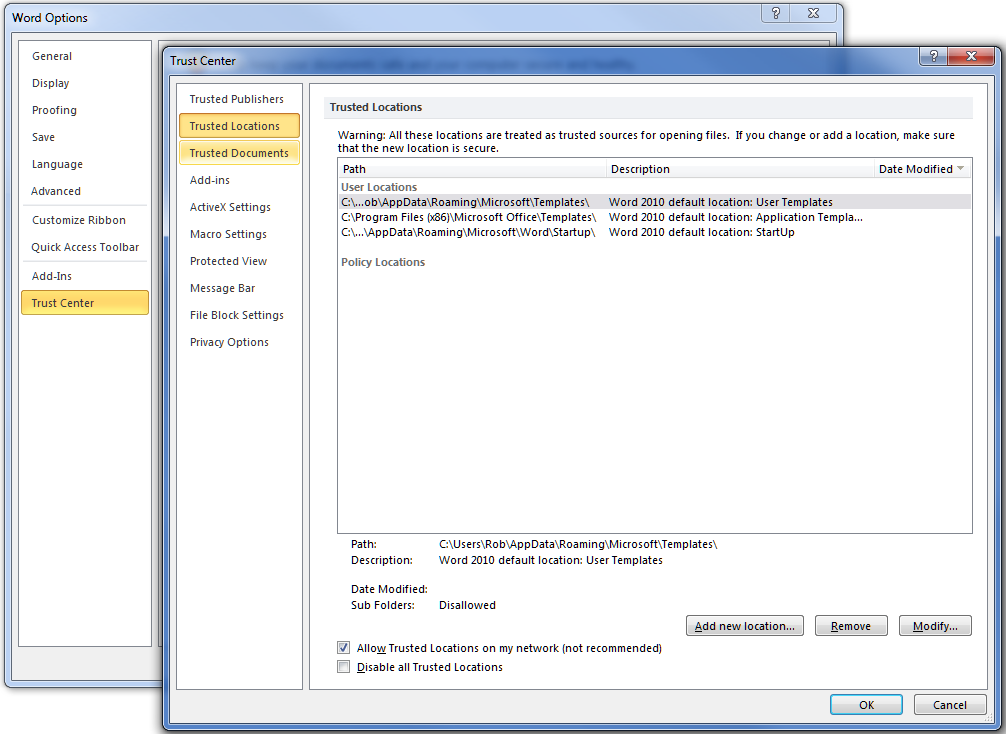
Microsoft has provided options to add trusted network locations within the trust center in Word, Excel, and other Office 2010 applications, which also requires checking “allow trusted Locations on my network”. However it  does not accept using IP addresses such as \\192.168.123.123\ShareName. You can use the UNC path but that also requires proper name resolution be set up for DNS.
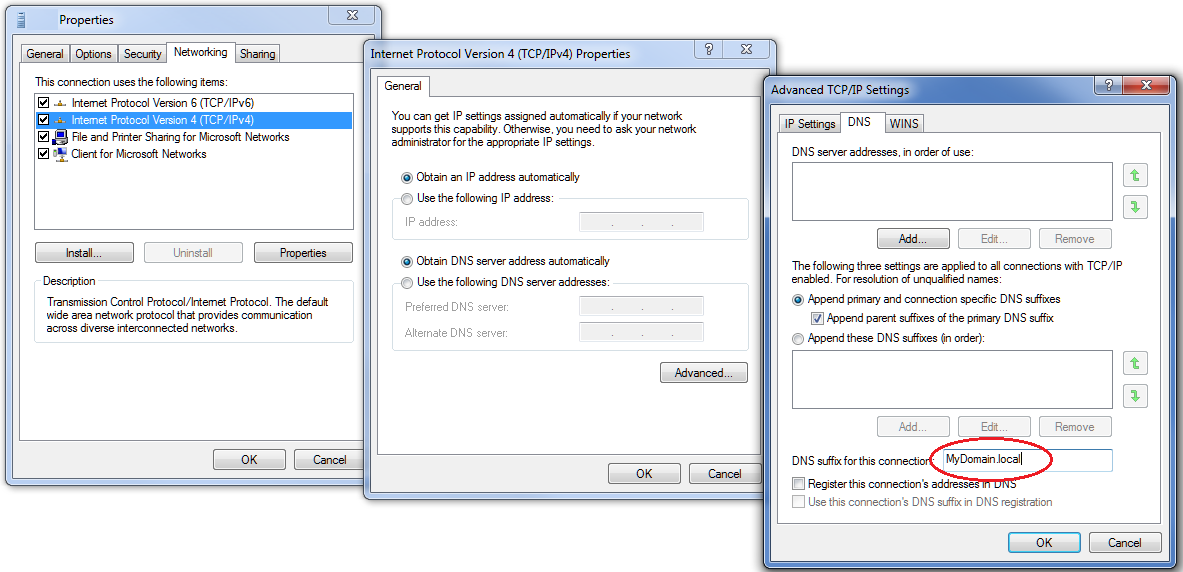
The simple solution is to simply make sure DNS is configured for the remote domain by adding the DNS suffix to the VPN/PPP network adapter. This allows you to open the documents located on the remote domain without the warning error, and without configuring Trusted Locations.  To do so, view properties of the VPN virtual network adapter and under the DNS tab of the advanced TCP/IPv4 properties, add your internal remote domain, in the “DNS suffix for this connection” box, such as MyDomain.local.
Then connect to the remote resource using the UNC name such as \\ServerName\ShareName.  If the client computer is a member of the domain it will immediately connect, if not you will be prompted for credentials
the first time you connect. For the user name use the format  MyDomain\UserName. So long as the local
session is active you will not be prompted for credentials again, even if the VPN connection is disconnected and reconnected.

Folder View Does not Refresh with Windows 7

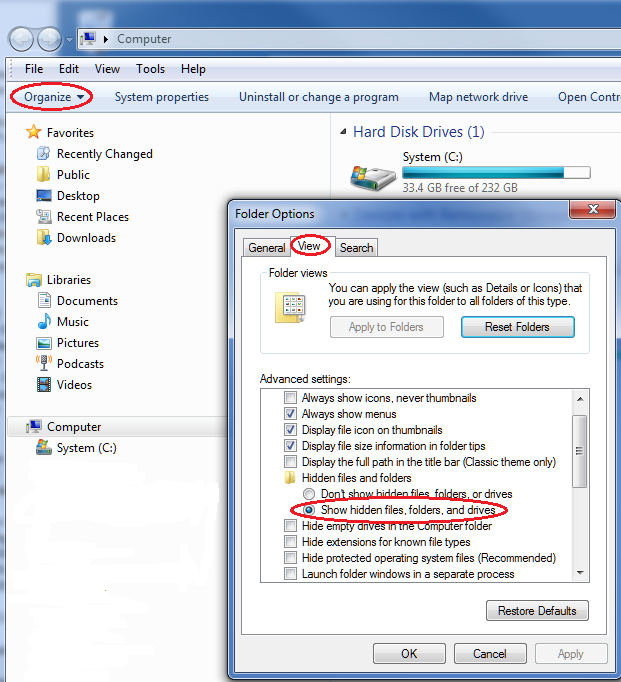
Many people are reporting Windows 7 does is not refreshing the folder view when changes are made such as  adding or renaming a file or folder.  Hitting  the F5 key forces a refresh and immediately updates the view. There are dozens of suggestions scattered about the internet to change this setting or that setting which in many cases seems to resolve the problem.  After reviewing many of these the common solution seems to be to enable or disable any folder option under Computer | Organize | Folder and Search Options | View | any setting
such as  “Show hidden files, folders, and drives” and apply. You may need to log off and back on.

This is not a proper solution to the problem, nor does it explain why the problem occurs, but it does seem to resolve the problem in a large number of cases.

Windows cannot load the user’s profile

I recently had a user receive an error message; “Windows cannot load the user’s profile but has logged you on with the default profile for the system” when logging on t o a Windows 7 desktop.  In the Event logs there was a matching Event ID 1505 with a Source “Userenv”. This is not O/S specific error, can be caused by numerous issues, and there are variations of  the same error due to other problems.  In this particular instance it appears it may have been caused by an interrupted backup during which the profile was locked to allow backup. To verify if a similar problem and resolve, follow the steps below.

Note: the following steps involve making changes to the registry. It is possible when editing the registry to damage your system. Only follow these steps if comfortable doing so and as always, create a restore point and/or backup the registry first, as per Microsoft’s instructions http://windows.microsoft.com/en-CA/windows7/Back-up-the-registry

Open the registry editor and locate the following key: HKLM\SOFTWARE\Microsoft\WindowsNT\CurrentVersion\ProfileList\

Locate the
problematic profile. Two methods to do so are:

  1. click on each profile and view the “ProfileImagePath” key for the appropriate profile name
  2. download PSGetSid from the Microsoft link below and from a command line run:  PSGetSid username

http://technet.microsoft.com/en-us/sysinternals/bb897417

The problematic profile key will likely end with .bak such as; S-1-5-21-2037612603-1103315024-2874594402-1003.bak  and there will be a matching profile key without the .bak extension, which is the temporary/default profile.

Assuming a .bak profile exists, rename the temporary profile something like S-1-5-21-2037612603-1103315024-2874594402-1003.tmp, and remove the .bak extension from the other.

Within the user’s profile key also check the sub-key “State”.  If this is set to something other than 0
change it to 0.

Reboot the system.
Upon reboot Windows should select and use the proper user profile

Other potential solutions for Event ID 1505 and Source  UserEnv:

http://www.eventid.net/display.asp?eventid=1505&eventno=2504&source=Userenv&phase=1