SBS and ProfWiz
Using the wizards has always been compulsory with SBS, in particular the wizard to connect a computer to the SBS domain; SBS 2003 http://SBSname/connectcomputer and SBS 2008 & 2011 http://connect The SBS 2003 wizard performed a multitude of operations to join the domain, and configure the computer and user environment. If interested in more detail see Susan Bradley’s blog: http://msmvps.com/blogs/bradley/archive/2005/01/23/33632.aspx
However with SBS 2008 and now SBS 2011, most of this is performed by Group Policy instead of the
connectcomputer process itself. Currently the primary advantage of using the wizard is its ability to import the current user’s local profile. Though I still strongly recommend using the wizard, it will only import a local workgroup profile so you may wish to look at other options if the machine was previously a member of any domain, or if the SBS wizard for some reason does not recognize the local profile. You could manually join the domain and then file by file copy user items such as My Documents, Desktop, Favorites, etc. but a more complete and much faster solution is to use a very simple free tool called ProfWiz (User Profile Wizard), from
ForensiT, which will also retain all user configurations. http://www.forensit.com/downloads.html
To use Profwiz; download, unzip, and start the application. The wizard can be used to migrate a
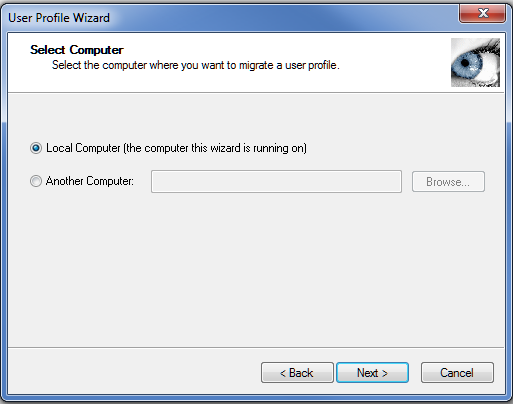
remote machine but for simplicity assume we are logged on to the machine to be joined to the domain. Select local computer and move to the next window.
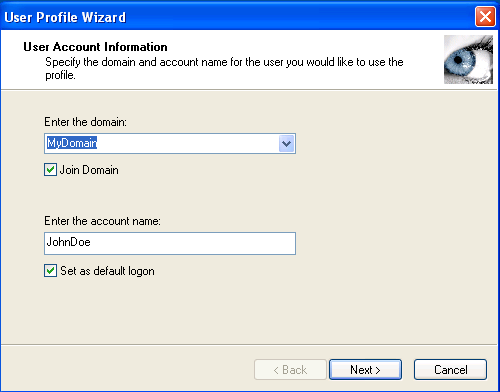
Enter the NetBIOS name of the SBS domain, check Join domain, and enter the DOMAIN user account that will be used after joining the domain.
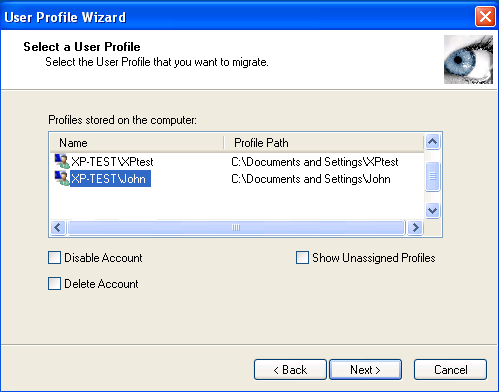
In the final configuration window highlight the current local profile to be migrated. There are other options to disable or delete the local account after completion. If you leave these unchecked the user could still use their old local logon, but it will create a new local profile when they do. Best practice would be to choose to at least disable the local account.
Clicking next will start the migration and joining the domain.
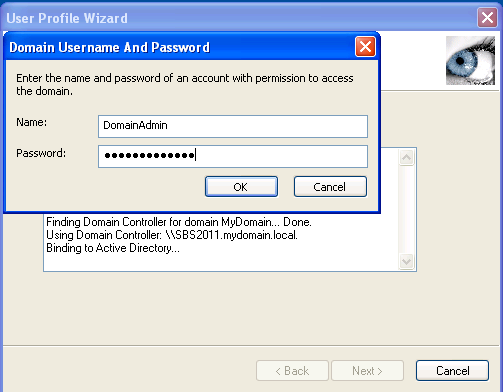
You will be prompted for domain admin credentials to allow joining the domain.
….and then the wizard completes.
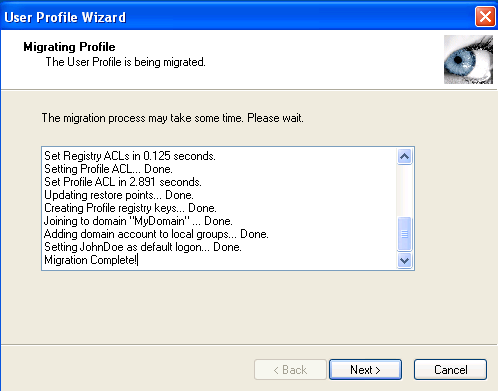
Click Finish and upon reboot the computer will be joined to the domain, the user can log in with domain credentials, and they will still have their same user profile.
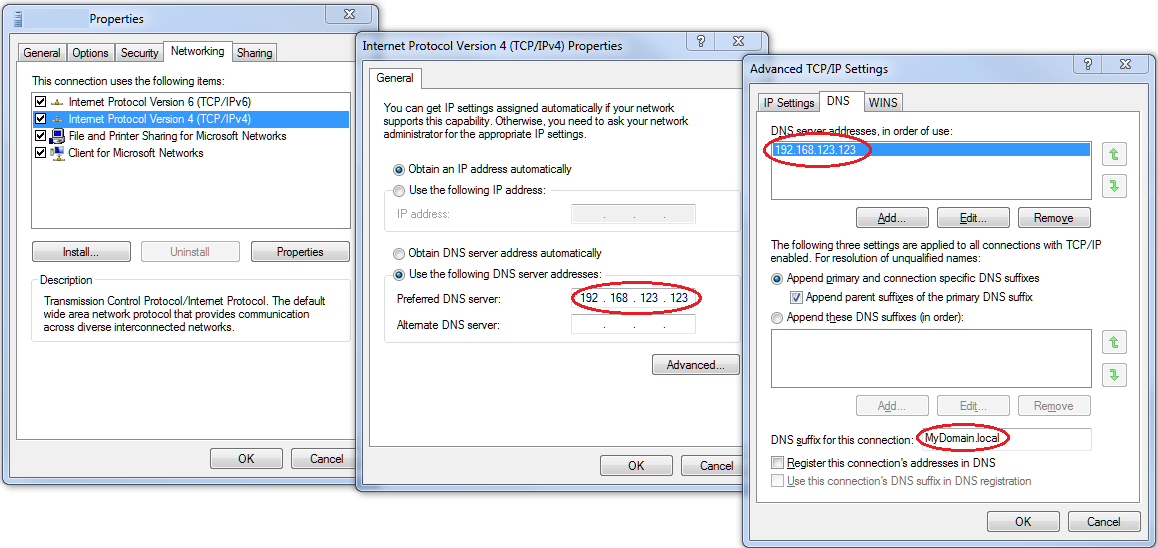


 LAN-Tech Network Management