Network disconnects can generally be diagnosed with tools like ping, tracert, and pathping, but connections that frequently and randomly disconnect can be difficult to diagnose. Often you may suspect an ISP issue, or a router to modem link, but when you contact your ISP the reply always seems to be; “it’s working now”. To be fair to the ISP, it usually is working now. You would be far more likely to get assistance if you could provide a log showing which network segment was down, for how long, and how frequently. 

Netgong, formerly IPMonitor, is a simple little tool that can be helpful in documenting disconnects. It is really nothing more than a fancy ping tool with logging, but that log can be very useful when diagnosing connections from a PC to the Internet, Virtual Private Networks, or within a LAN through various routers. Basically any connection involving multiple network segments. 

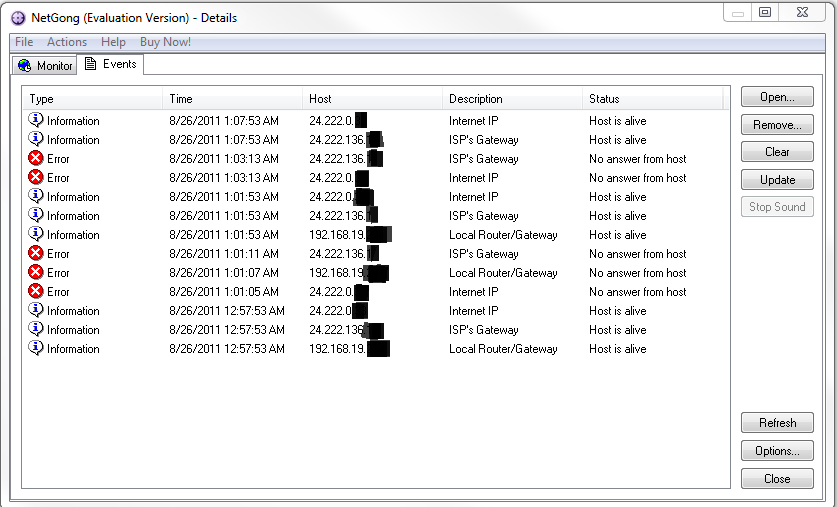
Netgong can be set up to ping multiple IPs at set time intervals of one minute or greater. Ideally you want to monitor different devices in different network segments between the client and host such as a LAN based IP like a router, an interim point like the ISP’s gateway (find from your routers status page), and an IP somewhere “in the cloud”. It does not log every ping but rather only when the connection state changes which maintains a reasonable log file size. You can see the current state in the console, or view the recorded log file in text or Html format. 

The following is a sample screen shot of the console “events” page:
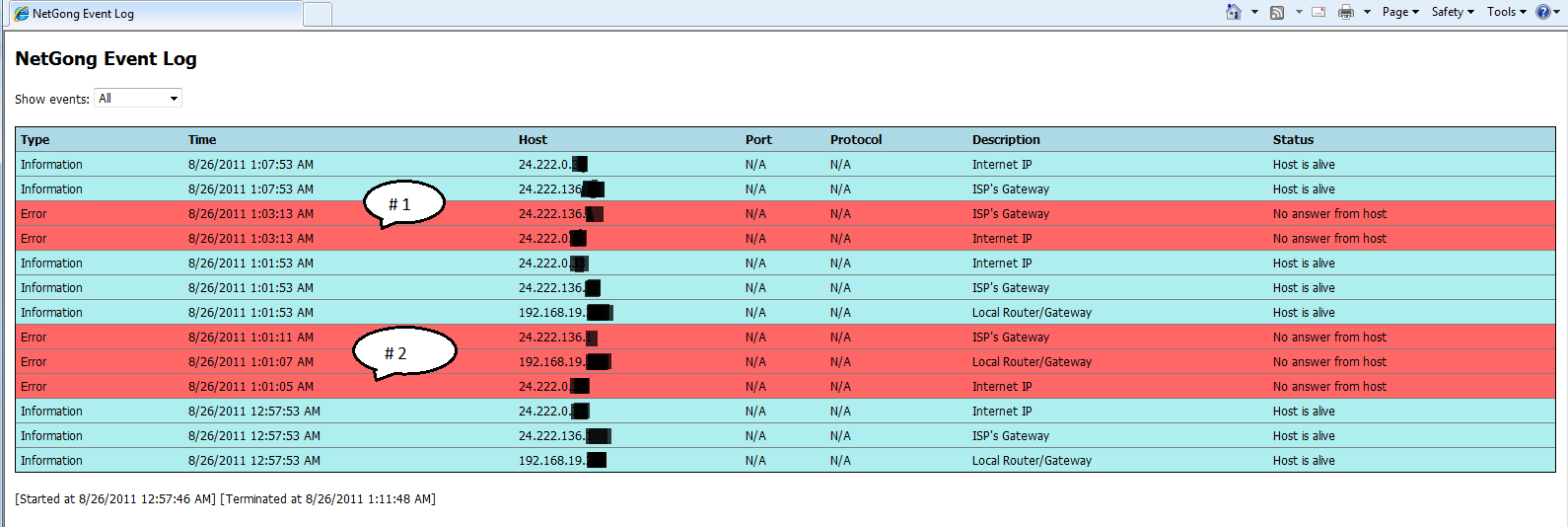
The next image is a sample Html log file.  Item #1 indicates the ISP’s gateway (modem) and Internet were unavailable but the router could be pinged, showing the connection was lost between the local router and the ISP’s modem.  Item #2 shows all 3 IP’s unavailable indicating a loss of connectivity between the client and local router.
To configure Netgong simply add the hosts as shown in the example, and set the ping “interval”

Then configure the logging options

The console will almost instantly show the current status

Netgong can also be used to trigger alerts if needed and is great for simply monitoring if numerous dveices are online. There is a trial period available for Netgong but you may find it a handy tool to have in your “toolbox”. It can be downloaded from: http://netgong.tsarfin.com/download.html

Google Malware Redirect

I ran into a troublesome problem with a web browser redirect. All services were fine and browsing worked without issue except for Google and Bing. These two sites, and a couple of others I later discovered, would redirect to either a survey web page or one displaying “404 not found nginx”.  Netstat  interestingly showed within seconds of logon about twelve port 80 ”established” connections to remote sites, but quickly switched to a consistent three: 72.246.43.80, 72.246.43.24, 207.46.206.164. This obviously indicated either tampering with DNS or a proxy server.

My first thought was the Hosts file which upon inspection revealed it had bean cleared and the attributes changed to Read Only, Hidden, and System file. I reset the attributes with  “attrib  –R  –A  –S  -H “, copied the contents of another host file which is really just comments, and ran “ipconfig /flushdns”.  (For those unaware Notepad must be opened using elevated privileges if Vista or Win7).  This made no difference whatsoever.

Googling suggested this was common with hacked routers, but this was only one PC on the network, and other suggestions were Malwarebytes, TDSSKiller, Gmer, HitMan Pro, and others. Trying several of these found nothing. I reverted back to my original thinking and discovered the Hosts file had indeed been modified. There were about 100 empty lines and then below that Malware had added about 30 malicious entries. Clearing these resolved the problem.

Such a simple hack, but easily overlooked, and surprisingly missed by the common Malware tools.

Option 1:   If you have two public IP’s from your service provider you can simply install a
switch between the router and the modem, connect as per the diagram below, and
then configure each separately as if it were two different businesses in different buildings. Router 1 and 2 can be wired or wireless.

—————————————————————————————————————————————————-

Option 2:  If you only have one public IP available from the service provider you need to use 3
routers
. Router1 would normally be a wired only, and Routers 2 and 3 can be wired or wireless depending on your needs. This configuration completely isolates the 192.168.200.0/24  network from the 192.168.300.0/24 network. No users are to be connected wired or wirelessly to Router1.

Note: If you want to connect clients to Router1 or make it wireless and allow clients to connect, keep in mind users of the .200 and .300 networks will be able to see the devices connected to Router1 (thus no privacy other than their personal firewalls), however users of Router1 will not be able to see devices on the .100 and .200 networks. They are protected because they are on the LAN (private) side of the router/firewall. 

In this case each router is configured as it would normally be except you need to adjust the IP configurations for LAN and WAN of each router as shown in the diagram below.

Note: Keep in mind if you have incoming services such as Remote desktop, you will need to port forward the appropriate ports, such as 3389, from Router1 to Router2, and then from Router2 to the appropriate
server/PC/device.

Warning: This method does not work for incoming VPN connections. Generally VPN’s will not work with multiple NAT devices (routers).

—————————————————————————————————————————————————-

Option 3:  If you want to configure a guest network, which protects the corporate network, but it is not necessary to protect the guest network from the corporate network, you can do so with only 2 routers. In this case the guests, connected to Router1, are exposed to the corporate network, similar to that of an Internet café, but the corporate network is completely protected from the guest network because it is behind the firewall/Router2. Router 1 and 2 can be wired or wireless.

In this case each router is configured as it would normally be except you need to adjust the IP configurations for LAN and WAN of each router as shown in the diagram below.

Note: Keep in mind if you have incoming services such as Remote desktop, you will need to port forward the appropriate ports, such as 3389, from Router1 to Router2, and then From Router2 to the appropriate server/PC/device. 

Warning: This method does not work for incoming VPN connections. Generally VPN’s will not work with multiple NAT devices (routers).

SBS and ProfWiz

Using the wizards has always been compulsory with SBS, in particular the wizard to connect a computer to the SBS domain;  SBS 2003 http://SBSname/connectcomputer and SBS 2008 & 2011  http://connect  The SBS 2003 wizard performed a multitude of operations to join the domain, and configure the computer and user environment. If interested in more detail see Susan Bradley’s blog:  http://msmvps.com/blogs/bradley/archive/2005/01/23/33632.aspx

However with SBS 2008 and now SBS 2011, most of this is performed by Group Policy instead of the
connectcomputer process itself. Currently the primary advantage of using the wizard is its ability to import the current user’s local profile. Though I still strongly recommend using the wizard, it will only import a local workgroup profile so you may wish to look at other options if the machine was previously a member of any domain, or if the SBS wizard for some reason does not recognize the local profile.  You could manually join the domain and then file by file copy user items such as My Documents, Desktop, Favorites, etc. but a more complete and much faster solution is to use a very simple free tool called ProfWiz (User Profile Wizard), from
ForensiT, which will also retain all user configurations.  http://www.forensit.com/downloads.html

To use Profwiz; download, unzip, and start the application. The wizard can be used to migrate a
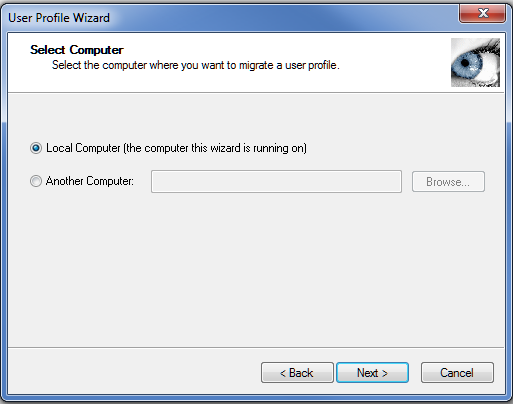
remote machine but for simplicity assume we are logged on to the machine to be joined to the domain. Select local computer and move to the next window.

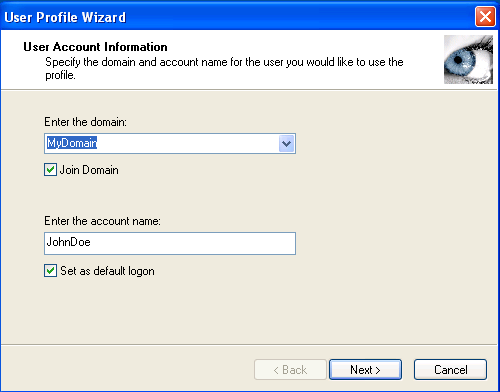
Enter the NetBIOS name of the SBS domain, check Join domain, and enter the DOMAIN user account that will be used after joining the domain.

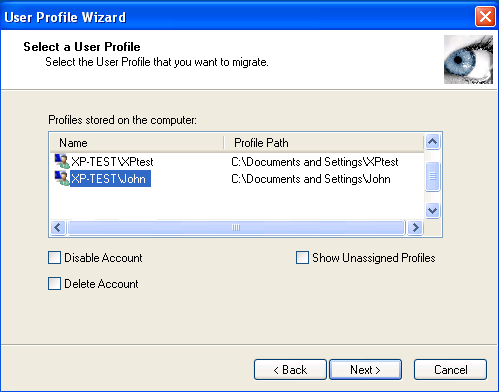
In the final configuration window highlight the current local profile to be migrated. There are other options to disable or delete the local account after completion. If you leave these unchecked the user could still use their old local logon, but it will create a new local profile when they do. Best practice would be to choose to at least disable the local account.

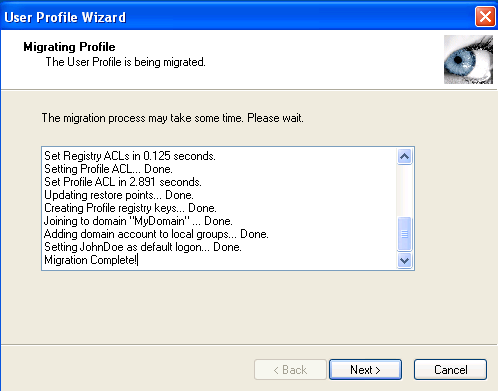
Clicking next will start the migration and joining the domain.

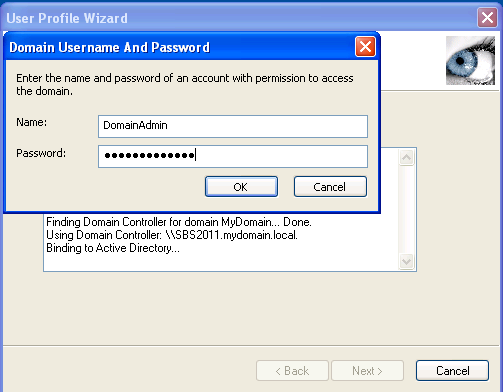
You will be prompted for domain admin credentials to allow joining the domain.

….and then the wizard completes.

Click Finish and upon reboot the computer will be joined to the domain, the user can log in with domain credentials, and they will still have their same user profile.

You can add a simple <$50 wireless router of any make to your your existing network infrastructure and configure it as an Access Point rather than a Gateway. This allows access to all resources by wired and wireless users. To do so, see the following instructions and the diagram of the physical connections below:

  • Reset the new router’s wireless WAN connection to default, i.e. un-configured
  • Assign the new router’s LAN side an IP address in the same subnet as the existing router (see diagram below).  Make sure the IP does not conflict with your existing DHCP service, whether using the router or a server as a DHCP server, and make sure it doesn’t conflict with any statically
    assigned devices, if any, such as printers
  • Disable DHCP on the new router
  • Configure the wireless connections on this router in the normal manor. If your primary router is wireless the second router will need to use a different SSID
  • Connect a cable from one of the LAN ports of the primary router to one of the LAN (not WAN) ports of the new router. If the lights do not light up indicating a connection you may need a cross-over cable (usually only necessary on older units)
  • Now all devices should have Internet access and be able to easily connect to one another to share resources.

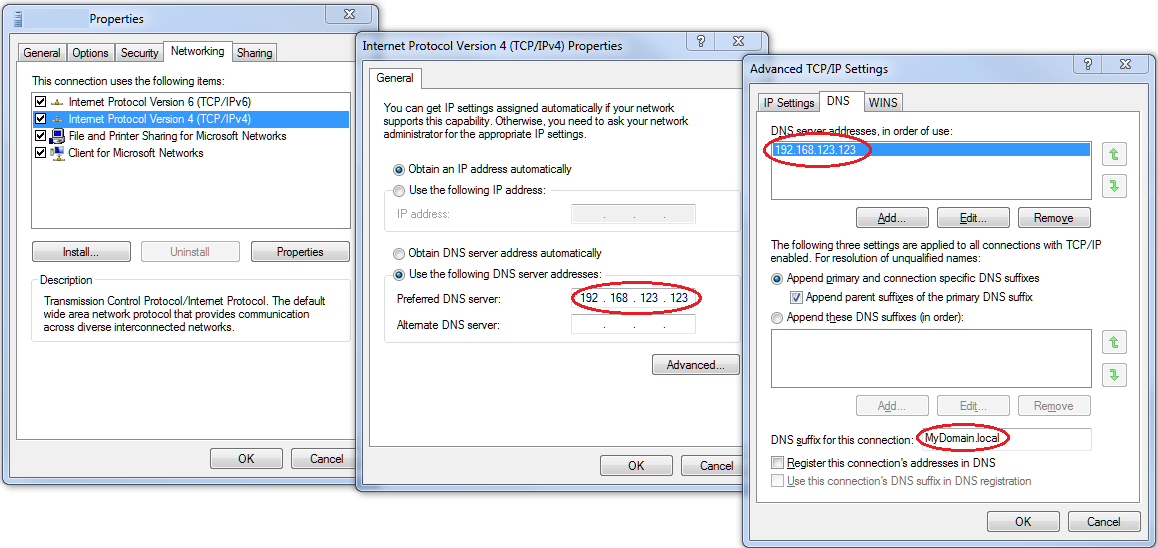
VPN clients will often not resolve names for the remote domain to which you are connected, especially if connecting from a non-domain joined machine. There are numerous options to address this such as; using IP’s rather than names, adding entries to LMHost (NetBIOS) and/or Host (DNS) files, or using WINS. However DNS is the best and only practical solution since Server 2008. Though the VPN server should be configured to ‘hand out’ these options via DHCP to VPN client’s, in some configurations such as using a RRAS Static Address Pools, this is not possible. If so, there are two simple additions to the VPN network adapter required on the client machine. Under properties for the VPN/PPP adapter, go to the DNS tab under advanced TCP/IPv4 properties:

  • Add the IP of the remote site’s  DNS server, either under “DNS server addresses, in order of use”, or on the “Internet Protocol Version 4 (TCP/IPv4) Properties” page under “Preferred DNS server”, which will automatically add it to the former.
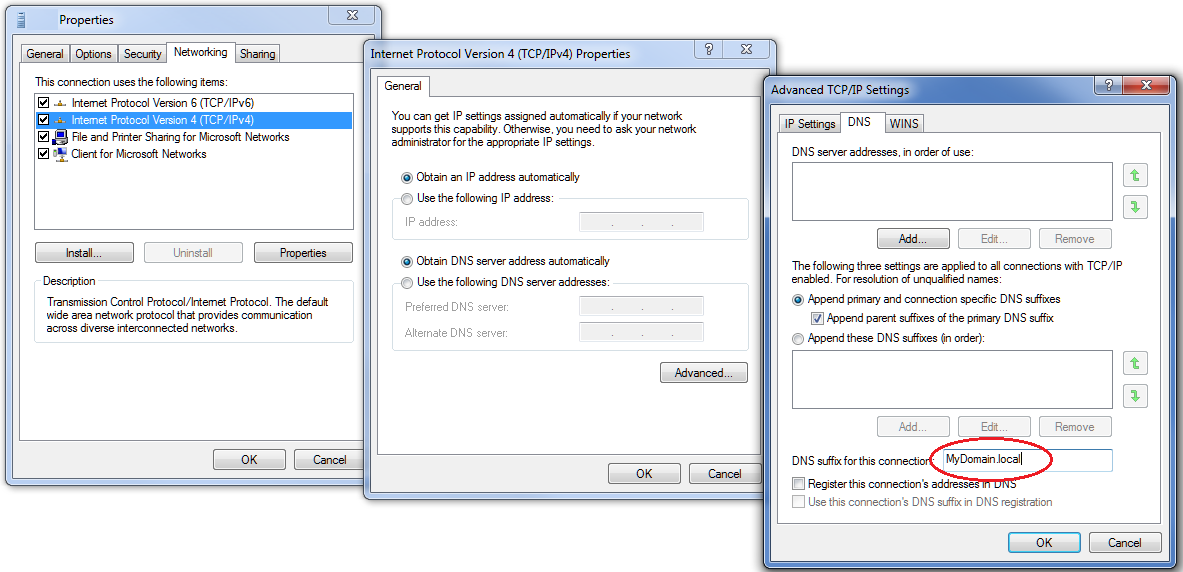
  • Add the remote site’s internal DNS suffix to the “DNS suffix for this connection” box

Should you wish to explore the other options mentioned above (IP’s, Host & LMHost files, WINS), or need use those methods for legacy systems, you can read more about these on my other blog: http://msmvps.com/blogs/robwill/archive/2008/05/10/vpn-client-name-resolution.aspx

When opening Office 2010 documents such as Word and Excel using a VPN client, you will receive a warning on the menu bar which reads; ” Protected View This file originated from an Internet location and might be unsafe. Click for more details. Enable Editing”.

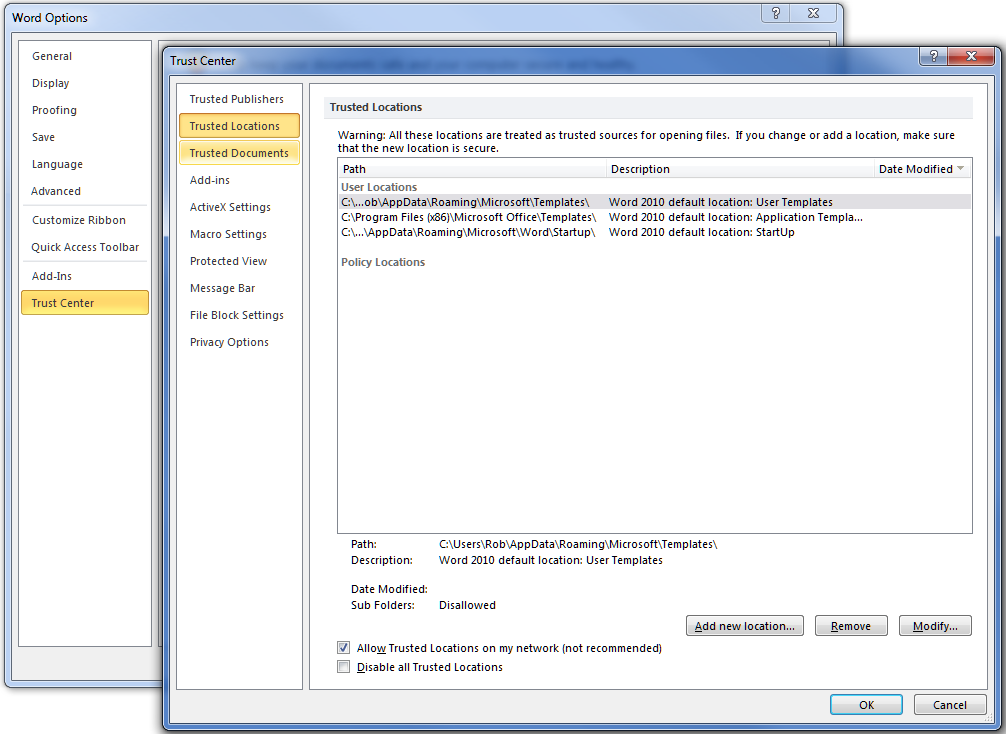
Microsoft has provided options to add trusted network locations within the trust center in Word, Excel, and other Office 2010 applications, which also requires checking “allow trusted Locations on my network”. However it  does not accept using IP addresses such as \\192.168.123.123\ShareName. You can use the UNC path but that also requires proper name resolution be set up for DNS.

The simple solution is to simply make sure DNS is configured for the remote domain by adding the DNS suffix to the VPN/PPP network adapter. This allows you to open the documents located on the remote domain without the warning error, and without configuring Trusted Locations.  To do so, view properties of the VPN virtual network adapter and under the DNS tab of the advanced TCP/IPv4 properties, add your internal remote domain, in the “DNS suffix for this connection” box, such as MyDomain.local.

Then connect to the remote resource using the UNC name such as \\ServerName\ShareName.  If the client computer is a member of the domain it will immediately connect, if not you will be prompted for credentials
the first time you connect. For the user name use the format  MyDomain\UserName. So long as the local
session is active you will not be prompted for credentials again, even if the VPN connection is disconnected and reconnected.

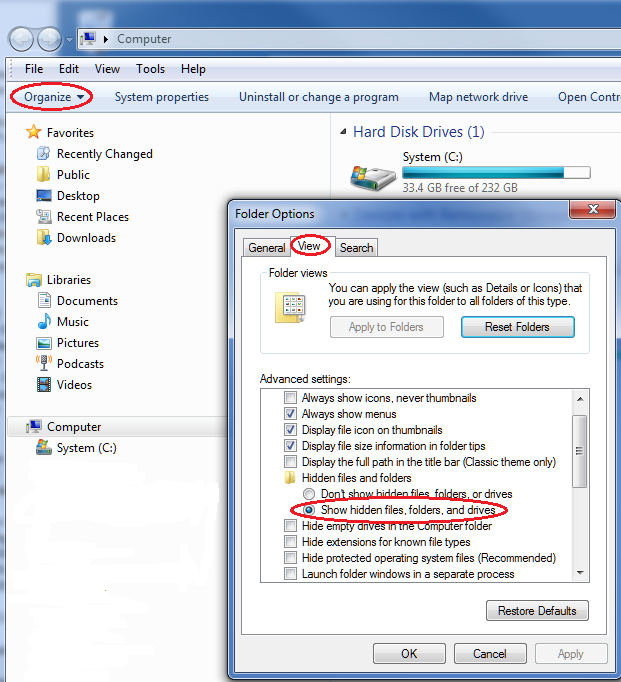
Many people are reporting Windows 7 does is not refreshing the folder view when changes are made such as  adding or renaming a file or folder.  Hitting  the F5 key forces a refresh and immediately updates the view. There are dozens of suggestions scattered about the internet to change this setting or that setting which in many cases seems to resolve the problem.  After reviewing many of these the common solution seems to be to enable or disable any folder option under Computer | Organize | Folder and Search Options | View | any setting
such as  “Show hidden files, folders, and drives” and apply. You may need to log off and back on.

This is not a proper solution to the problem, nor does it explain why the problem occurs, but it does seem to resolve the problem in a large number of cases.

It seems many have chosen to install .NET v4 updates on SBS 2003. When “Microsoft .NET Framework NGEN v4.0.30319_X86” is installed on SBS 2003 the normal state for this service is automatic but not started. This flags an “auto-started services not running” warning in the SBS daily reports. The message reads; “In normal conditions these services should be running. For details it is recommended that you review errors in the Event log related to the service”.

image

This can safely be ignored, however it can be annoying to see the message in every report. Microsoft has publish a “FixIt” and documentation to configure the warning to be ignored and thus remove it from the daily reports:  http://support.microsoft.com/kb/2290390

I recently had a user receive an error message; “Windows cannot load the user’s profile but has logged you on with the default profile for the system” when logging on t o a Windows 7 desktop.  In the Event logs there was a matching Event ID 1505 with a Source “Userenv”. This is not O/S specific error, can be caused by numerous issues, and there are variations of  the same error due to other problems.  In this particular instance it appears it may have been caused by an interrupted backup during which the profile was locked to allow backup. To verify if a similar problem and resolve, follow the steps below.

Note: the following steps involve making changes to the registry. It is possible when editing the registry to damage your system. Only follow these steps if comfortable doing so and as always, create a restore point and/or backup the registry first, as per Microsoft’s instructions http://windows.microsoft.com/en-CA/windows7/Back-up-the-registry

Open the registry editor and locate the following key: HKLM\SOFTWARE\Microsoft\WindowsNT\CurrentVersion\ProfileList\

Locate the
problematic profile. Two methods to do so are:

  1. click on each profile and view the “ProfileImagePath” key for the appropriate profile name
  2. download PSGetSid from the Microsoft link below and from a command line run:  PSGetSid username

http://technet.microsoft.com/en-us/sysinternals/bb897417

The problematic profile key will likely end with .bak such as; S-1-5-21-2037612603-1103315024-2874594402-1003.bak  and there will be a matching profile key without the .bak extension, which is the temporary/default profile.

Assuming a .bak profile exists, rename the temporary profile something like S-1-5-21-2037612603-1103315024-2874594402-1003.tmp, and remove the .bak extension from the other.

Within the user’s profile key also check the sub-key “State”.  If this is set to something other than 0
change it to 0.

Reboot the system.
Upon reboot Windows should select and use the proper user profile

Other potential solutions for Event ID 1505 and Source  UserEnv:

http://www.eventid.net/display.asp?eventid=1505&eventno=2504&source=Userenv&phase=1