Archive for the ‘Uncategorized’ Category

Java – page cannot be displayed

It seems the Java download site has been down for 24 hours.  Many internet posts by folk receiving “This page can’t be displayed” after clicking the download button.  The “See all Java downloads” page results in the same message.

A site test reveals it is down as well:  http://downforeveryoneorjustme.com/javadl.sun.com

I did find the Oracle site worked without any problems: http://www.oracle.com/technetwork/java/javase/downloads/jre7-downloads-1880261.html

WSUSLogCleaner failure 2147942402

There are many articles regarding how to locate and regain space consumed by many SBS services and log files, including one of my own; “Missing SBS 2008/2011 Drive Space“.   One of the most common issues is the WSUS admin logs located in C:\inetpub\logs\LogFiles\W3SVC_____  which can consume huge amounts of drive space.  With SBS 2011 and SBS 2008 (2008 if updates are applied) this particular folder should be looked after by a scheduled task which clears out log files older than 100 days.  In a few cases you may want to edit this and reduce it to a shorter period of time, as very nicely explained by Ronny Pot.

I was asked to look at an SBS server today which had ‘lost’ most of its system partition available space.  It was not really lost as it was found in a C:\inetpub\logs\LogFiles\W3SVC_____  folder.  However, this should have been looked after by the aforementioned scheduled task.  Upon review of the task history it seems the task’s script has been failing for several months resulting in “Action start failed” and “Action failed to start” messages with an Error Value of  2147942402.

Note: the task is located under Administrative Tools |  Task Scheduler | Task Scheduler Library | Microsoft | Windows |  Windows Small Business Server 20xx Standard |  WSUSLog Cleaner

image

In this case the  time frame had been reduced to 30 days, but noticed when saving the changes, if not paying attention, the “arguments” for the script can get modified by Windows.  The changes can be made under the Actions tab as per the image below:

image

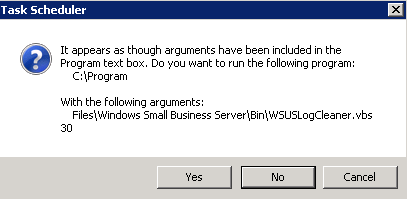
However, in some but not all cases, when clicking OK to save  you may get a popup as below:

image

Note the text.  If you select yes it changes the Program/Script field to C:\Program, and the Argument field to Files\Windows Small Business Server\Bin\WSUSLogCleaner.vbs 30.  The entire path needs to be in the Program/Scripts field and only 30 in the argument.   It seems someone in a hurry clicked yes, as one would assume when approving changes, and did not double check after the fact.  It seems the popup only occurs if there are no existing quotes around  “C:\Program,Files\Windows Small Business Server\Bin\WSUSLogCleaner.vbs” in the Program/Scripts field.

RASdial (automate VPN connections)

In the past I wrote a couple of articles explaining how to connect to a business network using a Windows VPN prior to logon, so that domain authentication takes place and group policies and logon scripts are applied.  See:  Win 7 and earlier and Win 8

As pointed out in the articles, this only works for domain joined computers.  It has been brought to my attention that some folks would like to automate the VPN connection process on non domain joined machines.   .

Automate VPN connection – AFTER logon:

Basically you need a one line batch file and add it to the startup folder, but in detail:

  • Open a text editor such as Notepad and enter the lines below, substituting the name of your VPN connection for Acme, and inserting your user name and password

rem   Batch file to establish a VPN connection
rasdial  acme  username  password
exit

    • Substituting  *  (an asterisk)  for the password, will prompt for the password during the connection.  This is more secure as the password is stored in clear text in the batch file.
    • Save the file to a location such as the desktop, but when doing so save using a .bat extension and enclose the name in quotes such as;  “VPN_Connect.bat”.  Notepad will add a txt extension if you do not use the quotes.
    • Saving to the desktop allows the user to double click on the file to establish the VPN connection.
    • If you want to automate the connection add the batch file to the startup folder and it will run after logon to the PC has completed.  The startup folder can be found in the following locations:

XP: Documents and Settings\All Users\Start Menu\ Programs\Startup
Win7:  C:\ProgramData\Microsoft\Windows\Start Menu\Programs\StartUp

Introduction to Microsoft Virtualization – Halifax event

For those following my blog in Atlantic Canada, you may be interested in an upcoming local event:

An Introduction to Microsoft Virtualization and the Private Cloud with System Center 2012 and Hyper-V

Event Details

Spend an evening with Mitch Garvis, Virtual Technology Evangelist with Microsoft Canada, getting to know the Microsoft server virtualization story.  Learn not only about Hyper-V, but also the management and Private Cloud scenarios that System Center 2012 SP1 brings to the table,  Learn how to build your cloud, and also how Microsoft sets itself apart from (and ahead of) the competition in the Virtualization world!

This informal event will consist almost entirely of discussions and demos, with only a smattering of PowerPoint and fluff.  The demos will be entirely unscripted, so you will get to ask what you want to see… and Mitch will do it!

The event is to be held Tuesday, June 11, 2013 from 5:30 PM to 9:00 PM, at the Nova Scotia Community College Institute of IT Campus, 5685 Leeds St., Halifax, NS

To register:  http://www.eventbrite.com/event/6998359281

Add 2012 RDS server to SBS 2008/2011

Server 2012 has a new Remote Desktop Services (RDS) feature set which is a great addition to any network.  A common reason for wanting to implement 2012 RDS is for the Remote FX feature, RDP on steroids, which provides substantially better performance when remotely running graphic intensive applications, but there are other Remote FX bonus elements as well, in addition to other 2012 RDS features.  Remote FX was included with Server 2008 R2, but the pre 2012 hardware requirements were more restrictive, and configuration was a little more involved.

Remote Desktop Services is installed a little differently than it’s predecessor Terminal Services.  Most current instruction sets advise you to use the  “Remote Desktop Services installation” wizard, seen in the third image below.  However this automatically installs related services that conflict with those already installed on SBS, such as the Remote Desktop Gateway Service.  Therefore you need to install using the “Role Based or feature-based installation” method and manually select the features to be installed.

Installation:

To add a Server 2012, running the RDS role, the steps are as follows.

  • Install the basic Server 2012 operating system.  This can be on either a physical or virtual machine
  • Next join the computer to the domain. Where this is an SBS domain you want to do this for obvious reasons, but just to note; Server 2012 RDS does require it be domain joined.  To do so open the Server Manager Dashboard, click on “local server”, in the window to the right click on “Workgroup”, in the resulting window click “Change” and then select “Domain” and enter your internal domain name, such as MyDomain.local

image

  • Once completed and you have reboot the server, I recommend installing all Windows updates.
  • You can now begin the RDS installation.  Make sure you have first logged in with a Domain Admin account and not a local administrator account.
  • First from the Server Manager Dashboard select “Add roles and features”

image

  • Next, as mentioned earlier, choose “Role Based or feature-based installation”

image

  • Select the local server

image

  • Select the “Remote Desktop Service” role and click next

image

  • Do not select anything in the Features window, click next

image

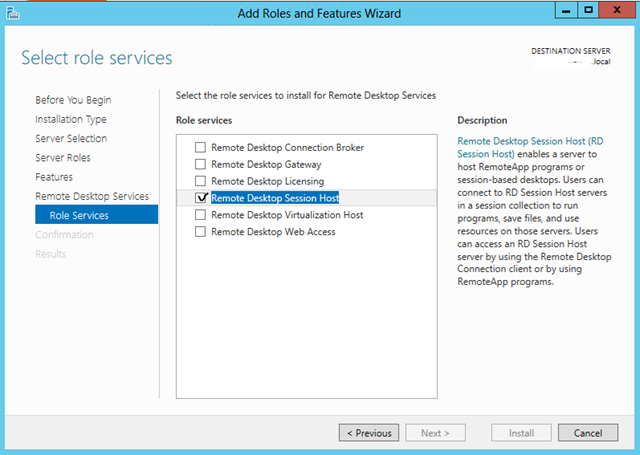
  • There will be a pop-up window where you can select the RDS features you wish to install.  Select only the “Remote Desktop Session Host” option.  You may also want to add the “Remote Desktop Licensing” service, though you can do so at a another time.  The Licensing service will be discussed a little later on.  Click next

image

  • Click Add Features.

image

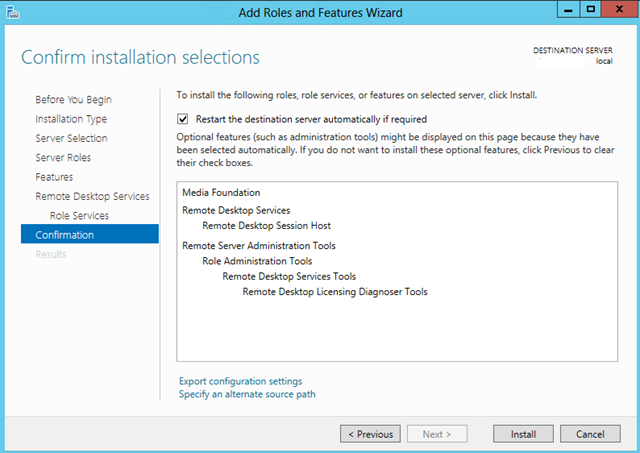
  • Select restart the server automatically, and choose install.

image

  • After a reboot the RDS service should be installed.

Tweak and configure access

There are some minor configurations to be done as well.

  • Computer OU: Firstly, on the SBS, in Active Directory Users and Computers (ADUC) you should move the new server from the Computer OU to the MyBusiness\Computers\SBSServers OU.  This will allow it to show up in the Windows SBS Console under the Computers tab (it may take a few minutes to show up).  I usually create a sub-OU for Terminal Servers when applying group policies, but this is by no means necessary.

image

  • User Group: Users must be granted the right to “log on though Remote Desktop Services”.  To do so they need to be added to the local Remote Desktop Users” group on the RDS server, not the SBS.  It would not be convenient to manage this from the RDS server, adding one user at a time so it is best in ADUC on the SBS to add a new Security Group named something like “Terminal Server Users”.  Then on the RDS server, under Administrative Tools | Computer Management | Local Users and Groups | Groups, add this domain group to the local Remote Desktop Users group.  This way from the SBS you can centrally manage by simply adding users to your new Terminal servers user group.

image

  • RWW / RWA: You will also want to make the new RDS server available through Remote Web workplace / Remote Web Access.  If added to the proper OU above it will be by default with SBS 2008, however with SBS 2011 you need to add a registry key.  The following link explains: https://blog.lan-tech.ca/2011/12/12/add-a-terminal-server-to-the-sbs-2011-rwa-page/   Note, that this does not apply to Server Essentials.
  • Certificate: Accessing the RDS server through RWA or using the RDP client and RD Gateway requires an SSL certificate.  Where you are adding this to an SBS domain, access will use your existing certificate.  Should you need to add a certificate, please see: https://blog.lan-tech.ca/2012/05/17/sbs-2008-2011-adding-an-ssl-certificate/
  • Router Configuration:  Traditionally Terminal Services required forwarding port 3389 from the router to the Terminal server’s IP.  SBS makes use of the Remote Desktop Gateway service and allows you to connect directly to the RDS server more securely using SSL and port 443.  This does require that port 443 be forwarded to the SBS, but presumably this is already configured if you are using OWA, RWA, and/or Sharepoint.
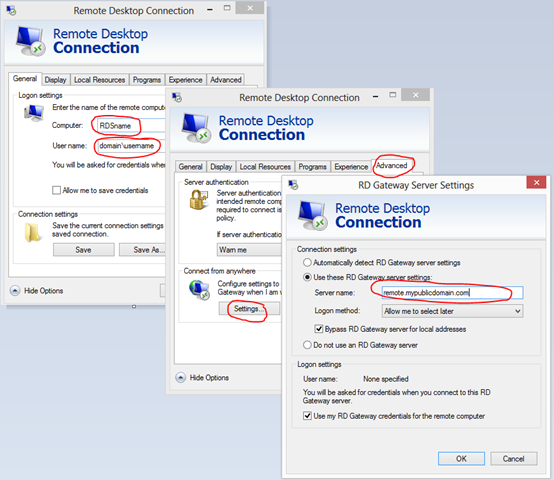
  • RDP client: To access using the RDP client simply enter the RDS server’s name in the “Computer” box, and your SBS site’s FQDN in the RD Gateway server name box, under advanced | settings.
  • image

Licensing

  • RDS also requires a CAL (Client Access License) be assigned to each device or user in order to use Remote Desktop Services.  This is managed with the Remote Desktop Licensing service mentioned earlier.  There is a 120 day grace period before you are required to install the Licensing service, purchase, and add your CAL’s.  If you exceed the 120 day grace period, users will be blocked from accessing the RDS server.
  • The service can be installed on an another similar vintage server in the domain, but for simplicity the following steps installs on the same server.  If not already done, It is installed by running the Add Roles wizard in Server Manager, in the Add Roles window, expand Remote Desktop Services, select the Remote Desktop Licensing service, then complete the wizard.
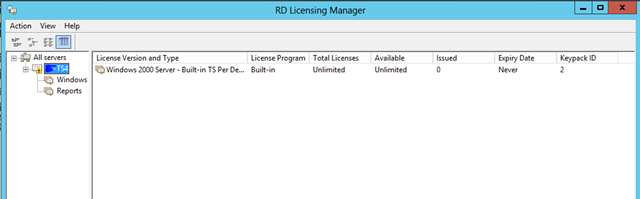
  • Open the RD Licensing manager, located under Administrative Tools | Remote Desktop services.  Expand All servers, right click on your server, choose Activate Server, and complete the required company information fields.  The last step will let you add your CAL’s now, but I recommend waiting until completing your configuration.
  • image
  • Right click on the server and choose “Review Configuration”.  You may need to add the licensing server to the appropriate group in ADUC.  You can do so easily by clicking the Add to Group button.
  • image
  • Licensing mode:  CAL’s can be purchased as Per Device or Per User.  The latter tends to be more common.  A single Per User CAL allows one user to connect from as many devices as they like; office PC, home PC, hotel lobby PC, laptop, etc.  A per Device CAL allows many users to connect from only one device.  The latter is generally only used in situations similar to a call center.  Though you can mix User and Device CAL’s it is best to pick one or the other. To set the licensing mode, open the local security policy by entering  gpedit.msc  in the Run box.  Locate the following policy, enable, and set the licensing mode.    Computer Configuration | Administrative Templates | Windows Components | Remote Desktop Services | Remote Desktop Session Host | Licensing | Set the Remote Desktop licensing mode.

image

  • If you run the RD Licensing Diagnoser under Administrative Tools | Remote Desktop services, and it states a licensing server has not been specified, you may also have to manually enter the server’s name in the local security policy . It is located in the same place as the policy in the last step and named “Use the specified Remote Desktop license servers”.
  • Server CAL’s: The discussion so far relates to RDS CAL’s but it should be noted that any user accessing any server on the network also requires Server CAL’s.  Accessing the SBS and any other server of the same version year or older is covered by SBS CAL’s.  Anyone accessing the new 2012 Server will also need Server 2012 CA’s in addition to SBS CAL’s.

Firewall

  • You may also have to edit the Windows firewall.  Exceptions should automatically be created but on occasion they are not.  You can verify and edit by using Control Panel |  Windows Firewall | Allow an app or feature through the windows Firewall, and compare to the following screen shot.  It seems to be the Remote Desktop Services Public setting that is not always enabled.

image

Your RDS server should now be fully functional.

Mac and Tosh

I was amused the other day to discover the two gophers that many of us remember from our childhood cartoons were named Mac ‘n Tosh.  The cartoon was first created by animator Robert Clampett in 1947 for the short film “The Goofy Gophers“,  thirty-seven years before the release of the first Macintosh computer.


Quickbooks Only xxMB of memory

I tried installing Intuit’s Quickbooks 2013 today on a Windows 2012 server and received a message advising; “your system has only xxxMB of memory. Quickbooks requires at least 1GB of memory.”  

image

There was most definitely lots of RAM, so fortunately a quick Google turned up the following Intuit site which indicated Quickbooks does not always detect the proper amount of RAM available on 64 bit systems, and proposed the solution below:

http://support.quickbooks.intuit.com/support/articles/SLN41834

However I will elaborate slightly…

Rather than install from a CD copy the installation files to a location on the computer, then locate the following the file;  …..\QBooks\Framework.xml   For safety sake make a copy of this file, then review the properties of the file, and remove the read only attribute, if present.

image

Next open Framework.xml with Notepad and locate the memory requirements under <MinRequirements> within the following text.

image

Change the specification from 1000MB to 0MB, save the file, and re-try your installation.

Help Microsoft Focus on Customers and Partners

We often work with Anthony, Pierre and Mitch, the evangelists from the IT Pro team at Microsoft Canada. They asked us to share this important message with you.

The team at Microsoft Canada is focused on ensuring that they help set you up for success by providing the information and tools you need in order to be get the most out of Microsoft based solutions, at home and at work.

Twice a year, Microsoft sends out the Global Relationship Study (GRS for short); it’s a survey that Microsoft uses to collect your feedback and help inform their planning. If you receive emails from Microsoft, subscribe to their newsletters‚ or you’ve attended our any of their events you may receive the survey.

The important details:

  • Timing – March 4th to April 12th 2013
  • Sent From – “Microsoft Feedback”
  • Email Alias – “feedback@e–mail.microsoft.com
  • Subject Line – “Help Microsoft Focus on Customers and Partners”

Many of you already read the Microsoft Canada IT Pro team’s blogs‚ connect with them on LinkedIn and have attended their events in the last year or so. So you may already know that you’re their top priority. So they want to hear from you.

Pierre, Anthony and Mitch use the GRS results to shape what they do, how they do it and if it’s resonating with you. Tell them what you need to be the “go-to” guy (or gal). Tell them what you need to grow your career. They want you to be completely satisfied with Microsoft Canada.

This year, Pierre, Anthony and Mitch have delivered 30 IT Camps and counting across the country. Giving you the opportunity to get hands on and learn how to get the most value for your organization. They have a few more events planned this year, so keep an eye on their plancast feed for events near you. Based on your feedback, topics they’re planning to cover will include:

· Windows 8

· Windows Server 2012

· System Center 2012

· Private Cloud

· BYOD – Management and Security

That’s not all. They’ve heard you loud and clear so in addition to hands on events, they’re also delivering more technical content online via the IT Pro Connection Blog. Windows 8 continues to be a big area of focus for them. They covered a lot of great content at launch and they’ve complimented that with new content like:

· Security Concepts

· Enterprise Focused Content

· Windows 8 and System Center 2012 Integration

In addition to this, there are some valuable online resources you can use like Microsoft Virtual Academy, Microsoft’s no-cost online training portal. Or software evaluations (free trials) on TechNet that allow you to build your own labs to try out what you’ve learned.

Regardless of how you engage with the team at Microsoft Canada‚ you’d probably agree that they hear you. They’d also encourage you to continue to provide that great feedback. They thrive on it‚ they relish it‚ they wallow in it and most importantly of all‚ they action it. So please keep connecting with them and keep it coming! Pierre, Anthony and Mitch are listening.

Resources, Tools and Training

· Tim Horton’s Gift Card Contest – We’re giving away 350 Tim Horton’s gift cards, all you have to do to qualify is download a free qualifying software evaluation (trial). Download all three for more chances to win, but hurry, the contest closes soon.*

· Windows 8 Resource Guide Download a printable, one-page guide to the top resources that will help you explore, plan for, deploy, manage, and support Windows 8 as part of your IT infrastructure.

· Windows Server 2012 Evaluation – Get hands on with Windows Server 2012 and explore the scale and performance possibilities for your server virtualization.

· Microsoft Support – Get help with products‚ specific errors‚ virus detection and removal and more.

· Microsoft Licensing -Visit the Volume Licensing Portal today to ask questions about volume licensing‚ get a quote‚ activate a product or find the right program for your organization. 

*No purchase necessary. Contest open to residents of Canada, excluding Quebec. Contest closes April 11, 2013 at 11:59:59 p.m. ET. Three-Hundred-and-Fifty (350) prizes are available to be won: (i) $10 CDN Tim Horton’s gift card.  Skill-testing question required. Odds of winning depend on the number of eligible entries. For full rules, including entry, eligibility requirements and complete prize description, review the full terms and Conditions.

Remote Site Monitoring Alert

On occasion there may be a need to be notified if a remote server is off-line due to an Internet outage, router issue, power outage, or server down.  There are many excellent services that will monitor and alert you, but most are intended for multi-site and/or multi-server configurations and require a monthly fee.  You might just want to monitor a single site and be notified if it fails.

I had this situation and therefore decided to write a simple script to accomplish the task.  I am not a programmer so I am sure this could be improved upon, but it works.  Feel free to add suggestions or alternatives in the comments section, I am sure we would all be interested.

Basically there is a batch file that makes use of a free little utility called http-ping by www.CoreTechnologies.com which runs every ‘X’ minutes using a scheduled task and verifies if the site is accessible.  If not, a simple VBS script sends an e-mail alert.

Http-ping does need to be able to access an http or https server, which could be a web server, Exchange (OWA), a router management page, or one of many other possibilities.

To configure simply create a folder such as C:\SiteMonitor and place in it; the batch and VBS script below, and http-ping .  You will have to download http-ping from http://www.coretechnologies.com/products/http-ping/

Batch file:

@echo off
:: Enter the directory location (e.g. C:\SiteMonitor\)
Set Directory=C:\SiteMonitor
:: Enter the address of the site to ping (e.e. 123.123.123.123/Exchange:443 or server.domain.com/Exchange:443)
:: (The first example should be used if you need to know if the public IP has changed)
Set Site=123.123.123.123/Exchange:443
::
If Exist %Directory%\PingResult.txt Del %Directory%\PingResult.txt
%Directory%\http-ping.exe %Site% >> %Directory%\PingResult.txt
findstr /M "Reply" %Directory%\PingResult.txt
If %errorlevel%==1 GoTo EMAIL
GoTo END
:EMAIL
cscript %Directory%\SendAlert.vbs
:END

VBS script:

' VBS script to send an alert via e-mail
Dim SMTPserver, Sender, Recipient, Subject
' Set client specific variables
SMTPserver = "smtp.ISPname.abc"
Sender = "alert@SomeDomain.abc"
Recipient = "me@MyDomain.abc"
Subject = "Alert off-line"
Message = "An automated script has determined the server at is currently off-line."
' Send E-mail
       set objMessage = CreateObject("CDO.Message")
       objMessage.Subject = Subject
       objMessage.Sender = Sender
       objMessage.To = Recipient
       objMessage.TextBody = Message
       objMessage.Configuration.Fields("http://schemas.microsoft.com/cdo/configuration/smtpserver") = SMTPserver
       objMessage.Configuration.Fields("http://schemas.microsoft.com/cdo/configuration/sendusing") = 2
       objMessage.Configuration.Fields.Update
       objMessage.Send
       set objMessage = Nothing

Customize scripts:

When complete save the batch file as something similar to SiteMonitor.bat.  In the batch file you need to set two variables; the “Directory” where you saved the files, and the “Site” htpp-ping is to test.  The site can be a FQDN or an IP, and needs to point to a server  or router.  In some cases you need to add the port number. Some examples include:

http://www.mysite.abc
remote.domain.abc:443
router1.DDNSservice.abc:8080  (router)
remote.domain.abc/OWA   (Exchange port 80)
123.123.123.123/Exchange:443

In my case the site I wanted to monitor had a dynamic IP.  I needed to be alerted if the public IP changed due to a service used by the site that would not work with a DDNS service.  Therefore I used the last example above.

The VBS script needs to be saved as SendAlert.vbs or change the name used within the batch file to match.  In the VBS script you need to set the following 5 variables as per the examples in the script; SMTPserver, Sender, Recipient, Subject, Message.

Schedule:

Finally, you need to schedule a task to run the batch file every half hour (or your time frame).   The following is an example as to how to do so with Vista/Server 2008 and newer.  Similar can be done under Control Panel, Scheduled Task in XP/Server 2003 and earlier.

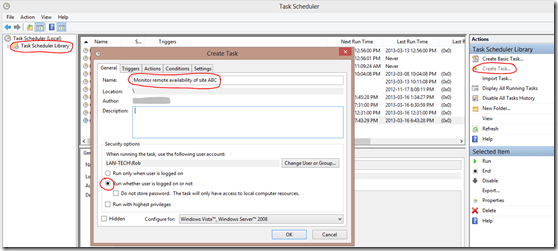
Open the Task scheduler under Control Panel / Administrative tools, click on Task Schedule Library, and on the right select Create a Basic Task.  Assign the task a name and you can enter a description if you like.  Make sure you also select “Run whether the user is logged on or not”.
image

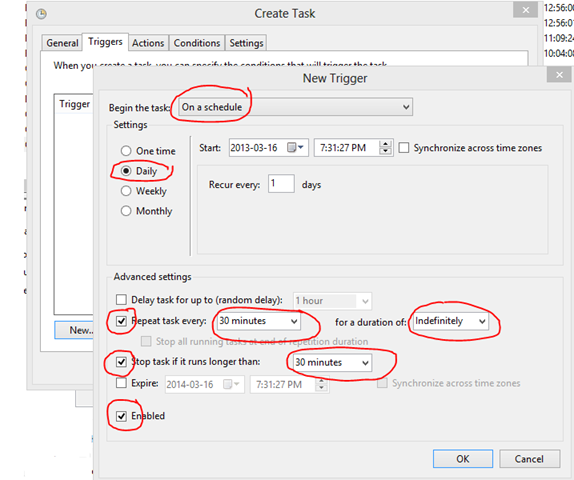
Configure the “Trigger” options as per the following image:

image

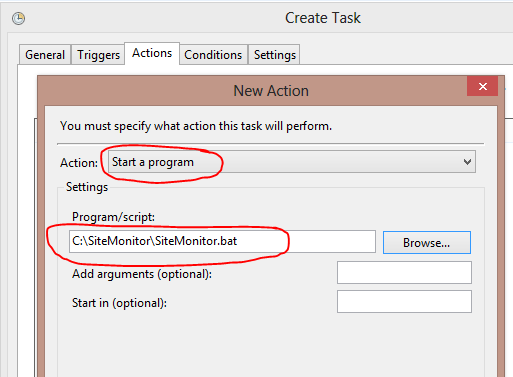
In the “Actions” pane choose to start a program, and point to your batch file:

image

You can then complete the wizard accepting defaults.  Your monitoring service should now be complete.  If you want to test, change the “Site” variable in the batch file to a non existent IP or FQDN, and you should get an alert the next time it runs.  Note if troubleshooting the results of the last http-ping are recorder in the directory you created as a text file named PingResult.txt

Convert SBS 2003 to a virtual server

I recently needed to virtualize an SBS 2003, that is to say convert it from a physical machine to a virtual machine on a Hyper-V host.  I have done SBS conversions to VMware hosts in the past with with little or no problem, but converting to Hyper-V, my preference , was a little more involved.  I first Googled the task and found many suggestions which based on the various articles and instinct, using Microsoft’s disk2vhd was the simplest solution.  I was wrong.  The first run on a test machine using a single disk worked well but did require several ‘tweaks’, and then when I added the data drives, which may have been unrelated, I ran into many problems, especially when I tried installing the Integration Services components.  Though disk2vhd has worked well for me with other operating systems in the past, for some reason the HAL in this case caused problems.

I am not suggesting the following is the best method, or even a good method, but perhaps it will be of some help to those attempting the same task.   I have posted the steps that worked flawlessly for me on a test server, trail run, and final move.  All of the following was done remotely.

Note: The process will require re-activation of the SBS license.  If SBS is an OEM version; it is a licensing violation to install on different hardware or virtualize, the activation will probably fail, and if it does Microsoft will not assist.

  • If working remotely you will need to maintain access at least to the Hyper-V host throughout entire process.  You can use RDP, VPN, LogMeIn, or any of a dozen other alternatives, but make sure it is in place and working, your existing RWW is about to stop functioning until complete.
  • Clean up the initial machine:  Remove the second/WAN NIC if present (not the LAN NIC) and run the CEICW (Configure e-mail and Internet Connection Wizard). Note that making network changes remotely can be risky, you can loose access.
  • Run the SBS 2003 Best Practices Analyzer and resolve any problems. 
  • Presumably you do not want e-mail delivered to the server, or remote users accessing the server,  during the move, so log onto the router and disable port forwarding on the necessary SBS ports 25, 443, 444, 1723 and 4125, for now.
  • Download and run the free VMware converter tool.   When running the tool make sure you right click on the program icon and choose “run as administrator”, if not you will receive an error; “A general system error occurred: Crypto Exception: error:02001005:system library:fopen:Input/ output error:unable to load C:\ProgramData\VMware\VMware vCenter Converter Standalone\ssl\rui.crt”. 

image

  • Clicking Next will deploy the conversion agent

image 

  • In the “Destination System” window choose destination type as “VMware Workstation or other VMware virtual machine” and “VMware Server 2.x”.  The destination file location path must be to a network share, even if on the local machine.  I also found if running VMware Converter on the Hyper-V server, due to limited name resolution services running and not being a domain member, using the IP in conjunction with the user name worked best, such as 192.168.123.123\UserName, even if it is the local machine.  This was a simple workaround for the common credential error received by many; “The operation could not be completed for username due to incorrect user credentials”

image

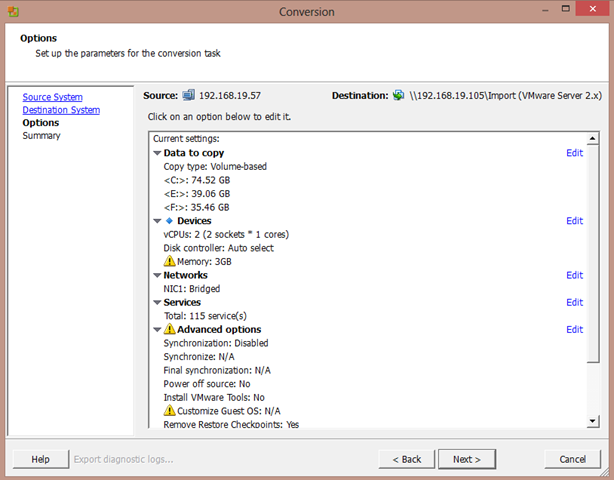
  • Review the specifications for the resulting VM as to how much RAM is to be assigned (SBS 2003 is limited to 4GB), number of processors, and if you want to change/increase disk sizes.

image

image

  • In my experience the tool took less than 3 hours to convert about 100GB of files on 2 drives using a 10/100 mbps network, a relatively small site.
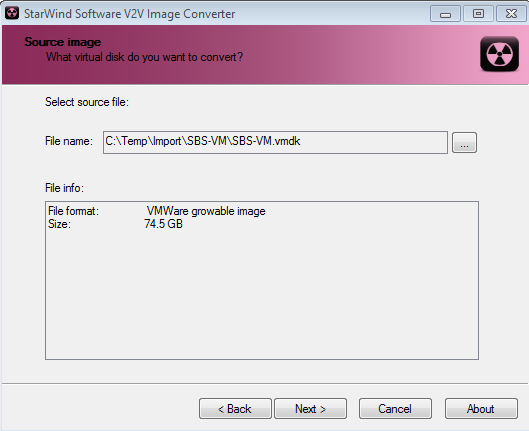
  • Next download and run the Starwind’s free V2V conversion tool . This will allow you to convert the vdmk file, or files, created by the VMware converter to vhd files which will be compatible with Hyper-V.  If you have more than one vdmk, you will need to convert one at a time. You only need the vdmk’s, the other config file/s created by the VMware converter are not necessary.

image 

  • When running the tool, point to the vdmk file and choose to convert to “MS Virtual PC” format.  You can also choose whether the resulting vhd (Hyper-V disk) is to be a “pre-allocated” or “growable” image.  These are Starwind’s terms for a “fixed size” or “dynamically expanding” disk.  The former, “fixed” is recommended on domain controllers, but not a requirement on recent Hyper-V servers.

image

  • I found the V2V conversion took about 60-70% as long as the previous P2V step. Once completed if you need the drive space you can delete the .vdmk and other files created by the VMware Converter tool.
  • Using the Hyper-V management console you can now create a new VM using the wizard.  When doing so  presumably you want the maximum RAM, so set to 4000 MB, leave the network adapter as “not connected”, under “Connect Virtual Hard Disk” choose “Use an existing virtual hard disk” and select your system disk (disk containing the C: partition) created by the P2V/V2V steps above, under “Installation Options” select “Install an operating system later”, and click finish.
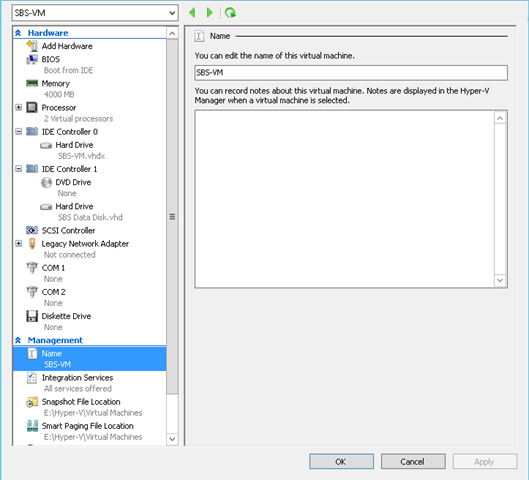
  • Next, open the settings console for the newly created VM.  It will have added a network adapter, remove it and add a legacy network adapter but again if the existing SBS is still powered up on the same network segment choose “not connected”, if you have multiple physical or virtual processors (cores) adjust the number of processors, if you have multiple disks add the others, and review the remaining settings.

image

  • You are ready to start up the new VM.  Boot the Virtual SBS and log in.  Ignore any offers to discover and add new hardware.  You will be a notice you have 3 days to activate.  I recommend waiting until complete before doing so.  As mentioned do not install any hardware, but you may be prompted at different stages to reboot which you should do.  Note that you will have no mouse for this or the next 4 steps.
  • Manually configure the server’s NIC with the LAN IP, Gateway, and DNS pointing to its LAN NIC IP.  You can keep the same IP as the previous server if using the steps I have outlined.
  • Run the “Change Server IP Wizard” located under Server Management / Internet and E-mail, and keep the same IP as you just set.  The wizard will likely tell you it failed and you should run again due to inaccessibility to the LAN.  You can ignore.
  • Run the CEICW (Configure E-mail and Internet Connection Wizard) angin located under Server Management / Internet and E-mail, and make no changes, just accept the existing configurations.
  • Install the Hyper-V Integration Services by clicking “Insert Integration services Start Up Disk” under “Action” on the menu bar.  Allow this to complete and reboot as requested.  This can take a little while to run sometimes.
  • After reboot you may want to do some tweaking such as changing display size settings. 
  • You may also receive a message after rebooting; “At least one service or driver failed during system startup”.  Though this could be anyone of a dozen services, reviewing the event logs may show a parallel port service error.  To resolve this, on the VM from a command line run;  sc config parport start= disabled
  •   If not automatically removed, uninstall the VMware vCenter Converter Standalone Agent, using add/remove programs in the contol panel.
  • Flush the DNS, NetBIOS, and arp cache to be safe using  “ipconfig  /flushdns”, “nbtstat  –R”, and “arp  –d  * “
  • At this point you should be able to shut down the old server.  You may want to verify WakeOnLan is enabled and record the MAC address if you think you might have to remotely restart.  If so, you can download Solarwind’s Wake-On-LAN tool.
  • You can now enable the Virtual NIC on the SBS by choosing the physical NIC (Virtual Switch) to which you want to associate the Virtual NIC, in the settings configuration of the VM.
  • Perform any internal testing such as access to other LAN resources, Internet access, printer availability, services by clients are working such as redirected My Documents, and anything else with which you might be concerned.
  • Assuming all is well you can now forward the ports on the router to the new Virtual SBS to allow incoming e-mail and remote access by users.
  • Test e-mail reception, and finally activate the server through windows Activation process.