Archive for the ‘Troubleshooting’ Category

Shutdown Event Tracker

Recently after a dirty shutdown one server kept displaying the familiar “Why did the computer shutdown unexpectedly” for all users, at every logon.

Usually a reboot resolves this, but did not. I have heard of this happening over the years due to specific updates, but no updates had been applied recently. Ultimately it required locating the registry key which contains the flags to initiate the popup; \HKLM\Software\Microsoft\Windows\CurrentVersion\Reliability and deleting any subkeys referencing the last event, such as “DirtyShutdown”. These keys get recreated after the next event. Changing values from 1 to 0 will stop the popup, but this disables it all together. Not a good idea. Of course; make sure you backup the registry before doing so and do not make changes to the registry if you are not familiar with doing so.

Couldn’t Update System Reserved Partition

Recently when trying to do a Win7 to Win10 upgrade I ran into a new issue where the upgrade failed with a message; “Windows 10 couldn’t be installed” which included the detail; “We couldn’t update the system reserved partition”. Research indicates there was insufficient room despite it only requiring about 13 KB of free partition space.

Apparently this must be somewhat common as Microsoft has published a rather lengthy workaround where you delete a folder of fonts in the reserved partition but there are many steps dealing with permissions.

“We couldn’t update system reserved partition” error installing Windows 10 (microsoft.com)

I tried resizing the partition with Disk Manager unsuccessfully, though I may have been able to do so with a command line and DiskPart, but before doing so, I stumbled on the following link which uses a free little partitioning tool EaseUS Partition Master. This allowed me to reduce the C partition size slightly and increase the system Reserved partition. Very slick, very easy, and worked like a charm. Windows 10 then installed trouble free.

We Couldn’t Update the System Reserved Partition (Simple Fixes 2021) – EaseUS

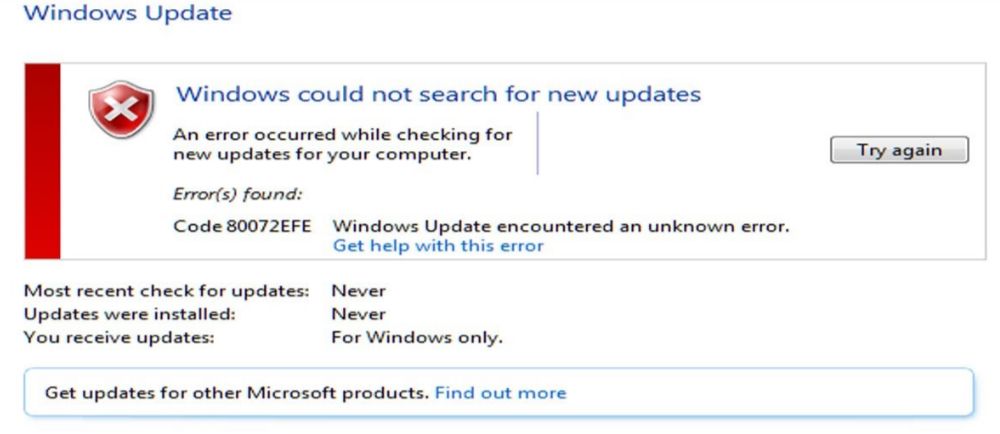
Win7 Error 80072EFE

I had to do a clean install of Windows 7 on an old PC for reasons I will not go into. After installing Win7 SP1 and a couple of drivers I ran Windows update but it failed almost immediately with Error / Code 80072EFE “Windows Update encountered an unknown error.”

I tried the familiar Windows update repairs with no success. After some research I downloaded Windows patch # KB3138612, ran it, reboot, and Windows update now worked as it should.

Download Update for Windows 7 for x64-based Systems (KB3138612) from Official Microsoft Download Center

Outlook Message Body Blank

Suddenly many users alerting that the message body of their e-mails, using Outlook desktop app, are blank. Also they cannot type in the body of a new e-mail or reply. Microsoft has released the following statements:

Latest message, May 11, 2021 7:24 PMView historyTitle: Issue affecting viewing email content in Outlook User Impact: Users may be unable to view email message content within Outlook. More info: Impact is specific to the Outlook client and users with access to other protocols, such as Outlook on the web or the Outlook mobile app, can view message content in those platforms as a potential workaround while our fix is applied. Current status: We’ve identified the underlying cause of impact and are applying a fix. This fix will reach all affected users incrementally over the course of the next four-to-five hours. Once users receive the fix, they will need to restart their email client to apply the fix. In some circumstances, users may need to restart their client a second time for the changes to take effect. We expect to complete this process and restore service for all affected users by May 12, 2021, at 3:00 AM UTC. We encourage affected users who are able to do so to leverage the workarounds described above in the “more info” section of this post while we complete the process of fixing this problem. Scope of impact: This issue could affect any user attempting to view an email message in the Outlook client. Root cause: A recent change to systems that facilitate text display management for content within the Outlook client caused impact. Next update by: Wednesday, May 12, 2021, 12:00 AM (3:00 AM UTC)

“May 11, 2021 6:19 PMView historyTitle: Issue affecting viewing email content in Outlook User Impact: Users may be unable to view email message content within Outlook. More info: Initial reports indicate that impact is specific to the Outlook client and users with access to other protocols, such as Outlook on the web or the Outlook mobile app, can view message content in those platforms as a potential workaround. Current status: We’re continuing to analyze recent updates to the environment and the associated code as we work to isolate the cause of impact. Our efforts are focused on determining the most expedient means of remediating this issue. Scope of impact: This issue could affect any user attempting to view an email message in the Outlook client. Next update by: Tuesday, May 11, 2021, 7:30 PM (10:30 PM UTC)

May 11, 2021 5:28 PMView historyTitle: Issue affecting viewing email content in Outlook User Impact: Users may be unable to view email message content within Outlook. More info: Initial reports indicate that Outlook on the web is unaffected and users with access to Outlook on the web can view email messages there while we work on a solution. Current status: We’re gathering and analyzing data in an effort to isolate the cause of impact. Initial reports indicate that impact is specific to the Outlook client and users with access to other protocols, such as Outlook on the web or the Outlook mobile app, can view message content in those platforms as a potential workaround. Scope of impact: This issue could affect any user attempting to view an email message in the Outlook client. Next update by: Tuesday, May 11, 2021, 6:30 PM (9:30 PM UTC)”

Missing Drive Space

Some users are reporting a sudden loss of drive space. It seems a recently released Microsoft Defender update is generating thousands, and even millions, of files consuming many GB of storage space. The folder where these files are located is C:\ProgramData\Microsoft\Windows Defender\Scans\History\Store

You can resolve the issue by “checking for updates” under Update and Security (Windows 10) and installing the latest Microsoft Defender update.

Printing issues after KB5000808 & KB5000802

Today started, after patch Tuesday, with many machines crashing when one tried to print resulting in the standard “Your PC ran into a problem….” with a Stop Code: APC_INDEX_MISMATCH error, due to win32kfull.sys

UPDATE: Microsoft released updates today, March 16/21 to resolve the problem but you must manually download and install:

Windows 10 emergency updates released to fix printing crashes (bleepingcomputer.com)

UPDATE 2: It seems the first patch further broke some printers resulting in blank pages or missng content. Another ‘out-of-band’ update was released the 18th.

Windows message center | Microsoft Docs

UPDATE 3: Microsoft halts the rollout for the “emergency” patch for the patch for the patch Tuesday update 😦

Microsoft halts rollout of Windows 10 KB5001649 emergency update (bleepingcomputer.com)

With my clients this seemed to happen with any Office or Windows app, even notepad. However Adobe seemed to be OK and oddly if you just right click on any file and choose print, without opening it, it seemed to be OK as well. Many report updating the printer drivers solved the problem, but doing so in my cases “Windows encountered an error”. Uninstalling the printer and reinstalling with the latest drivers did resolve the problem. Also it seems not all printers are problematic. On one system which had multiple printers, the error occurred when printing to any printer, but just reinstalling the Ricoh C2504 printer eliminated the problem for all printers. Google shows Ricoh and Kyocera printers seem to be the most problematic.

Unable to Open QuickBooks Data File

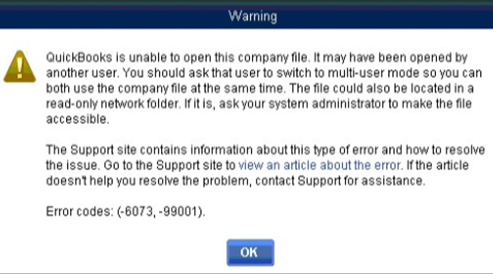
Several months after every QuickBooks Pro and Enterprise annual upgrade my clients run into an issue where they cannot connect to the QuickBooks database with messages indicating, the application cannot access the database, and H2020 Error, or QuickBooks is unable to open this company file due to the file being open on another computer in single user mode.  Most recently, as per the image below:

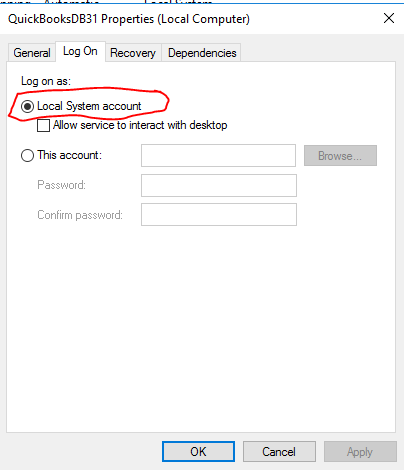
I have found over the years the solution is to open the services management console  ( services.msc )  on the server or computer hosting the data, scroll down to locate the QuickBooks service named “QuickBooksDBxx”, where xx = a number relating to the current version.  If you have installed multiple versions over the years there will be one for each year.  You want the one with the highest number. (note in the images below the changes have already been made)

Double click on the service to open the properties for that service and click on the “Log On” tab.  The radio button “This Account” will be checked, a QBDataServixeUserxx” name will be shown, and a hidden password entered.  Change to “Local System account”, click apply and close, then right click on the service and choose start. (NOTE: if you change this setting to service account and want to change back for some reason you will likely need to re-install QuickBooks)

You now need to run the “QuickBooks Database Server Manager” app from the programs menu, in the QuickBooks folder.  Under the Scan Folders tab make sure the folder that contains your data is shown  If not browse to it and select, then click the “Start Scan” button.  It should show “successful” when done and you can choose close.  Assuming you have the same issue, running this wizard before making the change above will result in “failure”.

Sage Many Redirected Printers

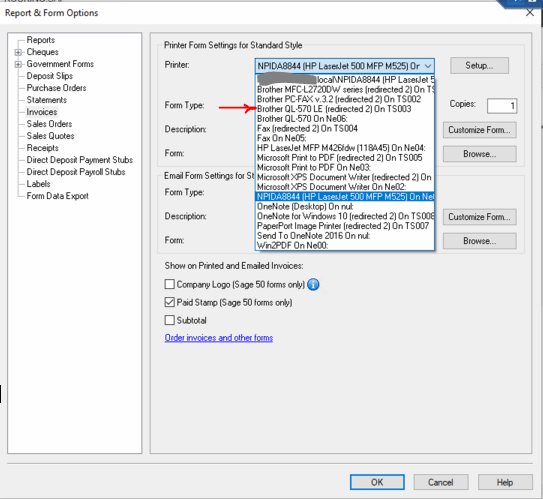
If you remote into a PC to run Sage, sometimes your local printer does not connect. To resolve this you need to open the Windows printers console on the computer running Sage and look for the appropriate printer and the “redirected #”. Then in Sage under Report & Form Options, choose the items you wish to print and beside them select the printer with the redirected # that matches the printer in the Windows printers console, as in the image below.

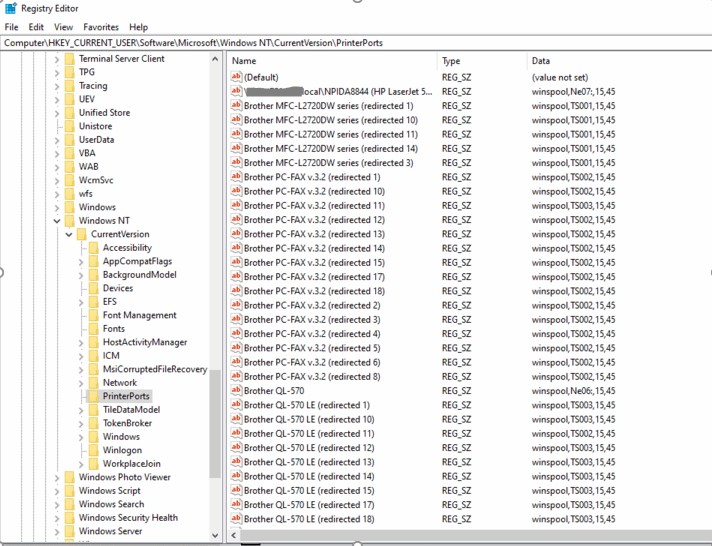
On many systems each time you reconnect to the remote computer a new redirected connection is created such that there are so many it can be near impossible to locate the appropriate redirected printer. See image below as an example.

To clear all these excess printers you can edit the registry. (As usual, back up the registry or at least the key before deleting and if not comfortable doing so, do not proceed as registry changes can corrupt your machine) To clean up the list of printers, on the computer running Sage, locate the registry key:
HKEY_CURRENT_USER\Software\Microsoft\Window Nt\Currentversion\Printerports
Delete all printer ports showing (redirected #). Do not delete those without (redirected #)
Reboot the computer running Sage, reconnect, and select the newly redirected printer.

Outlook fails to start

Immediately after Windows updates today on 2 different systems, so far, you cannot open Outlook.  As soon as you open it closes.  Next time you open you get the Open Outlook In Safe mode popup, which also doesn’t work.  After looking at commonalities in the two systems and trouble shooting it seems the issue was the July 14th ‘Patch Tuesday’ update “Cumulative Update for Windows 10 Version 1909 for x64-based Systems (KB4565483)”.  The update includes multiple features but among them is “Updates to improve security when using Microsoft Office products.” Uninstalling the update immediately resolved the issue.

If unfamiliar with doing so go to Control Panel, click on “Programs and Features”, then “View installed updates”, locate the (KB4565483) Update, right click and choose uninstall.  As always you should have a backup of your system before adding or removing updates.

I have also selected “pause updates for 7 days” in case it tries to reinstall before Microsoft has a fix.

Update: It seems this does not always work. Instead you need to roll back Office, however Microsoft has apparently realized the problem and is pushing out the fix.  To enforce, just close Outlook and re-open.  This worked on the latest machine with which I had a problem and there was a message in Outlook about the issue when it did open.  It may not be pushed out to all machines yet so waiting a couple of hours may be necessary.  See the following link from Microsoft regarding details: https://support.microsoft.com/en-us/office/active-investigation-into-outlook-crashing-on-launch-9c59ad4b-813c-432a-afdc-f14717a4528d?ui=en-us&rs=en-us&ad=us

KB4561600 or KB4560960 ‘Breaks’ Printing

On several machines after the automatic installation of Windows updates KB4561600 and KB4560960, printing to some, but nit all, printers no longer works. It seems when you try to print, the application closes immediately and printing does not take place. The simple solution is to locate the most recent drivers, delete the existing printer and re-install using the new drivers.