Archive for the ‘Troubleshooting’ Category

Configuring Hyper-V Core

There are already dozens of articles relating to configuring Microsoft’s Hyper-V Server 2008 R2 (the free core version), however a colleague’s intimidation of command line server management inspired me to post my notes to ease his mind and perhaps those of a few readers as well.  Yes, it is a command line only version of server 2008 R2, with only a 15 line/option GUI to assist with the most basic configurations……..

image

Yet, after some minor configuration and enabling some basic services, you can manage the server in a very similar way you would manage others servers with; Hyper-V Manager, administrative tools, remote access, a file explorer, and even a web browser.

It is worth noting that there are definite advantages to using this version of Hyper-V.  It is free, it supports more than 32GB of RAM (server 2008 R2 standard does not, you need Enterprise or Datacenter editions), smaller footprint, and a somewhat limited attack surface.

Notes:

  • I am assuming Hyper-V core is successfully installed and you are at the point of configuring, if not the following links may help you get to this point Test Hyper-V compatibility, Step-by-Step Guide to Getting Started with Hyper-V
  • The assumption in this configuration is the Domain Controller and DNS server will be a virtual machine on the Hyper-V host. As a result it is recommended the Hyper-V host is not joined to the domain as no domain logon server will be available until after the guest VM has been started.
  • “Management PC” refers to the PC, or server, from which you wish to manage the Hyper-V host
  • All command line entries below, on both server and management PC, must be done from an elevated command prompt. On the server the default is elevated, which is confirmed by the “Administrator” on command window title bar

Server Configurations (Hyper-V host):

Run native Hyper-V GUI configuration tool:

  • The configuration tool (as in image above, should automatically start at logon but if not, from a command line, enter sconfig
  • Item #1: Leave as a workgroup
  • Item #2: Enter the computer name
  • Item #8: Configure the network: Use a static IP.  I recommend at least primary server be an internal DNS server, secondary an ISP. (Keep in mind on a domain joined server/PC you should not combine internal and public DNS servers, but this is not domain joined).  Best practices suggests 2 NIC’s should be enabled, one for management and the other for use by VM’s, though this is not necessary.
  • Item #9: Set date and time
  • Item #5: Set Windows update settings auto or manual.
  • Item #6: Download and install all updates, reboot as necessary
  • Item #3: Add any local admin accounts. I recommend adding new account with a name matching the login account of the remote management PC.  The names must match for some services to work.
  • Item #4: Configure remote management by enabling sub-options 1 to 3
  • Item #7: Enable remote desktop access (note this is still command line only)
  • Item #15 Exit to a command line

DNS:

As stated the Hyper-V machine is not a member of the domain, therefore it is recommended the following additions be made to assist with name resolution

Use the Hosts file to allow the Hyper-V host to resolve the name of the management PC.  From an elevated command prompt , open the Hosts file using Notepad by entering: notepad c:\Windows\System32\drivers\etc\hosts .  Add a record in the Hosts file for your management PC/s using

IP <tab> Pc’s DNS name <tab> # a note (optional) <enter>
eg: 192.168.123.123     PCname.MyDomain.local    # management PC

(Note: it is very important hit return, after every entry including the last line, and then save. For more information about Hosts and Lmhosts files, and their syntax see: https://blog.lan-tech.ca/2012/04/26/hosts-and-lmhosts-files/

Add the domain suffix to the domain search list within the registry to further assist with DNS name resolution.  Start the registry editor using regedit and locate the following registry key:

     HKLM\System\CurrentControlSet\Services\TCPIP\Parameters\SearchList

Then add your domain suffix such as mydomain.local (separate multiple suffixes, if needed, with commas)

Permissions:

To configure additional permissions on the Hyper-V host download Hvremote.wsf from:   http://archive.msdn.microsoft.com/HVRemote  to a USB drive or CD.  Then from a command line copy HVremote to local directory such as Temp folder.  DOS commands are as follows (assume HVremote is on a USB drive labeled D:

cd\
md Temp
copy D:\FolderName\hvremote.wsf  C:\Temp\hvremote.wsf

Run the following commands from the directory where hvremote is located to grant Hyper-V administrators the necessary permissions to do so.  This asdds the admin to the “Distributed COM User’s group”. Again from an elevated command prompt, run the following command using the user you created under Item #3 above in the initial configuration GUI.

     Cscript hvremote.wsf /add:user

If this is the first time hvremote has been used to add a user a reboot may be required

Firewall:

The necessary firewall exceptions should have been enabled by Item #’s 3 & 7 above.  You may also want to be able to ping (IPv4) the server for testing. To do so from a command line enter:

netsh firewall set icmpsetting 8

Or use the new command for “Windows Firewall with advanced Security”

     netsh advfirewall firewall add rule name=”ICMP Allow incoming V4 echo request” protocol=icmpv4:8,any dir=in action=allow

(Note: if cutting and pasting the above command, you will have to substitute the quotation marks using your keyboard.  This site’s/font’s quotation marks are not standard ascii characters)

For additional firewall information relating to pings see:  http://dpotter.net/technical/2010/02/enable-ping-on-windows-server-2008-2/


Management PC Configurations:

DNS:

If the PC is a member of a domain, you can add a Host (A) record to the DNS management console for the Hyper-V host, or you can make an entry in the management PC’s Hosts file similar to the instructions for the server. This will ‘point’ this to the server such as:

IP <tab> Server’s DNS name <tab> # a note (optional) <enter>
eg: 192.168.123.123     HVServerName.MyDomain.local     # Hyper-V host

Permissions:

As on the Hyper-V host, download HVremote from http://archive.msdn.microsoft.com/HVRemote  or copy from your USB Key to a local directory as below:

     cd\
md Temp
copy D:\FolderName\hvremote.wsf C:\Temp\hvremote.wsf

Using an elevated command prompt run the following commands from the directory where HVremote is located.  Where the Hyper-v host is not part of the domain you must enable anonymous DCOM access using:

     Cscript hvremote.wsf /mode:client /anondcom:grant

This one command must be run from an non-elevated command line:

Cmdkey /add:ServerComputerName /user:ServerComputerName\UserName /pass:UserPassword

Firewall:

There are 4 Hyper-V Management Client firewall exceptions that need to be enabled.  Running the following command, from an elevated command prompt, will do so:

     Cscript hvremote.wsf /mode:client /FirewallHyperVClient:Enable

You also need allow rules for MMC exceptions (management consoles) which can be applied with:

    Cscript hvremote.wsf /mode:client /mmc:enable

If you have other 3rd party firewall software installed, you need to manually configure it with the same exceptions.

If you wish to use the Disk Management component of the Computer Management MMC for the remote host, you need to enable the inbound “Remote Volume Management – Virtual Disk Service Loader (RPC)” exception with:

     netsh advfirewall firewall set rule name=”Remote Volume Management – Virtual Disk Service Loader (RPC)” new enable=yes

You also have to set the “Virtual Disk service” on the Hyper-V server to Automatic and start it.

sc config vds start= auto
sc start vds
    (not needed if rebooting – will automatically start)

Reboot:

To apply all changes a reboot of the PC is recommended.

Testing connectivity:

When complete test and review the output using the commands below.  For details and troubleshooting download the documentation for HVRemote from:  http://archive.msdn.microsoft.com/HVRemote

From the server:

     Cscript hvremote /mode:server /show /target:clientcomputername

From the client PC:

Cscript hvremote /mode:client /show /target:ServerComputerName


Remote Management Tools:

RSAT tools:

Download and install RSAT (Remote Server Administration Tools) on the management PC making sure you have the RSAT version compatible with that PC’s operating system. The link for Win7 SP1 is below.  With these tools you can now connect the Hyper-V host and manage it from a PC using  all those familiar tools like Computer Management, Disk Management, Windows Firewall with Advanced security, Task Sheduler, etc., and of course the most important; Hyper-V manager which will allow you to create and manage your VM’s the same as you would if you had the full GUI version of Server 2008 R2 as a host.

http://www.microsoft.com/download/en/details.aspx?id=7887

Remote Console (RDP):

You can access the Hyper-V console (still command line only) using a standard RDP connection. You can also install “Portable Apps” which you can then run from an RDP session.  See further down in this list of Remote management tools.

     Mstsc -v:<Hyper-V host name>

Portable Apps:

You can run standard “portable apps” on the console, or during a remote desktop session such as:

Windows Explorer Equivalent A43:

http://www.alterion.us/a43/index.html

Firefox Web Browser (for security reason web browsing from the host is not recommended):

http://portableapps.com/apps/internet/firefox_portable

Others:

http://www.portablefreeware.com/all.php

Powershell:

To remotely run PowerShell you will need Powershell 2. which is available from Windows updates. To install and enable please see the following article http://geekswithblogs.net/twickers/archive/2009/11/04/136013.aspx  With it from the Host console, or remotely, you can manage many services using scripts/cmdlets from:

http://pshyperv.codeplex.com/

Others:

http://www.portablefreeware.com/all.php

PSExec:

PSExec is a tool developed by Sysinternals, now Microsoft that allows you to run DOS commands on remote machines:

http://technet.microsoft.com/en-us/sysinternals/bb897553

Hyper-V Monitor Gadget:

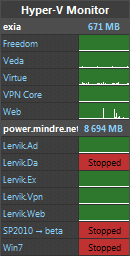
A great desktop gadget for monitoring the status of your Hyper-V servers, status and perfomance, as well as the ability to start and stop.  Requires permissions and services as outlined earlier.

http://hypervmonitor.codeplex.com/

Additional Resources:

Configure Hyper-V Remote Management in seconds

http://blogs.technet.com/b/jhoward/archive/2008/11/14/configure-hyper-v-remote-management-in-seconds.aspx

Full HVRemote documentation and download:

http://archive.msdn.microsoft.com/HVRemote/Release/ProjectReleases.aspx?ReleaseId=3084

Install and Configure Hyper-V Tools for Remote Administration

http://technet.microsoft.com/en-us/library/cc794756(WS.10).aspx

How to use the “netsh advfirewall firewall” context

http://support.microsoft.com/kb/947709

How to Enable Remote Administration of Server Core via MMC using NETSH

http://blogs.technet.com/b/askds/archive/2008/06/05/how-to-enable-remote-administration-of-server-core-via-mmc-using-netsh.aspx

Rogue DHCP Servers

On occasion you may be consulted about network issues which suggested a rogue or unknown DHCP server present on the network.  This can show up is several ways including the discovery of a PC with incorrect IP addressing, most often the wrong DNS server, or in an SBS environment the SBS DHCP service has shut down due to the presence of another DHCP server.  The dilemma is how to locate it.  There are a few tools that can be helpful with the process.

You may also have a case of an unknown device in the DHCP management console under address leases.  Some of these tools can be useful in isolating those as well.

Determine the DHCP server’s IP:

The first step is to locate the DHCP server’s IP.  You may be fortunate and have discovered the incorrect addressing on a PC.  In this case the DHCP server will be listed in the IPconfig /all results.  Alternatively you can use two different tools.

The first is Microsoft’s DHCPloc.exe (DHCP locator).  It can be downloaded as an individual executable from http://www.petri.co.il/download_free_reskit_tools.htm or as part of the Server Support Tools on the server’s installation CD.

Warning:  DHCPloc should not be run on the DHCP server itself.  Doing so can cause the DHCP server to stop responding to DHCP requests.

At a command line, from the directory where you have saved DHCPloc enter
  DHCPloc.exe <the workstation’s IP>
You may have to hit enter twice. You will be prompted to enter d, q, or h. Enter d for discover, and again you may have to hit enter twice.  It should return the IP of the DHCP server, or servers, and an offered DHCP address.
DHCPloc syntax:
http://technet.microsoft.com/en-us/library/cc778483.aspx

You may want to temporarily disable the network’s default DHCP service while running these tests.

image

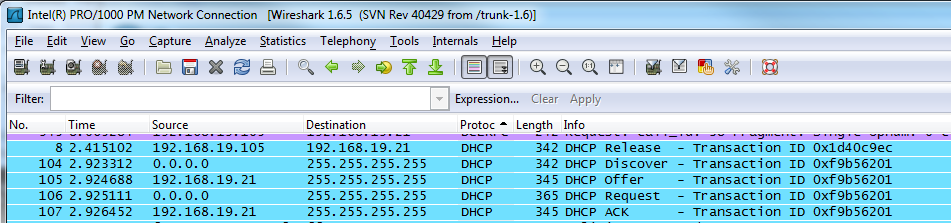
The second method is to use Wireshark, from http://www.wireshark.org, a network packet analyzer and a much a more powerful tool.  Install Wireshark on a workstation, start a scan, and run an ipconfig /release and /renew to force a DHCP request.  Once complete you can filter the log by protocol and locate the DHCP related packets.  Do this quickly as Wireshark collects a substantial amount of data very quickly.  There are tutorials available to become familiar with Wireshark.

image


Find the MAC Address:

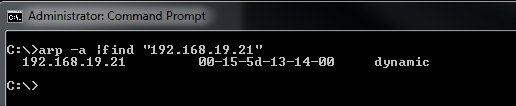
With any luck you now have the IP of the DHCP server.  Next is to find the device’s MAC address.  By now it should have been recorded in the arp table, but if not try pinging the IP.  Then from a command line run  arp –a  or arp –a |find “IP address”  to recover the MAC address of the device.

image


Determine the Manufacturer:

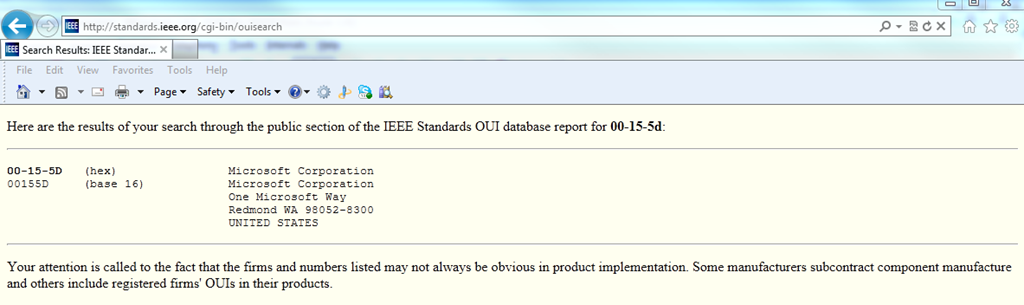
The fist 6 characters of the MAC address are assigned to the manufacturer, therefore we may be able to determine the make of the device in question.  In the example above we would use 00-15-5d  in conjunction with a site such as  http://standards.ieee.org/develop/regauth/oui/public.html and determine the registered manufacturer/vendor was Microsoft Corporation.  This may or may not be helpful since in this case it simply indicates it is a Virtual machine.  Often it will provide results such as Cisco-Linksys, D-Link Corp., Apple Inc. which may give you a better indication as to the type of device, perhaps a Linksys router installed by an employee to add wireless to his or her office.

image


Locate the device:

Physical location is much harder to establish, especially if it has been intentionally hidden.  It is always best practice to keep a floor plan with all network drops and to disconnect any unused network drops at the patch panel, but it doesn’t do much to protect you.  If you have managed switches you can locate the port to which the IP or MAC address is connected and start tracing from there.  However, if you do not have managed switches you are best to run a continuous ping  (ping  –t 192.168.19.21) and start unplugging cables at the patch panel until you have dropped packets .  A little crude, but effective.

I will publish an article in the near future to more proactively address this issue using DHCP filtering.

Security Essentials JS/Blacole.BW false positive

Microsoft Security Essentials and Forefront Endpoint Protection today started reporting world wide the presence of Exploit:JS/Blacole.BW when accessing http://www.google.com, http://www.google.ca, http://www.google.com.au, and several others.  Apparently blog sites were buzzing with concerns, and suspicions of a false positive.  Despite the Microsoft malware description in the image below, it has ultimately been reported ( by Stephen Burns) as a false positive, and Microsoft hopes to release a definition update a short while after 2:00 am GMT, Feb 15/2012

image

UPDATE 2:30 am GMT:

Just received virus definition update # 1.119.1988.0  and seems to have resolved the problem on our systems..

Cannot open the Outlook window. Invalid XML

I recently came across an instance of Outlook 2007 which would not open.  A popup reported; “Cannot start Microsoft Office Outlook. Cannot open the Outlook window.  Invalid XML, the view cannot be loaded”.  This was only occurring on 1 PC, for one user, in an SBS 2008 environment.  If the user ran Outlook on another PC, there was no problem so it was obviously a local problem.  Doing a repair install of office did not resolve, nor did the diagnostics suggested when Googling the issue.  Assuming it was a problem with the Xml file; I closed Outlook, renamed the Outlook.xml file (safer than deleting), and restarted Outlook to find the problem was resolved.  Should you wish to try the same solution, the file path with Office 2007/2010, on Vista\Win 7 is C:\Users\<user name>\AppData\Roaming\Microsoft\Outlook\Outlook.xml   You will need to enable “Show hidden files, folders, and drives” and “Hide extensions of known file types” to view.

image

TS/RDS performance issues.

Are you having Terminal Server (Remote Desktop Services) performance issues when logging on, redirecting printers, or the print spooler hanging?  Eric Guo has a recent post outlining these performance issues can be due to; “hundreds or thousands of Inactive TS Ports”…..”in certain scenarios on 2003 Terminal Servers and 2008/2008 R2 RDS Servers.”  The first server I checked had hundreds. He has provided a tool “InactiveTSPortList” on CodePlex that will allow you to list and/or delete the inactive ports (requires Live ID sign in):

http://social.microsoft.com/Forums/en-US/partnerwinserver7rcthreads/thread/c860f54b-2d16-495f-9e5f-d28d72d63302

Direct link to Codeplex:

http://inactivetsport.codeplex.com/

Missing SBS 2008/2011 drive space

Internet forums are full of questions entitled “where is my missing drive space”, or “HELP! I am running out of drive space on the system partition”. There are some known issues, addressed below, where SBS is known to generate large log files but very often it is due to hidden contents of user folders. The Redirected Folders feature is usually enabled  with SBS and with the default Group Policy a users folder is protected and hidden from view by all others, including Domain Administrators. Therefore when browsing to a user’s private folders such as My Documents, not only will you be denied access, but the properties of the folder will show:  Size = 0 bytes, and Contains = 0 Files, 0 Folders.

image

This is due to a permission set by group policy, within the Small Business Server Folder Redirection Policy, when the folder was created.

image

Editing the policy will not change existing folder permissions. You can change the permissions if required, though I strongly discourage doing so if for no other reason that user’s have a right to privacy. If you feel you must, Susan Bradley has nicely outlined the process in the following link:  http://msmvps.com/blogs/bradley/archive/2010/02/28/getting-access-to-the-my-documents-redirected-folders.aspx

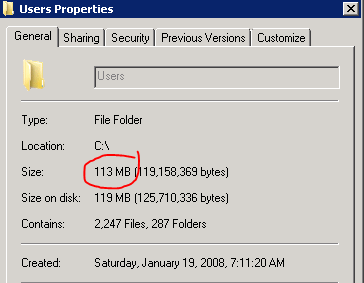
However, even though you cannot open the file, it is possible to see the contents of the folders (folder and file names) and the size of the contents by using an application named Treesize Professional from:  http://www.jam-software.com/treesize/  There is a 30 day free trial period, but I recommend buying it to have in your “tool box” to quickly locate that user that has 30GB of movies saved in their redirected my documents. Treesize will provide a very nice graphical overview of drive space distribution and you can quickly drill down to the source of the problem. As an example; in the following two images of the same directory, Windows shows 113 MB in use, where Treesize includes the hidden directories and accurately reveals 58.4 GB of consumed drive space.

image

image

Treesize can be used in many other ways for storage management but is invaluable in locating folders that are consuming large amounts of space on your drives.

Other known issues:

Tree size can also help to locate other space consuming culprits. Once located the information and links below, organized by file paths, may be able to assist with resolving.

The following link reviews numerous known file locations that have a tendency to accumulate large log files. This link is extremely valuable in addressing the key space issues with SBS:  http://blogs.technet.com/b/sbs/archive/2010/03/02/recovering-disk-space-on-the-c-drive-in-small-business-server-2008.aspx

  • C:\inetpub\logs\LogFiles
  • C:\Program Files\Windows Small Business Server\Logs\
  • C:\Program Files\Windows Small Business Server\Logs\WebWorkplace
  • C:\Program Files\Windows Small Business Server\Logs\MonitoringServiceLogs
  • C:\Program Files\Windows Small Business Server\Data\badmail
  • C:\Windows\system32\winevt\logs\
  • c:\Windows\system32\certlog
  • C:\Windows\SYSYSI\SSEE\MSSQL.2005\MSSQL
  • C:\Windows\System32\LogFiles\

C:\WSUS  Windows Server Update Services can build up many unnecessary updates that can be cleaned up by running the WSUS “Server Cleanup Wizard” located under Administrative Tools | Windows Server Update Services | SBSname | Options | Server Cleanup Wizard

C:\Program Files\Microsoft\Exchange Server\Mailbox\xxxx Storage Group Keep in mind deleted e-mails are retained in the Exchange database until you do a backup using an Exchange aware backup application such as the built-in SBS backup utility.

C:\Windows\winsxs:   See: “How to Alleviate Disk Space Pressure Caused By a Large Windows Component Store (WinSxS) Directory”  http://support.microsoft.com/?kbid=2592038  https://support.microsoft.com/en-us/kb/2795190

C:\Windows\System32\logfiles\WMI\trace.log  You can stop this logging by editing the registry key (if necessary) to 0
HKEY_LOCAL_MACHINE\SYSTEM\CurrentControlSet\Control\WMI\GlobalLogger\Start = 0

You may also want to review an excellent article by Lee Wilbur on regaining space and managing the system partition:  http://www.lwcomputing.com/tips/static/bootdrivesize.asp

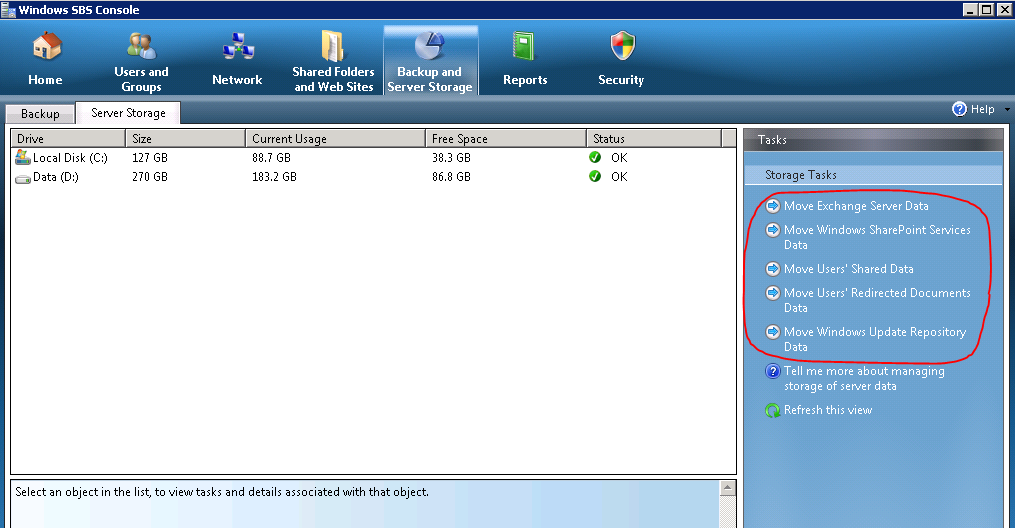
Should you need to gain additional space you can also move some of the SBS data files to another drive or partition such as Exchange, Users Shared Data and Redirected Folders, Sharepoint, and WSUS. To do so use the SBS wizards in the SBS console:  http://technet.microsoft.com/en-us/library/cc527581(WS.10).aspx

image


Added Nov 30, 2011…….

C:\ProgramData\Microsoft\Windows\WER\ReportQueue  This contains error reports generated by Windows. These files on some systems, though not hidden, the folder properties show as 0 MB. TreeSize will also display the properties of this folder correctly. Though I don’t recommend disabling the reporting you can do so by going to: control panel | problem reports and solutions | advanced settings | off

C:\WINDOWS\system32\LogFiles\HTTPERR  These are HTTP error logs much of which is generated by IIS. If there are a large number of errors you should look into why, but you can reduce the chances of it filling up with log files again by applying the following  http://support.microsoft.com/kb/820729


Remember you can always download a trial copy of SBS to use for testing configurations and modifications from the Microsoft Evaluation Download Center:

http://technet.microsoft.com/en-ca/evalcenter/default.aspx?ocid=aff-c-ca-jtc–MVP52

Unexpected characters when typing?

Have you ever suddenly had odd characters appearing when you type, or perhaps not odd but not what you expected? This is quite common with Dell PC’s in Canada that by default have additional language options enabled, but I am sure it happens in other parts of the world as well and with other PC models. You may see for example an ” É ” when you type a ” ? ”

Windows has a “switch” to enable/disable the alternate language keyboard. The Windows 7 default is to hold the left alt key and press the corresponding shift key at the same time. If you prefer, you can change the characters used to control the “switch” or disable it all together under Control Panel | Region and Language |  Keyboards and Languages | Change Keyboards | Advanced Key settings | highlight “Between input languages” and click Change Key Sequence. There are other shortcuts in the same location you may wish to edit while there.

Updated Feb 5/2012:

It seems some Dell computers, even though under Region and Language keyboard settings as noted above are set to use the left alt+shift key as the combination to switch between keyboard language styles, they actually use the left ctrl+shift keys.

Also, you may have decided to permanently change the language and keyboard settings under:  Control Panel | Region and Language |  Keyboards and Languages | Change Keyboards | General.  If so, note that it will only affect the logged on user, it does not affect the actual initial computer logon.  To do so you must also go to  Region and Language | Administrative | Copy settings | and check the box “Welcome Screen and system accounts”.  Checking the other option, the “New user accounts” box, will apply the same edited Region and Language settings to any new user accounts you create, but if there are other existing user accounts to which you want to apply the changes, you will have to do so manually one by one.

MVA – an incredible chance to improve your IT skills

The Microsoft Virtual Academy is a relatively new source for on-line training in a multitude of topic areas including; virtualization, Office 365, private and public cloud, SQL and Windows Azure, System Centre, Security and much more. There are numerous courses already available in these topic areas with many more to be added in the future. Best of all it’s completely FREE !

Sign up and get started with your training here:

http://www.microsoftvirtualacademy.com/Home.aspx?ocid=aff-c-ca-jtc–MVP52

Locate and Troubleshoot Dropped Network Connections

Network disconnects can generally be diagnosed with tools like ping, tracert, and pathping, but connections that frequently and randomly disconnect can be difficult to diagnose. Often you may suspect an ISP issue, or a router to modem link, but when you contact your ISP the reply always seems to be; “it’s working now”. To be fair to the ISP, it usually is working now. You would be far more likely to get assistance if you could provide a log showing which network segment was down, for how long, and how frequently. 

Netgong, formerly IPMonitor, is a simple little tool that can be helpful in documenting disconnects. It is really nothing more than a fancy ping tool with logging, but that log can be very useful when diagnosing connections from a PC to the Internet, Virtual Private Networks, or within a LAN through various routers. Basically any connection involving multiple network segments. 

Netgong can be set up to ping multiple IPs at set time intervals of one minute or greater. Ideally you want to monitor different devices in different network segments between the client and host such as a LAN based IP like a router, an interim point like the ISP’s gateway (find from your routers status page), and an IP somewhere “in the cloud”. It does not log every ping but rather only when the connection state changes which maintains a reasonable log file size. You can see the current state in the console, or view the recorded log file in text or Html format. 

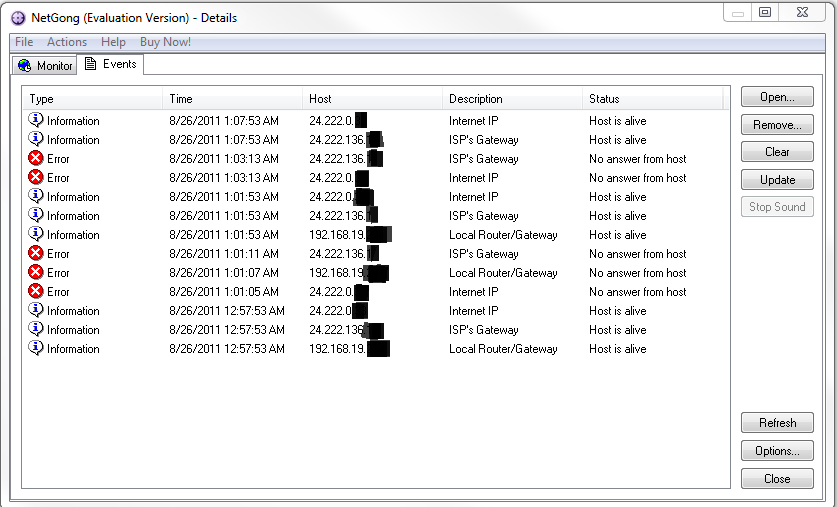
The following is a sample screen shot of the console “events” page:

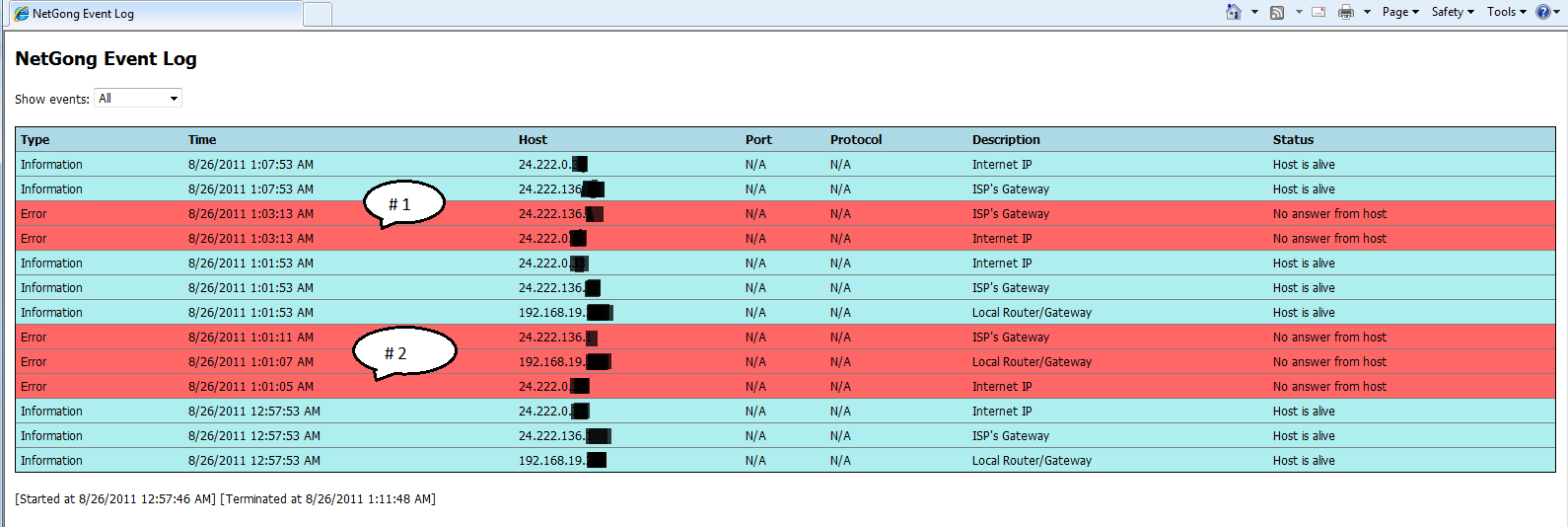
The next image is a sample Html log file.  Item #1 indicates the ISP’s gateway (modem) and Internet were unavailable but the router could be pinged, showing the connection was lost between the local router and the ISP’s modem.  Item #2 shows all 3 IP’s unavailable indicating a loss of connectivity between the client and local router.

To configure Netgong simply add the hosts as shown in the example, and set the ping “interval”

Then configure the logging options

The console will almost instantly show the current status

Netgong can also be used to trigger alerts if needed and is great for simply monitoring if numerous dveices are online. There is a trial period available for Netgong but you may find it a handy tool to have in your “toolbox”. It can be downloaded from: http://netgong.tsarfin.com/download.html

Google Malware Redirect

I ran into a troublesome problem with a web browser redirect. All services were fine and browsing worked without issue except for Google and Bing. These two sites, and a couple of others I later discovered, would redirect to either a survey web page or one displaying “404 not found nginx”.  Netstat  interestingly showed within seconds of logon about twelve port 80 ”established” connections to remote sites, but quickly switched to a consistent three: 72.246.43.80, 72.246.43.24, 207.46.206.164. This obviously indicated either tampering with DNS or a proxy server.

My first thought was the Hosts file which upon inspection revealed it had bean cleared and the attributes changed to Read Only, Hidden, and System file. I reset the attributes with  “attrib  –R  –A  –S  -H “, copied the contents of another host file which is really just comments, and ran “ipconfig /flushdns”.  (For those unaware Notepad must be opened using elevated privileges if Vista or Win7).  This made no difference whatsoever.

Googling suggested this was common with hacked routers, but this was only one PC on the network, and other suggestions were Malwarebytes, TDSSKiller, Gmer, HitMan Pro, and others. Trying several of these found nothing. I reverted back to my original thinking and discovered the Hosts file had indeed been modified. There were about 100 empty lines and then below that Malware had added about 30 malicious entries. Clearing these resolved the problem.

Such a simple hack, but easily overlooked, and surprisingly missed by the common Malware tools.