Archive for the ‘Uncategorized’ Category

Bust a Move

In the event you should find any information on this site helpful, or in the forums in which I participate, and you would like to provide a little support, please make a donation this month to my daughters “Bust a Move” efforts to raise money for Breast Cancer awareness and research.  It is a cause close to her heart due to; her grandmother who has not beaten but survived breast cancer for more than 30 years, lost her dear aunt (my sister) at an early age of 42, as well as her great aunt.   My daughter has organized fundraisers, not reflected in the donation page, to raise money at comedy clubs, yoga classes, gift baskets, and any way possible.  Your support whether $5 or $5000 would be greatly appreciated by me and my daughter.  Thank you.

Donations before March 23rd are especially appreciated, the day of the big “Bust a Move” event.

image

Locate default Computer or User OU

In troubleshooting an issue with the SBS user creation wizard, I wanted to know what was set as the default Organizational Unit in which users would be placed.   Though the following works with any server version which is domain functional level Server 2003 or newer, SBS defaults to placing users in the MyBusiness\Users\SBSUsers OU and I wanted to verify this was set appropriately.  There are 100 articles explaining how to change the default users OU using the command “Redirusr”, or “Redircmp” for computers, but it was difficult to find a link explaining how to locate the current defaults.  There are a few links explaining where the information is stored, which is in the “wellKnownObjects” attribute of the properties of the domain, in Active Directory Users and Computers.

image

However when you click on “View”, to inspect the settings for that attribute, you get a popup warning; “There is no editor to handle this attribute”, and the same happens when using ADSI Edit.

image

Thanks to a tip by Alex Verboon, using Microsoft’s (Sysinternal’s) Active  Directory Explorer will allow you to see the settings of this attribute.  Download AD Explorer, run the app, on a single domain server you can live all fields blank and click OK.

image

Click on your domain, then in the right hand window right click on wellKnownObjects”, and choose properties.

image

In the resulting window you can review the current settings for the default OU’s for Computers and Users

image

image

Deploy Windows VPN using GP Preferences

With the addition of Group Policy Preferences, released with Server 2008 and newer, it is possible to easily and automatically deploy a Windows VPN client to domain joined computers.  You might want to do so for a specific group of computers such as mobile users with notebooks.

  • First, within the Active Directory Users and Computers console, create an OU in which you will place the computers to which you wish to deploy the VPN client. This would normally be a sub-OU of your Computers OU.  For our Example I’ll call it Mobile Computers
  • Next open the Group Policy Management console, locate the OU, right click on it and choose “Create a GPO in this Domain and Link it here”

image

  • Name the new GPO

image

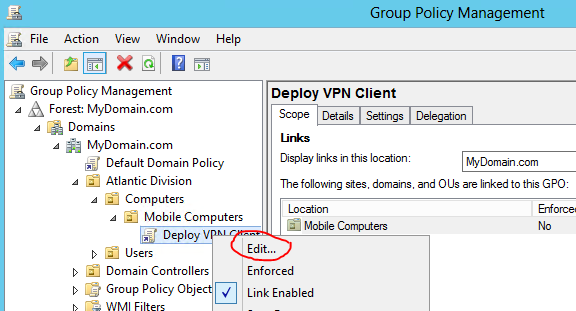
  • Then right click on the new GPO and choose edit

image

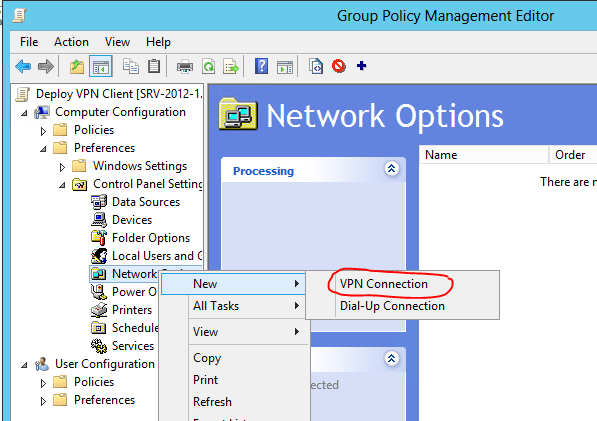
  • Browse to Computer configuration | Preferences | Control Panel Settings | right click on Network Options | choose New, VPN Connection

image

  • Group Policy Preferences will allow you to create a PPTP or L2TP/IPSec connection, but not SSTP.  For simplicity this will outline PPTP.  Under the “New VPN properties” you will want to configure as follows:
  • Action: I recommend “Replace”.  If no connection exists on the client it will “Create”  a new one and if you modify your policy, it will automatically replace the existing one.
  • All Users connection.  This is important if the user wants to connect the VPN before logon so that authentication can take place and policies and logon script be applied.  For details see: Connect to a Windows VPN at Logon
  • Connection Name: Can be anything you like and will be displayed under connections on the user’s PC
  • Address: You can enter the IP or check the box “Use DNS name” and enter the public FQDN of your site
  • Icon:  I would also check the box “Show icon in notification area when connected” to allow the user to view the status of the VPN connection

image

  • Next  under Options there are no requirements to configure any features but you may wish to set redial attempts, idle time settings, or other options.
  • Under Security choose Advanced, Use these other protocols, MS-Chap v2, the default protocol used with Server 2008 and newer

image

  • Networking: Automatic is fine, but in a few cases folk have reported they needed to set this to PPTP
  • Nothing needs to be configured under Common
  • Click OK and your new Policy will be complete and appear in the list of Network Options

image

  • The only remaining step is to run GPupdate /force on the client, while connected to the domain, or at some point reboot.

There is one other parameter you may wish to configure.  When you manually create a VPN connection it automatically enables the “Use Remote Default Gateway” option.  This is a security feature that blocks local network access while connected to the corporate network by VPN.  For more information about the default gateway option please see Access local and VPN network Simultaneously .  You cannot configure this within the policy we created above but you can using a different GP Preference and an .ini file.  Peter Frederiksen has explained this nicely in the following TechNet forum: http://social.technet.microsoft.com/Forums/en-US/winserverGP/thread/f228d2ae-232d-4572-8eee-60252f6d03a3/

There are other ways to automatically create a VPN client:

Windows 8 connect to VPN before logon

Last year I did an article entitled “Connect to a Windows VPN at logon”.  Rather than duplicate, please refer to that article for details, but It has been pointed out the method outlined is not available in Windows 8.  Actually it is but Win 8 by default alters the standard domain logon that was present since Win NT of pressing “Ctrl+Alt+Del”.  Restore that and you will again have the option to connect to a VPN prior to logon so you authenticate to the domain, and have group policy and logon scripts applied.

To re-enable “Ctrl+Alt+Del” either open the Local Security Policy under Control Panel, Administrative Tools, or open the local Group Policy editor by entering in the “Run” box gpedit.msc.  The location of the policy is in pretty much the same location in both, and setting in one will update the other.

  • In the Local Security Policy editor (control panel) it is located under; Security Settings | Local Policies | Security Options | Interactive logon: Do not require CTRL+ALT+DEL
  • In the local Group Policy editor (gpedit.msc) it is located under; Computer Configuration | Windows Settings | Security Settings | Local Policies | Security Options | Interactive logon: Do not require CTRL+ALT+DEL

The default state of the policy in Win 8 is “Not Defined” which on a domain joined computer effectively results in enabled.  You need to set the policy to disabled which will force the use of “Ctrl+Alt+Del”.   After doing so, I recommend running from an elevated command prompt  gpupdate /force, though it should not be necessary when editing the local policy.  On that note; you can enforce the use of “Ctrl+Alt+Del” domain wide by creating a GPO on your Domain Controller and editing the same policy.

image

Once you do so, and log off, you will see the familiar “Press Ctrl+Alt+Delete to sign in” message in the top left corner of the logon screen.

image

After pressing “Ctrl+Alt+Del” there will be a small network icon in the lower left corner

VPNCapture2

Click on the network icon and you will be presented with any VPN connection created on that computer.  Note these VPN connections must have been created using the “Allow other people to use this connection” option.  This discussion also applies only to domain joined computers.

image

image

Enter you domain credentials, the VPN will connect, authentication to the domain will be processed, and group polices and logon scripts, including your mapped drives, will be pushed to the client.


UPDATE:  Should the PC not be domain joined and you wish to automate the VPN connection, please see: https://blog.lan-tech.ca/2013/06/08/rasdial-automate-vpn-connections/

Access local and VPN network Simultaneously

There are constantly questions in various forums; “how do I maintain internet access through my local router while connected to a VPN”, or “ how do I access my local TCP/IP printer while connected to a VPN”.  It is pretty basic but for those that don’t understand I thought I would address this in a blog so that in future I can just provide a pointer.

There is a security feature in almost all VPN configurations that blocks all local network connections while connected to the corporate network, via a VPN.  This is to provide some degree of security by preventing someone with malicious intent from reaching the corporate server using your PC/Laptop as a stepping stone.   It basically isolates your device from the world around you so that Johnny playing video games in the next room cannot route traffic through your PC to the corporate site.  Or, consider an Internet Cafe’ where you are on the same local network as total strangers.   Either through the shared Wi-Fi connection, or even an “Ad Hoc” wireless connection, the person at the next table could conceivably route packets through your wireless device directly to head office.  Granted, there are many security features in place, or at least there should be, such as firewalls and NTFS security permissions to protect your corporate data, similar to the security corridor from the 60’s & 70’s TV show Get Smart, but the more of these doors left open, the easier it is for hackers.  Everything can be hacked.  If you don’t believe me have a look at the following Ted Talks video by Avi Rubin; “All your devices can be hacked”.

In order to simultaneously access the local and remote VPN network you need to enable a feature called split-tunneling.  Due the security reasons outlined above, I do not recommend enabling this, however in some cases it is necessary or perhaps you just wanted to know why.  If you have an Enterprise VPN solution such as Cisco, Watchguard, Sonicwall, or others, as an end user cannot enable split-tunneling.  It is managed by the VPN appliance and will require the administrator to configure and enable if they see a need to do so.   However if you are using a Windows VPN client you can edit the configuration to allow split-tunneling.  To do so open Control Panel, select Network and Sharing Center, and then choose “Change Adapter Settings”.   This will work on XP and earlier clients as well but the path to the adapters is slightly different.  Locate the VPN/PPP adapter, right click on it and choose properties.  In the resulting window select Networking, highlight Internet Protocol Version 4 (TCP/IPv4) and click properties, click Advanced, and in the resulting window un-check “Use Default Gateway on remote network.  When checked, its default state, it forces all traffic through the remote site.  Un-checking allows access to the local network and gateway.

image

Again remember this is a security feature and should not be reconfigured unless necessary and you are aware of the risks.

LinkedIn Phishing E-mails

Just as a “heads up” to our clients; there have been a large number of phishing e-mails lately claiming to be a LinkedIn reminder advising there is a pending invitation to add a new contact.  These look quite legitimate.

Always avoid clicking on links in e-mails, it is far better to visit the site in a normal fashion and check your messages and notifications on the site.  However to confirm the message’s legitimacy, hover your mouse over the link and you will see the true site destination in a popup.  Clicking on a masked link could be disastrous, a virus or an attempt to obtain user names and passwords.


image

Configure Siemens SE567 router to allow VPN access


I have been asked a few of times how to configure a BellAliant Siemens SE567 router / modem to allow VPN access to a server, using PPTP.

When accessing a PPTP VPN server through a router, three primary conditions must exist.  Numbers 1 and 2 we can configure, 3 is dependent on your ISP.

  1. The router must be configured to  forward PPTP traffic to the VPN (RRAS) server using port 1723
  2. The router must be configured to allow GRE traffic (Generic Routing Encapsulation).   GRE  like, TCP and UDP, is a protocol.  GRE is protocol 47, not port 47 which is often incorrectly documented.  GRE is not really forwarded like services, but rather enabled.
  3. The ISP must allow PPTP/GRE traffic.  A few ISP’s intentionally block PPTP/GRE traffic.

GRE is enabled in different ways on different routers. Some have an option “Enable PPTP pass-through” others you forward the PPTP service which includes port 1723 and enabling GRE, and still others require specific commands.  The Siemens SE567 requires two rules, one for PPTP and one for GRE.  Generally Bell Aliant does not block this traffic.

Log into the Seimens unit and click “Advanced” at the top, then “Applications” on the left, followed by “Port Mapping Setup” in the menu.

image

First select the application “PPTP” and in the “redirect selected protocol/application to IP Address” box put the IP address of the server, in this case 192.168.2.20, and click “Apply.”

image

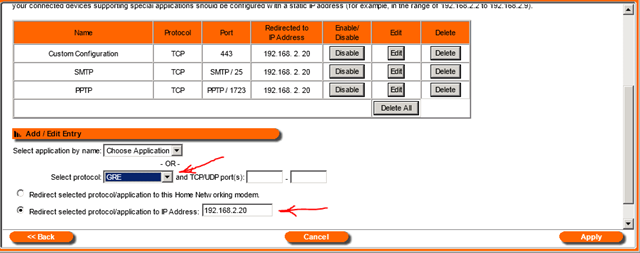
Next in the protocol box select GRE and again in the “redirect selected protocol/application to IP Address” box put the IP address of the server.

image

Done !

image

Note:  the other ports shown in the example, 443 and SMTP/25, are unrelated to the PPTP VPN and just there to show other service configurations.

How to join a Windows Domain using a VPN

There may be occasions where you need to join an off-site computer to an existing domain at a remote office.  Most often this would be in a situation such as a satellite office which is part of a larger corporate network and there is a site-to-site VPN in place.  Though a site-to-site VPN is by far the easiest way to join, it can be done using a Windows VPN client, which will be discussed further on in this article.  The primary problem encountered when joining the domain is DNS, but this is easily dealt with.

Joining the domain using a site-to-site VPN

  • Only 1 network adapter can be enabled on the PC joining the domain, and preferably a wired connection.  If any others exist such as a wireless card, disable until domain joined.  On occasion Bluetooth adapters will also conflict, so I recommend disabling them as well.
  • Configure the connecting PC’s network adapter either statically or through DHCP to point ONLY to the domain controller at the corporate office for DNS.  Do not add an alternate external DNS server such as an ISP or router as these will often respond first and name resolution will fail.
  • In the NIC configuration, under Internet Protocol Version 4 (TCP/IPv4) properties, click advanced, and under the DNS tab insert the corporate internal DNS suffix, such as CompanyDomain.local in the box entitled “DNS suffix for this connection”
  • image
  • Then join the domain using the traditional method of Computer (formerly My Computer) | Properties | Change Settings |  Change | enter the internal domain name | click OK | and you should be prompted for credentials for an account authorized to do so, a Domain Admin account.  If the Domain Controller is a version of Small Business Server the SBS option to use  http://SBSname/connectcomputer  or http://connect most often will not work.  (more detail and screen shots for the joining the domain process can be found below in the using a VPN client section).
  • If you wish to simultaneously import an existing local user profile, you can use ProfWiz as outlined in the following link which will both join the domain and move the profile. Though the article references SBS, it can be used with any Windows Server Version.  https://blog.lan-tech.ca/2011/05/19/sbs-and-profwiz/

Joining the domain using a Windows VPN client

Joining a domain using a VPN client is a little more involved, but not complicated. This method may work with other VPN clients, so long as they have the option to connect to the VPN before logon, but this explanation uses only the Windows built-in VPN client.  Without the ability to connect before logon, there is very little advantage even if you can join the domain, as you would not actually be authenticating to the domain.  I will assume the server end, RRAS, is configured and working for VPN client connections.

  • Log on to the PC you wish to join the domain with a local administrator account
  • Only 1 network adapter can be enabled on the PC joining the domain, and preferably a wired connection.  If any others exist such as a wireless card, disable until domain joined.  On occasion Bluetooth adapters will also conflict, so I recommend disabling them as well.
  • Establish a VPN connection.  If not familiar with doing so:
    • From the network and sharing center choose “Set up a new connection or Network”
    • Select “Connect to a workplace”
    • Choose “Use my Internet connection (VPN)”
    • Enter the public facing FQDN of the corporate VPN server such as VPNserver.MyDomain.com and enter a friendly name for the connection, anything you like.  It is also very important to check the box “Allow other people to use this connection” as you will soon have a domain account which will require access to this VPN connection.
    • image
    • Enter a User name, which ideally is the user that will be using the connection once joined to the domain, but can be any user name that is authorized to connect to the corporate network via VPN.  If you use a name other than the ultimate user of the PC they will simply have to change the user name during in the connection wizard, the first time they try to connect.  Enter the password and choose connect.  For security reasons I don’t recommend checking “Remember this password”.
    • image
    • If prompted for a network type after connecting, choose “Work Network”.

  image

  • Presumably you were able to establish a connection.  However while connected if you did an NSlookup from a command line for the server name, you will see it fails. Try an NSlookup for the FQDN of the server, and it will succeed.  Thus, we need to configure DNS for the VPN clientbefore proceeding.
    • image
    • Disconnect the VPN client
    • In the network connections window right click on the VPN/PPP connection and choose properties | Networking tab | highlight Internet Protocol Version 4 (TCP/IPv4) and choose properties | Advanced | DNS tab | and enter the IP of the corporate DNS server under DNS server addresses and the internal domain suffix such as MyDomain.local in the “DNS suffix for this connection box.  If admins need to connect to the remote client PC for administration by name check the box “register this connection’s address in DNS” but I would discourage this as the IP can change frequently and cause issues.  Also on the “IP Settings” tab leave the option “Use default gateway on remote network” checked, at least for now, so that all traffic is forced to the corporate network while the VPN is connected.
    • image
  • Now you can try joining the domain
    • Connect the VPN client
    • Right click on “Computer” (formerly My Computer) and choose properties.
    • In the resulting window select “Change Settings”
    • image
    • Slect “Change” again
    • image
    • Enter the corporate internal Domain name, such as MyDomain.local in the Domain box and click OK
    • image
    • You will be prompted for a domain account with privileges to join a PC to the domain, a Domain Admin.  Enter it and the password and you should receive a message advising you have been joined to the domain.  Be patient it takes a little longer as this is a slow link compared to the LAN.
    • image
    • You now need to reboot the connecting PC.
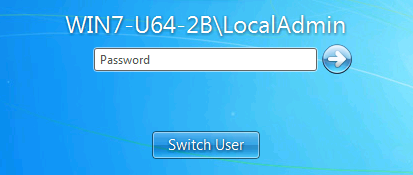
  • In order to authenticate to the corporate network at logon and work as if on the corporate LAN, you need to connect the VPN before logging on to the PC.  When the PC reboots press Ctrl+Alt+Delete as you normally would, and then choose  “Switch User”
    • image
    • You will then be presented with a new option, a little blue icon in the lower right corner.
    • image
    • Clicking this allows you to choose to connect to the corporate network, by using the VPN.  After entering your credentials you will see the familiar VPN connection automatically start, it will connect, and you will be authenticated to the domain.
    • image
    • Logon is a little slower of course due to the slow link, and the first time you connect it will have to set up the local domain profile.  If you make use of redirected my documents, offline files, or have a lot of group policies logon can take a very long time while they apply and sync.  If logon is too slow, you may want to review options available to the remote user.  You will note that if you now try nslookup <servername> works as it should.

Note:  If connecting from Windows 8, please see the following updated article:  https://blog.lan-tech.ca/2013/03/02/windows-8-connect-to-vpn-before-logon/


Depending on the performance of the VPN connection, it is sometimes necessary for the network administrator to “tweak” a few Group Policies for slow network detection. The following policies can assist with this:

Server 2008 / 2008 R2 / SBS 2008 / SBS 2011:
  • Computer Configuration | Policies | Administrative Templates | System | Group Policy | Group Policy slow link detection
  • Computer Configuration | Policies | Administrative Templates | System | Scripts | Run logon scripts synchronously
  • Computer Configuration | Policies | Administrative Templates | Network | Offline Files | Configure slow-link mode
  • Computer Configuration | Policies | Administrative Templates | Network | Offline Files | Configure slow link speed
Server 2003 / SBS 2003 / SBS 2003 R2:
  • Computer Configuration | Administrative Templates | System | Logon | Always wait for the network at computer startup and login
  • Computer Configuration | Administrative Templates | System | Group Policy | Group Policy slow link detection
  • Computer Configuration | Administrative Templates | System | Scripts | Run logon scripts synchronously
  • Computer Configuration | Administrative Templates | Network | Offline Files | Configure slow-link mode
  • Computer Configuration | Administrative Templates | Network | Offline Files | Configure slow link speed


Toast For Our Tables

Remotely change DNS server IP’s

I was recently asked how to change the DNS server IP’s in the NIC configurations of numerous servers, which of course have static IP’s.  Sounds simple right?  Maybe not.

  • You can use Group Policy to do so but apparently it will not work with all O/S’s and it will only work if DNS is working. 
  • You can deploy a script but that requires logon or reboot to apply. 
  • You use psexec and a text file list of servers with something similar to: “psexec @textfilename netsh interface ip set dns name = “Local Area Connection” source = static addr = 1.1.1.1”  however it requires the NIC name be accurate and it is not always named “Local Area Connection”

One proposed great solution is to use a VBS script by Alexxxandre K8L0 on TechNet.  This uses a text file list of server names or IP’s and updates each in the list.  The article can be found in the following link, but since occasionally the links change or articles ‘disappear’ I have posted the content here, but I take no credit for its design: http://gallery.technet.microsoft.com/scriptcenter/Change-fixed-DNS-IP-of-422415c1

Syntax: cscript SetDNSv2.vbs inputfile outputfile dns_ips
Input file: Put IP or Hostname of server line by line on a text file.
Output file: Is a log of return status “Inputed,Host,Adapter,Return Status”
dns_ips: Ips of DNS Servers separated by commas.
Example: cscript SetDNSv2.vbs inputfile.txt outputfile.txt 10.1.0.10,10.1.0.11,10.1.0.10

‘Set DNS By k8l0
‘By k8l0
If WScript.Arguments.Count = 3 Then
    strInputFile = WScript.Arguments.Item(0)
    strOutputFile = WScript.Arguments.Item(1)
    strNewDNS = WScript.Arguments.Item(2)
Else
    wscript.echo “Sintaxe: cscript SetDNSv2.vbs inputfile.txt outputfile.txt 10.1.98.64,10.1.98.36,10.1.18.24”
    wscript.quit
end if    
 
On error resume next
 
Const ForReading = 1
Const ForAppending = 8
 
Set objFSO = CreateObject(“Scripting.FileSystemObject”) 
Set objTextFileIn = objFSO.OpenTextFile(strInputFile, ForReading)
Set objTextFileOut = objFSO.OpenTextFile(strOutputFile, ForAppending, True)
 
wscript.echo “Host        Adapter        Return Status”
wscript.echo “—-        ——-        ————-”
objTextFileOut.WriteLine(“Inputed,Host,Adapter,Return Status”)
 
Do Until objTextFileIn.AtEndOfStream 
    strComputer = Trim(objTextFileIn.Readline)
    
    Set objWMIService = GetObject(“winmgmts:” & “{impersonationLevel=impersonate}!\\” & strComputer & “\root\cimv2”)
    Set colNicConfigs = objWMIService.ExecQuery(“SELECT * FROM Win32_NetworkAdapterConfiguration WHERE IPEnabled = True”)
    
    For Each objNicConfig In colNicConfigs
        If Not IsNull(objNicConfig.DNSServerSearchOrder) Then
            strReturn = “”
            arrNewDNSServerSearchOrder = Split(strNewDNS,”,”)
            intSetDNSServers = objNicConfig.SetDNSServerSearchOrder(arrNewDNSServerSearchOrder)
            If intSetDNSServers = 0 Then
                strReturn = “””” & “Replaced DNS server search order list to ” & strNewDNS & “.” & “”””
            Else
                strReturn = “Unable to replace DNS server search order list.”
            End If
        Else
            strReturn = “DNS server search order is null. Nothing changed!”
        End If
        
        strDNSHostName = objNicConfig.DNSHostName
        strIndex = objNicConfig.Index
        strDescription = objNicConfig.Description
        strAdapter = “Network Adapter ” & strIndex & ” – ” & strDescription
        wscript.echo strDNSHostName & VBTab & strAdapter & VBTab & strReturn
        objTextFileOut.WriteLine(strComputer & “,” & strDNSHostName & “,” & strAdapter & “,” & strReturn)
        Next
Loop 
 
objTextFileIn.close
objTextFileOut.close
 
wscript.echo “Finished!!!”

Sharepoint update KB2596911 on SBS

I just installed “Security Update for Windows Services 3.0 x 64 KB2596911” on a clients SBS 2008 server, as 1 of 6 updates, only to have it fail.  Upon reboot neither Sharepoint website or the WSUS console were functioning.  In addition the Application Event Log was full of Event ID 5084, Source MSSQL$MICROSOFT##SSEE informational events.  A quick Google showed many folk have encountered similar issues, for example:

http://social.technet.microsoft.com/Forums/en-US/sharepointadmin/thread/e8391454-a5b2-418f-8dab-324c430ce219

In my case after the reboot I was able to resolve by downloading the single update from the link below, right clicking and choosing run as administrator, and wait, and wait, and wait!  Be patient, the update though small took about 45 minutes to complete but it was successful, and all services restarted.  Though it did not prompt for a reboot I felt it was best to do so and everything still functioned properly.

http://www.microsoft.com/en-us/download/details.aspx?id=30274

For the record, there is no mention of it in the KB article, but during the install it advises that you need volume licensing to use the update.  I choose to accept the notification and continue, working on the assumption the licensing referred to the base product.  In my case this was being installed on Small Business Server where Sharepoint is an integrated component.

This may not be a solution in all cases, but it was a simple, though tedious, repair for this server.