Archive for the ‘Uncategorized’ Category

Connect to Windows VPN at Logon

The internet is littered with questions about VPN connection and authentication issues as a result of using cached credentials.

  • How can I automatically connect my Windows VPN at start up?
  • Why do I have to re-enter my user credentials when connecting my corporate VPN?
  • How do I get Group Policy to apply to VPN connected users?
  • How do I use my work domain user account when I work from home using a VPN?
  • Why won’t my logon script run when connecting by VPN?

You can connect from any PC using a VPN, but in most cases you do so after having logged onto the PC first. If this is a “domain joined” corporate PC, when you logon without the domain controller present, you are not authenticating to the domain but rather using the credentials cached on the local computer from a previous logon.  As a result Group Policy cannot be updated, logon scripts are not applied, and most often you have to re-enter your user credentials when you do choose to connect to the office via VPN.

It is possible to connect to the VPN at logon resulting in an experience similar to that of the office, except of course for the reduced file transfer speed,  However, there are few conditions that must be met to do so:

  1. This applies only to the Windows VPN client. Newer Cisco VPN clients and a few others do offer methods to connect the VPN before logon, but they use different processes.
  2. The computer must be a member of the domain, and therefore Pro, Ultimate, or Enterprise versions of the operating system.  At logon you will be providing domain credentials which are automatically passed to the local logon, thus they must be the same.  Using the same username and password is not enough as logon credentials include domain or computer names.  Domain\JDoe is not the same as LocalPCname\JDoe.  If the computer is not already a member of the domain, it is possible to join a remote domain using the VPN connection.  To do so please see:  https://blog.lan-tech.ca/2012/07/25/how-to-join-a-windows-domain-using-a-vpn/
  3. Should the PC not be domain joined and you wish to automate the VPN connection, after logon, please see: https://blog.lan-tech.ca/2013/06/08/rasdial-automate-vpn-connections/
  4. When you create the VPN connection you must check the box “allow other people to use this connection”.

image

Having met these conditions, at logon there is now an option to connect using the VPN during logon.

Windows Vista and Windows 7:

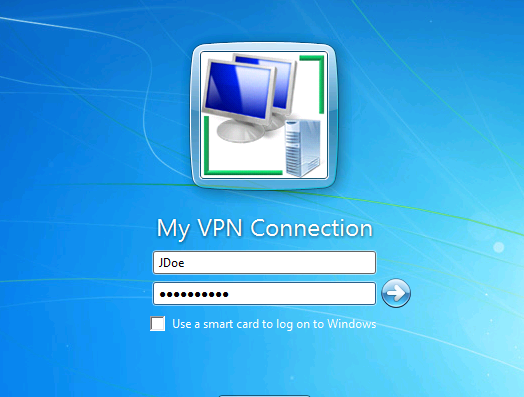
At logon select “Switch User” and a new blue icon will appear in the lower right next to the familiar red Shut Down icon.

image

Clicking the icon will allow you to use the VPN connection, and simultaneously connect and authenticate to the corporate domain, and log on to your local PC

image

Windows XP:

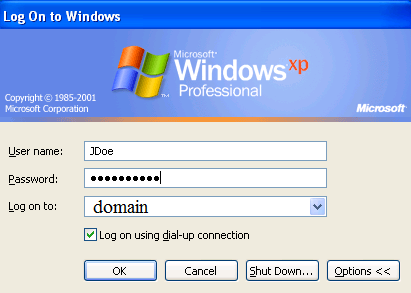
At logon after pressing ctrl+alt+del, if you click the “Options” button there will new be a check box “Logon using Dial-up connection” which will use the VPN connection, and simultaneously connect and authenticate to the corporate domain, and log on to your local PC

image

Windows 8:

Please see the more recent post to enable on a Win 8 PC

Slow Links:

Depending on the performance of the VPN connection, it is sometimes necessary for the network administrator to “tweak” a few Group Policies for slow network detection.  The following policies can assist with this:

Server 2008 / 2008 R2 / SBS 2008 / SBS 2011:

  • Computer Configuration | Policies | Administrative Templates | System | Group Policy | Group Policy slow link detection
  • Computer Configuration | Policies | Administrative Templates | System | Scripts | Run logon scripts synchronously
  • Computer Configuration | Policies | Administrative Templates | Network | Offline Files | Configure slow-link mode
  • Computer Configuration | Policies | Administrative Templates | Network | Offline Files | Configure slow link speed

Server 2003 / SBS 2003 / SBS 2003 R2:

  • Computer Configuration | Administrative Templates | System | Logon | Always wait for the network at computer startup and login
  • Computer Configuration | Administrative Templates | System | Group Policy | Group Policy slow link detection
  • Computer Configuration | Administrative Templates | System | Scripts | Run logon scripts synchronously
  • Computer Configuration | Administrative Templates | Network | Offline Files | Configure slow-link mode
  • Computer Configuration | Administrative Templates | Network | Offline Files | Configure slow link speed

Client Deployment:

Network administrators may also want to considered creating a deployable VPN client for consistency, security, and with a company logo.  An earlier post outlines how to do so in detail:

https://blog.lan-tech.ca/2012/01/30/windows-vpn-client-deployment/

Hosts and LMHosts files

Though rare, there still is an occational need or advantage to using Hosts and LMHosts files.  Though simple text files, the syntax used is critical.  The following is a repost from an older blog of mine.  I have done so in hopes that it may be helpful to some folk, and also it will be useful in and upcoming post regarding Hyper-V configuration and management.

There are two files in the %systemroot%\system32\drivers\etc directory that can be used for name resolution. The Hosts file, used for DNS name resolution, and the LMHosts.sam file used for NetBIOS name resolution. In an age where DNS dominates your network both locally and throughout the Internet, these two files are seldom ever used, but they can be very useful in a few situations. Both are simple text files that match names to IP addresses, and are very easy to create and implement. Most people are familiar with these files, but are often frustrated when they do not work as expected. This is usually due to the fact that they have some very simple, but specific requirements, for them to work at all.

LMHosts (NetBIOS names):

The primary use today for an LMHosts file, is for name resolution over a VPN. If DNS is configured on the host and client machines there should be no need of static text files for resolving names, but it does work well, and many folks uses them as a dependable simple solution. The catch is there are a few gotcha’s you need to be aware of:

  • The LMHosts file in it’s default form, is named lmhosts.sam The .sam represents sample. If you are planning on using this file it needs to be saved without a file extension – lmhosts. Be careful if using a text editor like NotePad as it will add a .txt file extension to the name. The safest method is to save the file using quotes, “lmhosts” to assure no extensions are added.
  • Text following a # in the LMHosts file is a comment and can be ignored or deleted.
  • A typical entry would look like:

192.168.100.101 COMPUTERNAME #PRE #my notes

  • When making a new entry you must hit enter at the end of the line, which adds a “carriage return”
  • Use the Tab key between items in each line rather than spaces (recommended but not necessary), but there must be a space.
  • Though it is not needed, adding the #PRE parameter or extension will load the entry into the local NetBIOS name cache when the computer boots. This allows for a slightly faster resolving of the name, before it has been added to the cache.
  • Most entries such as #PRE, #DOM, DOMAIN names and such are case sensitive. Always use uppercase to be safe.
  • It is a good idea to add the domain name as well. This requires two lines, and uses extremely critical formatting. A sample would be:

192.168.100.10 DCNAME #PRE #DOM:YOUR-DOMAIN
192.168.100.10 “YOUR-DOMAIN x1b” #PRE

There must be exactly 20 characters, including spaces, between the quotes in “YOUR-DOMAIN x1b”, and the spaces need to be between the domain name and the x1b. The domain name used is the NetBIOS name, not the FQDN. If your domain name exceeds 15 characters, you must truncate it at the 15th character, it will still work.

If you find this last step tedious, the University Of Sait Louis has a little Java script that will create these two lines for you: http://bflinux.slu.edu/LSI/tools/lmhosts.html

Hosts (DNS names):

The Hosts file today seems to be more used for blocking unwanted web sites. This is done by simply entering the website address and substituting the IP address with the localhost IP address such as:

127.0.0.1 www.unwantedsite.com#advertising site

There are subscription services that will actually update your Hosts file, according to a schedule, with a list of known unwanted sites.

Another handy use of the Hosts file is to create abbreviations for your own use. For example quick access to a website like Google can be achieved adding an abbreviation like ‘G”, or your firewall with ‘F”, or I frequently uses it for accessing client sites with remote desktop using 3 letter acronyms such as ACL for Acme Corp Ltd. :

64.233.187.99 G #Google

192.168.100.254 F #my firewall

123.123.123.123 ACL #Acme Corp Ltd

Most of the rules that apply to the LMHosts file, apply to the Hosts file as well:

  • The Hosts file already has no file extension, so there is no need to change it like the LMHosts file. Just be careful when editing you don’t accidentally add one such as .txt when using NotePad or a similar editor.
  • Text following a # in the Hosts file is a comment, and can be ignored or deleted
  • A typical entry would look like:

123.123.123.123 ftp.acme.com#company FTP site

  • When making a new entry you must hit enter at the end of the line, which adds a “carriage return”
  • Use the Tab key between items in each line rather than spaces (recommended but not necessary), but there must be a space.

Keep in mind when editing these files you can run into conflicts, or ineffective changes if you do not reboot or purge the local name caches. To clear the NetBIOS cache ( and PREload), at a command line enter (R is case sensitive):

nbtstat -R

To clear the DNS cache, at a command line enter:

ipconfig /flushdns

For the record, the Hosts file can also be used for IPv6 addressing. Vista for example includes the IPV6 localhost entry, by default:

::1 localhost

Rogue DHCP Servers

On occasion you may be consulted about network issues which suggested a rogue or unknown DHCP server present on the network.  This can show up is several ways including the discovery of a PC with incorrect IP addressing, most often the wrong DNS server, or in an SBS environment the SBS DHCP service has shut down due to the presence of another DHCP server.  The dilemma is how to locate it.  There are a few tools that can be helpful with the process.

You may also have a case of an unknown device in the DHCP management console under address leases.  Some of these tools can be useful in isolating those as well.

Determine the DHCP server’s IP:

The first step is to locate the DHCP server’s IP.  You may be fortunate and have discovered the incorrect addressing on a PC.  In this case the DHCP server will be listed in the IPconfig /all results.  Alternatively you can use two different tools.

The first is Microsoft’s DHCPloc.exe (DHCP locator).  It can be downloaded as an individual executable from http://www.petri.co.il/download_free_reskit_tools.htm or as part of the Server Support Tools on the server’s installation CD.

Warning:  DHCPloc should not be run on the DHCP server itself.  Doing so can cause the DHCP server to stop responding to DHCP requests.

At a command line, from the directory where you have saved DHCPloc enter
  DHCPloc.exe <the workstation’s IP>
You may have to hit enter twice. You will be prompted to enter d, q, or h. Enter d for discover, and again you may have to hit enter twice.  It should return the IP of the DHCP server, or servers, and an offered DHCP address.
DHCPloc syntax:
http://technet.microsoft.com/en-us/library/cc778483.aspx

You may want to temporarily disable the network’s default DHCP service while running these tests.

image

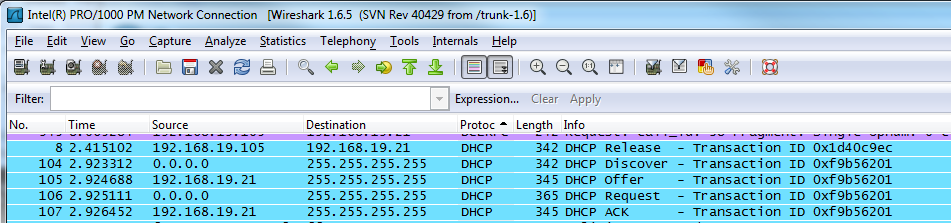
The second method is to use Wireshark, from http://www.wireshark.org, a network packet analyzer and a much a more powerful tool.  Install Wireshark on a workstation, start a scan, and run an ipconfig /release and /renew to force a DHCP request.  Once complete you can filter the log by protocol and locate the DHCP related packets.  Do this quickly as Wireshark collects a substantial amount of data very quickly.  There are tutorials available to become familiar with Wireshark.

image


Find the MAC Address:

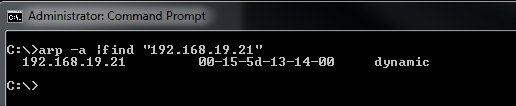
With any luck you now have the IP of the DHCP server.  Next is to find the device’s MAC address.  By now it should have been recorded in the arp table, but if not try pinging the IP.  Then from a command line run  arp –a  or arp –a |find “IP address”  to recover the MAC address of the device.

image


Determine the Manufacturer:

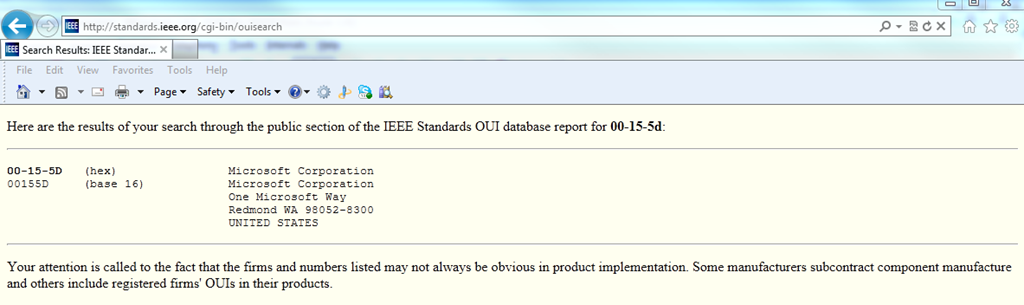
The fist 6 characters of the MAC address are assigned to the manufacturer, therefore we may be able to determine the make of the device in question.  In the example above we would use 00-15-5d  in conjunction with a site such as  http://standards.ieee.org/develop/regauth/oui/public.html and determine the registered manufacturer/vendor was Microsoft Corporation.  This may or may not be helpful since in this case it simply indicates it is a Virtual machine.  Often it will provide results such as Cisco-Linksys, D-Link Corp., Apple Inc. which may give you a better indication as to the type of device, perhaps a Linksys router installed by an employee to add wireless to his or her office.

image


Locate the device:

Physical location is much harder to establish, especially if it has been intentionally hidden.  It is always best practice to keep a floor plan with all network drops and to disconnect any unused network drops at the patch panel, but it doesn’t do much to protect you.  If you have managed switches you can locate the port to which the IP or MAC address is connected and start tracing from there.  However, if you do not have managed switches you are best to run a continuous ping  (ping  –t 192.168.19.21) and start unplugging cables at the patch panel until you have dropped packets .  A little crude, but effective.

I will publish an article in the near future to more proactively address this issue using DHCP filtering.

Am I logged onto a virtual or physical machine ?

I was asked; “When logging onto a remote machine, how do I know if it is a physical or virtual, server or PC” ?  Since the experience is “virtually” the same, it is not readily apparent.  There are a few ways to verify but in my opinion the simplest is to run systeminfo from a command line.  Within the output, next to “System Manufacturer” and “System Model:” it will show:

  • On a VM running on Hyper-V => “Microsoft Corporation” and “Virtual Machine”
  • On a VM running on VMware Server => “VMware, Inc.” and “VMware Virtual Platform”
  • On a physical machine => “System Manufacturer” or the actual manufacturer, and the motherboard model number such as D945GNT (Intel)

To parse the results of systeminfo and only return the information to determine if virtual or not, run:

systeminfo |find “System Model”

image

SBS 2008/2011 Renew 3rd party Certificate

It seems many Small Business Server 2008 existing third party SSL certificates are expiring and some people are confused about how to renew.  Instructions on the internet often involve lengthy solutions involving the IIS management console.  The forums show that these methods frequently result in failure to import the certificate or it is not properly bound to the default SBS Web Sites.

SBS makes this process very easy. Once again, use the wizards, use the wizards, use the wizards…

Note: This article addresses SBS 2008 and SBS 2011 Standard. If running SBS 2011 Essentials I recomend reviewing Robert Pearman’s Blog article; Renew your SSL Certificate : SBS 2011 Essentials 

I should confirm this article addresses 3rd party SSL certificates, if you are using an SBS self-signed certificate, you simply need to run the “Fix My Network Wizard” to renew.

Open the Windows SBS console and browse to Network | Connectivity | highlight “Certificate” | in the right hand  menu select “”Add a trusted certificate”

image

Choose “I want to renew my current trusted certificate with the same provider”

image

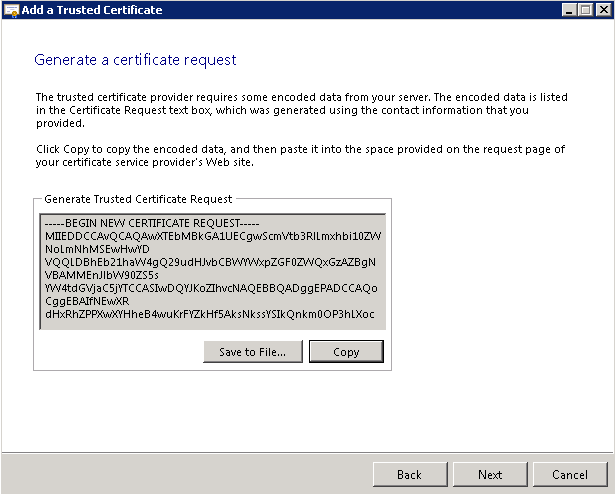
Allow the encrypted certificate request to be generated and click copy.  You could go from here directly the the vendor from whom you are going to purchase and renew the certificate, but there are often delays with process so I recommend pasting to Notepad to retain the text file for a few minutes.  Alternatively you can click the “save to file” button and accomplish the same thing.

image

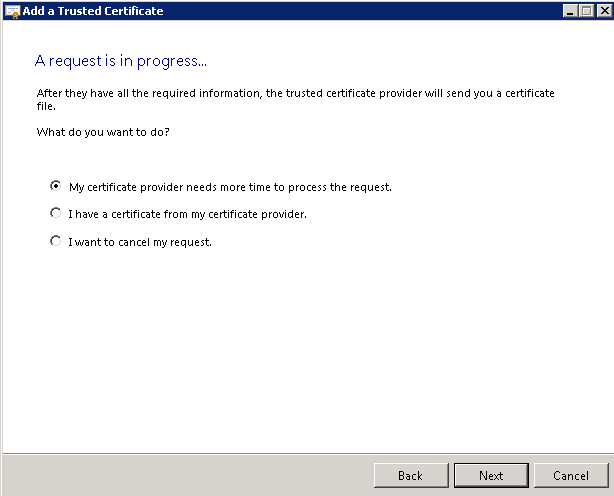
If you think the provider will supply the certificate immediately you can leave this window open and wait, but most often you are best to put the process in “suspend mode” by selecting “My certificate provider needs more time to process the request”

image

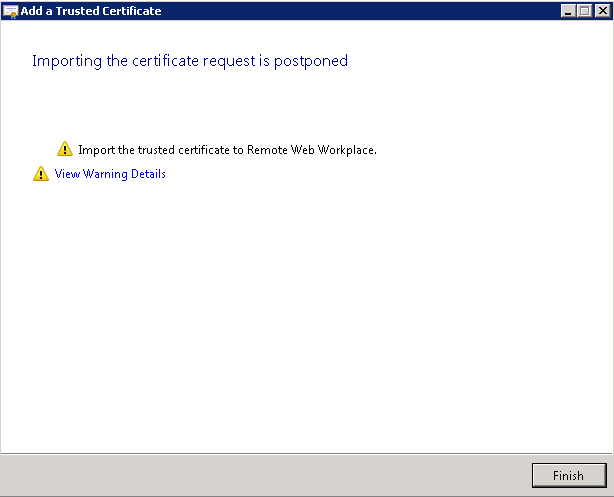
….and complete the wizard.

image

Next, log onto your certificate provider’s webs site, purchase the certificate renewal, create the certificate by copying and pasting the saved contents of Notepad (the encrypted CSR text) when prompted, wait for your certificate approval (usually sent by e-mail), download the certificate, and save to a location of your choice on the server.

Now you can import the certificate.  Once again open the Windows SBS console and browse to Network | Connectivity | highlight “Certificate” | in the right hand menu select “”Add a trusted certificate”.  This time choose “I have a certificate from my certificate provider”.

image

Browse to the location where you saved the certificate.

image

….and complete the wizard.

image

You can confirm your certificate has been imported / updated by choosing “View certificate properties” from the same Windows SBS console window, and reviewing the expiry date.

image

Drive Mapping Basics

We have all been mapping drives using various methods so long as we have had networked computers.  A recent discussion with a colleague revealed that many IT pros still use the same methods they used with NT4, during the last century. Though these methods still work as well today as they did 10 to15 years ago, if enlightened these folk might find some of the newer options using group policy and preferences easier to manage and apply, in a windows domain environment.  I am sure this article is a very basic review for most, so I have titled each so that you can quickly locate methods that may be of interest, or skip to using group policy near the end like any good “cliff hanger”.

1)  Manually:

The option still exists with Windows 7 to open windows Explorer, click on the menu bar, select “Map a network drive”, select the drive letter and path, and choose whether to reconnect at next logon.  This is hardly a reasonable way to deploy mapped drives to multiple users as it would require going desk to desk.  The other primary downside to this option is end users can override, delete, and add their own mappings which may conflict with mappings you are trying to push out from the server.  The latter to be addressed with the deployment methods #3 and on.

image

2)  From a command line:

Though probably even less practical, the option also exists to duplicate the above from a command line by simply using:

Net Use X: \\ServerName\ShareName /persistent:yes

3)  A batch file

The next step up would be to apply the Net Use commands using a batch file (also called script) which the user can apply by clicking on a desktop shortcut or by adding it to the start menu “StartUp” folder.  Though this method of applying the batch file is not at all practical, using a batch file is a reasonable option. Alternate methods to apply a batch file are discussed later, but I will take this opportunity to discuss the script itself and the syntax.  The script could be written using VBS or other languages, but for simplicity I will stick to DOS commands.  The script is written in a text editor like “notepad” and saved with a .bat (or .cmd) extension.  When saving, to be sure the .txt extension is not automatically added, place quotes around the file name such as “MyScript.bat” .

The basic line to apply the drive mapping is still the same:

Net Use  X:  \\ServerName\ShareName

However, as mentioned in #1 users have a tendency to occasionally create their own mappings, or you may want to make changes from time to time, so I like to start with a clean slate, delete all existing mappings, and make sure they will not automatically be recreated due to the “/persistent:yes” option.  To do so start the script as below, followed by the drive mappings. (Note: DOS commands are not case sensitive)

Net Use /persistent:no
Net Use * /delete
Net Use X: \\ServerName\ShareName1
Net Use Y: \\ServerName\ShareName2
Net Use Z: \\ServerName\ShareName3

It is also possible to add GoTo statements and Labels to filter a script.  For example you may want one script for multiple users on multiple devices, but the required mappings may vary for different users, on different servers or PC’s, or when users are members of different groups.  This is not a scripting lesson but to provide an example, in the following batch file the mappings will not be applied if run on a server named Server1, and User1 and User2 will have different drive mappings than other users.

If "%ComputerName%" == "Server1" GoTo END
Net Use /persistent:no
Net Use * /delete
If "%UserName%" == "User1" GoTo MAP1
If "%UserName%" == "User2" GoTo MAP2
Rem  apply default mappings to all others
Net Use X: \\ServerName\ShareName1
Net Use Y: \\ServerName\ShareName2
Net Use Z: \\ServerName\ShareName3
GoTo END
:MAP1
Net Use X: \\ServerName\ShareName1
GoTo END
:MAP2
Net Use Y: \\ServerName\ShareName2

The following sites will provide additional information regarding DOS commands and syntax, or using IfMember (for group membership filtering)  instead of If %UserName%

4)   Batch file, applied through the user’s profile

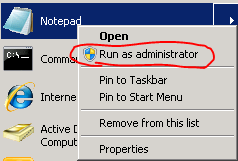
Continuing with using the batch file method; it would be more practical to apply it from the server, when the user logs on to their workstation than by installing on each machine.  The crudest method of doing so which has been around for more than 10 years, is to apply the script though the user’s profile in Active Directory Users and Computers on the server.  The default location to place the script is  C:\Windows\sysvol\sysvol\<your domain>\scripts.  This path is also a default share, \\ServerName\Netlogon  for which all domain users have read permissions.  The location can be change but if so permissions have to be considered and the path provided.  Why “re-invent the wheel”, use the default file path.  On server 2008 / 2008 R2 you must be an administrator and have “elevated privileges” to write to this file location. When opening the text editor (Notepad) right click on the application or shortcut and choose “run as administrator”.   Failing do to so will not allow the file to be saved.image

Once the batch file has been placed in the appropriate location, open the user’s profile in Active Directory, and in the box labeled “Logon Script” under the “Profile” tab, insert the name of the script.  It will be applied the next time this user logs on to a domain joined machine.  The only real disadvantage of this method is the name of the batch file has to be manually added to each user’s profile.

image

5) Batch file, applied using Group Policy

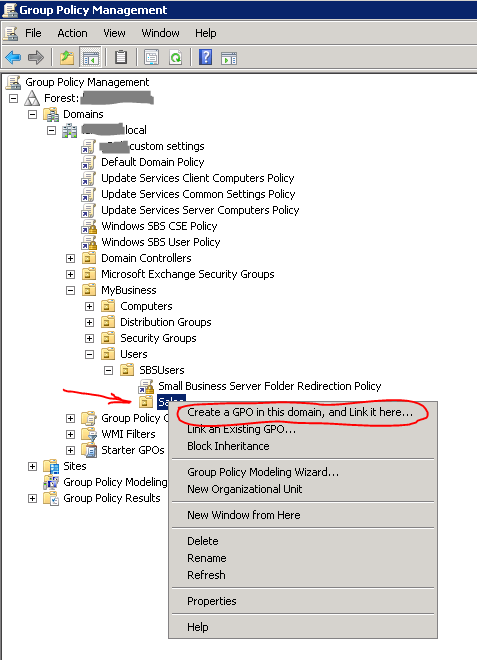
Now the 21st century methods:  Group policy is the ideal way of managing users and controlling their environment.  The possibilities are endless, but the focus is on mapping drives.  Again place the script in the default location mentioned above; C:\Windows\sysvol\sysvol\<your domain>\scripts heeding the notes about requiring elevated privileges.  Instead of applying through the user’s profile, which only affects one user, we can now apply to all members of an OU (Organizational Unit) through Group Policy.  This example will use an OU named Sales.  I will assume the users belonging to the Sales OU have already been added in active Directory.  The policy can be applied to an OU at any level, including the domain level if preferred, though it is a “User Policy” so I recommend applying to a User OU.

Open the Group Policy Administration Console under Administrative Tools, and locate the OU to which you wish to apply the Logon script. Right click on the OU and choose “Create a GPO in this domain, and link it here”. The following image shows the OU structure used on a Small Business Server.

image

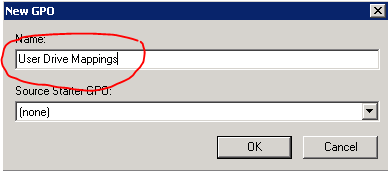
Name the policy

image

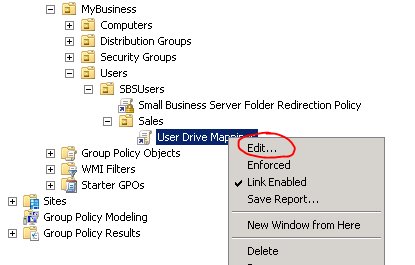
Right click on the new policy and choose edit

image

Expand the tree to locate <your domain name> | User Configuration | Policies | Windows Settings | Scripts (Logon/Logoff) | in the right hand window right click on Logon and choose properties| click add, then enter the path or browse to your logon script.  Save by choosing OK, OK.

image

Group policy can take up to about 90 minutes to apply to workstations.  If you wish to force it to update form a command line run:  gpupdate /force  then log off and back on.  The drive mappings should be applied.

6) Using Group Policy Preferences

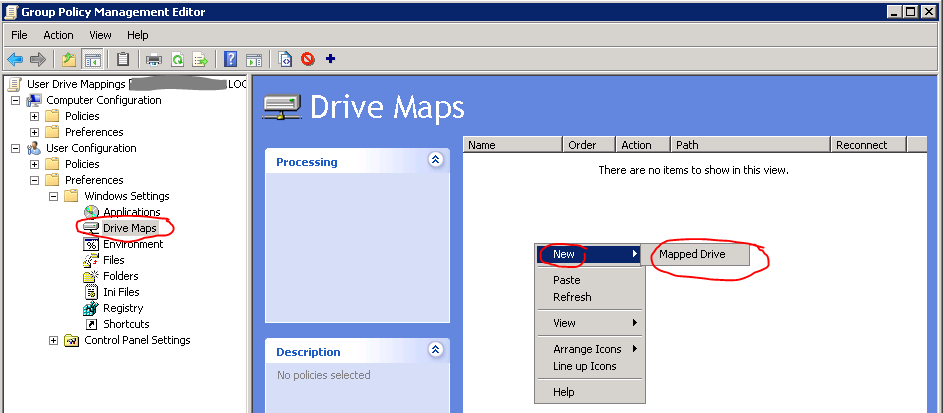
The latest method for applying drive mappings also uses Group Policy but does not require a script at all.  Server 2008 introduced Group Policy Preferences.  This method applies the mappings to a specified OU similar to the example above with the Sales OU, but uses a different feature or object within the Group Policy management console.  Again right click on the OU to which you wish to apply the mappings and choose “Create a GPO in this domain, and link it here”, name the policy, and select edit as in #5 above.  This time expand the tree to locate <your domain name> | User Configuration | Preferences | Windows Settings | Drive Maps.  Right click in the right hand window  and choose New | Mapped Drive

image

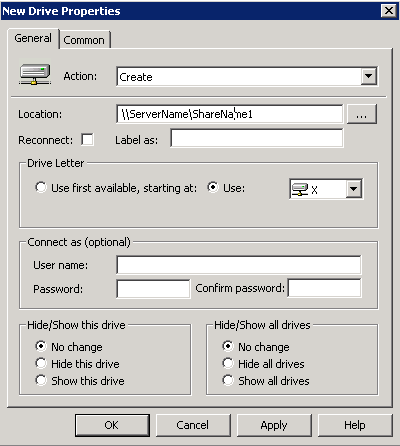
In the resulting window first choose Create or Replace.  Create seems to be the more common choice.  Replace does function more like the earlier script in that it deletes existing mappings and options, and completely re-creates the new drive mapping.  Next enter the share UNC path and select the drive letter. I prefer not to select reconnect, which is similar to opting for  /persistent:no  as explained in the earlier scripting section.  Then save the drive mapping by simply clicking OK.  For more information on Drive Map options see: http://technet.microsoft.com/en-us/library/cc770902.aspx

image

Once complete the new drive mappings will be displayed in Group Policy similar to the following image:

image

Remember as in #5 if you wish the Policy Changes to be applied immediately, you must run gpupdate /force on the workstations to be affected.

Group Policy Preferences is obviously the simplest method for creating and reviewing mapped drive configurations so chances are you only read the past 2 paragraphs, but hopefully it has be of some help to those looking at other methods or wanting a brief history lesson.

In the event you have problems applying Group Policies make sure you have waited 90+ minutes or run gpupdate /force, then if necessary you can run GPResult on the workstation, or on the server in Active Directory run the Group Policy Modeling Wizard .

Security Essentials JS/Blacole.BW false positive

Microsoft Security Essentials and Forefront Endpoint Protection today started reporting world wide the presence of Exploit:JS/Blacole.BW when accessing http://www.google.com, http://www.google.ca, http://www.google.com.au, and several others.  Apparently blog sites were buzzing with concerns, and suspicions of a false positive.  Despite the Microsoft malware description in the image below, it has ultimately been reported ( by Stephen Burns) as a false positive, and Microsoft hopes to release a definition update a short while after 2:00 am GMT, Feb 15/2012

image

UPDATE 2:30 am GMT:

Just received virus definition update # 1.119.1988.0  and seems to have resolved the problem on our systems..

Windows VPN Client Deployment

      subtitled: What happened to the SBS Connection Manager?

VPN name resolution is a common problem for many IT folk.  I have addressed in in previous blogs by manually configuring the VPN client to point to the corporate server for DNS, and adding the corporate domain suffix.  This is not practical as it has to be done on every computer on which the VPN client was configured.

Small Business Server 2003 had a very nice little wizard that would create a deployable VPN client called “Connection Manager” which contained server connection information and allowed for proper name resolution over the VPN.  Though the missing feature from subsequent SBS versions inspired this article, it can be used to create a deployable VPN client for any Windows Server.  The SBS wizard basically ran a mini version of a standard Windows tool called CMAK.

Firstly you need to install CMAK, the Connection Manager Administration Kit.  To do so, on a 2008 or newer server, open Server Manager under Administrative Tools, choose Features, and Add Features.  In the features wizard choose Connection Manager Administration Kit, and complete the wizard.

image

Though there are many configurable options and features that can be added with CMAK, for the purposes of this article only the basics will be configured to allow for VPN name resolution, automatic installation, and to try to replicate the old SBS 2003 Connection Manager experience.  One of the additional advantages of the Connection Manager Client is it limits the options with which the client can “tinker”, thus reducing support calls and increasing security.

In this example CMAK is being run on a 64bit machine. The deployable VPN client created can only be used on other 64bit machines. If you need to deploy on a 32bit machine you will need to install and run CMAK on a 32bit computer/server.  CMAK may not available from the built-in windows options on older operating systems.  If so, it can be downloaded as part of the Windows Server 2003 Administration Tools Pack (32bit) http://www.microsoft.com/download/en/details.aspx?displaylang=en&id=16770

Start The Connection Manager Administration Wizard from Administrative Tools, accept the UAC warning, click next, and select the O/S on which the client will be deployed, remembering the above warning about 32/64 bit.

image

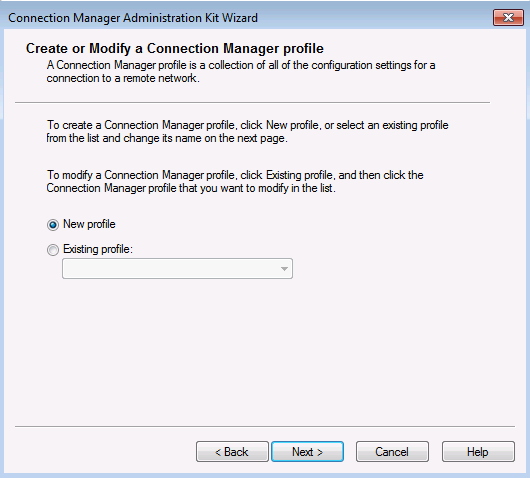
Select New Profile,

image

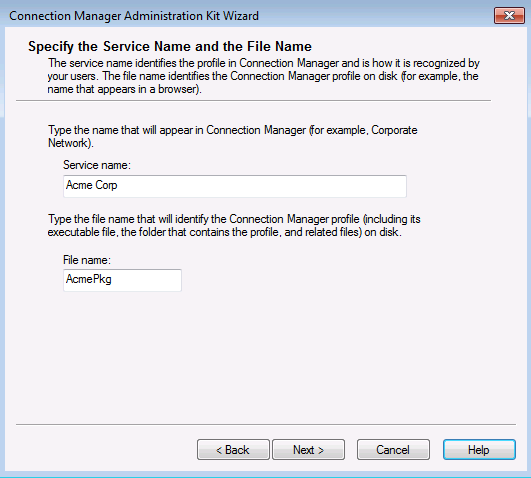
Enter a ‘Friendly’ name for the connection and a file name (<9 characters) for the deployment package.

image

Rather than cluttering this post with unnecessary images, accept the defaults on the next two pages, “do not add a realm name to the user name” and leave the merge profiles boxes empty. In the next window, as per the image below, check Phone book from this profile, always use the same VPN server, and insert the public FQDN or IP of the VPN server.

image

Next highlight your new connection and choose edit.  Under General select Only IPv4 addresses.  If you like, for added security you can disable file and printer sharing, which blocks access to shares on the connecting client’s computer while connected to the VPN.

image

Under IPv4 add the internal IP for your corporate DNS server.  If you have multiple corporate DNS servers you can add a second, and if you have WINS servers you can add those as well.  Do not add public DNS servers here.  I recommend checking “Make this connection the client’s default gateway” (disabling split-tunneling) which blocks access to to the client’s local LAN while connected to the VPN.  By doing so Internet access is actually made via the VPN, rather than through the local router.  One reason you may need to un-check this is it also blocks access to a local networked printer, i.e. one that is not physically attached to the connecting computer.  Leave “Use IP Header compression” checked.  Note that in a user created VPN client using the tools built into a Windows PC, the “default gateway” option can be changed.  When created with CMAK it cannot be changed.  This is intentional for security reasons.  Split-tunneling, allowing the client simultaneous local and remote network access, is considered a security risk.

image

Under security you can leave the defaults or change to “Only use Point to Point Tunneling Protocol (PPTP)”.  If you are connecting to an old server it may also be necessary to also check CHAP authentication, but this is less secure than MS-CHAP v2, so only do so if absolutely necessary.  All 2008 and newer servers use MS-CHAP v2 by default.

image

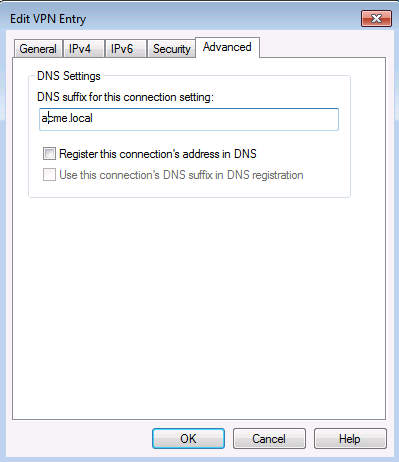
Under advanced add the internal corporate domain suffix.  Check “Register this connection’s DNS address in DNS” if for some reason LAN clients need to resolve the name of the remote computer.  I recommend not doing so if not needed as it adds unnecessary entries to DNS that may not be cleaned up if DNS scavenging is not properly configured.  Select OK, Next, and move on to the next window.

image

We are not using “phone books” so uncheck “Automatically download phone book updates”

image

From here accept all defaults in the next 4 windows; Configure Dial-up Networking, Specify Routing Tables, Configure Proxy Settings, and Add Custom Actions.

Note: it is assumed the server VPN configuration is basic, assigning IP’s in the same subnet for VPN clients as LAN clients, which is typical of SBS.  However, if the VPN clients are assigned addresses outside of the LAN subnet, and you want to access resources on the corporate LAN other than the VPN server, you will need to add a routing table file, on the “Specify Routing Tables” page, to have the route pushed out to VPN clients.

Though not necessary at all you may want to add a custom graphic or logo to the connection client. This is done on the “Display Custom Logon Bitmap” page followed by the ability to add a custom graphic in the phone book (list of connections), and on the 3rd related page you can choose to use  custom Icon for the deployed VPN connection.

Leave the “Include Custom Help File” as default, and under “Display Custom Support Information”.  You may want to add contact information. This is displayed on the VPN connection client where they enter their user name and password, when trying to establish a connection.

image

Accept the defaults in the remaining windows; “Display a Custom License agreement” and “Install Additional Files…”.  In the final Window “Build the Connection Manager Profile and its Installation Program” leave Advanced uncheck, and assuming you do not wish to make any changes, click Next, and Finished.  The deployable package will be saved in a folder named profiles in the CMAK folder, the default location being: C:\Program Files\CMAK\Profiles\Windows 7 and Windows Vista\   You only need to copy the .exe file to the client computer, in this case AcmePkg.exe

image

To configure the client, simply double click on the .exe file.  You will be prompted if you want the client to be available to all users or just the current user.

image

Click OK, and wizard will complete, add a connection icon to the desktop, add the connection to task bar network icon………

image

…….and launch the VPN client.

If you wish to connect enter the user name of a member of your VPN User group, their password, and internal domain name.  The domain name does not have to be present just to connect to the VPN, but in most cases if the PC is not domain joined, it needs to be there to access files using server names, rather than IP’s.

image

You should now have access to resources on the remote server, assuming the VPN at the server end is properly configured, and you have the appropriate Share and NTFS/Security permissions on the server to do so.

If needed, I have bloged in the past about configuring the VPN server.

Configuring a Windows SBS 2003 as a RRAS/VPN Server

SBS 2011 Essentials – Configuring VPN access

Configuring a Windows 2003 RRAS/VPN Server with 1 network adapter

SBS 2011 Essentials – Configuring VPN access

It has been pointed out that SBS 2011 Essentials does not have the familiar wizards to create VPN access to the server.  Though a better and MUCH more secure option is to make use of Remote Web Access, or add a VPN capable router that supports an IPSec client, on occasion there are reasons to still make use of the native Windows VPN feature.  Where SBS has traditionally supported the PPTP protocol for its VPN, this article will address creating similar service.

Add the RRAS Role:

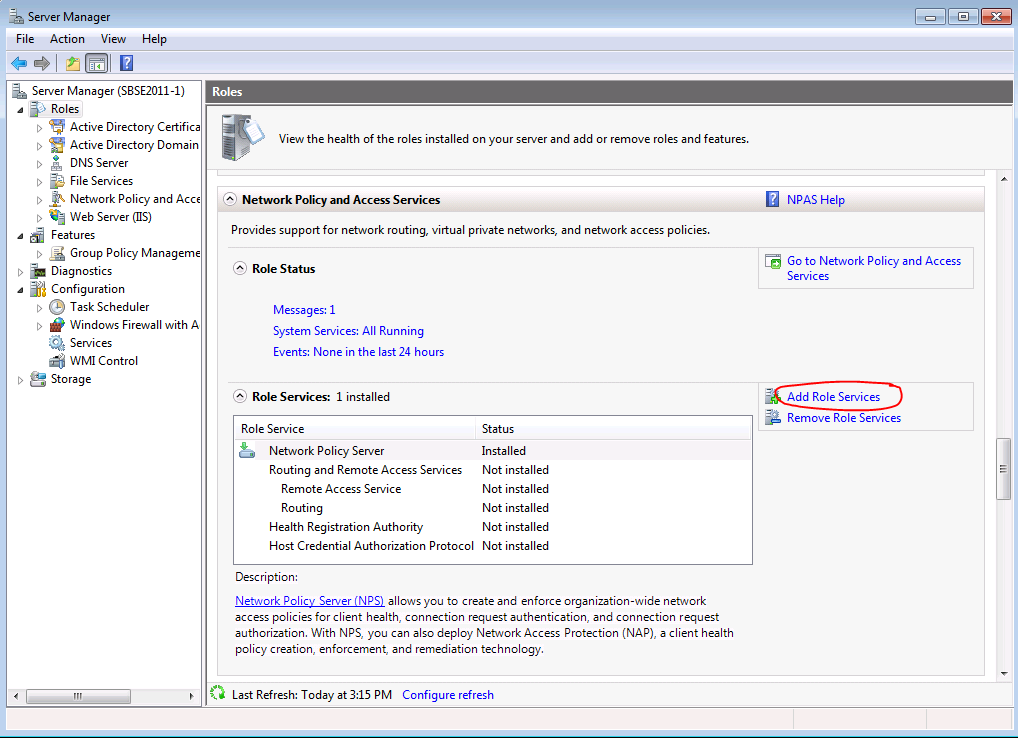
The first step is to add the RRAS (Routing and Remote Access) role.  To do so open the Server Manager under Administrative Tools, click on roles, scroll down to the Network Policy And Access Service role, and choose Add Role Services.

image

In the resulting window add the RRAS services.
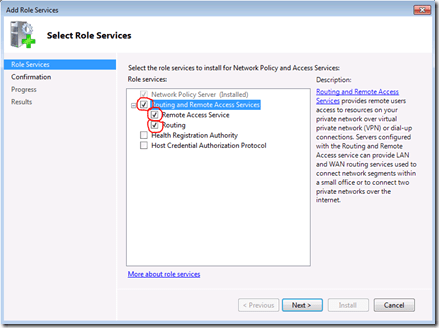
image

Click Next, and Install.

Configure RRAS:

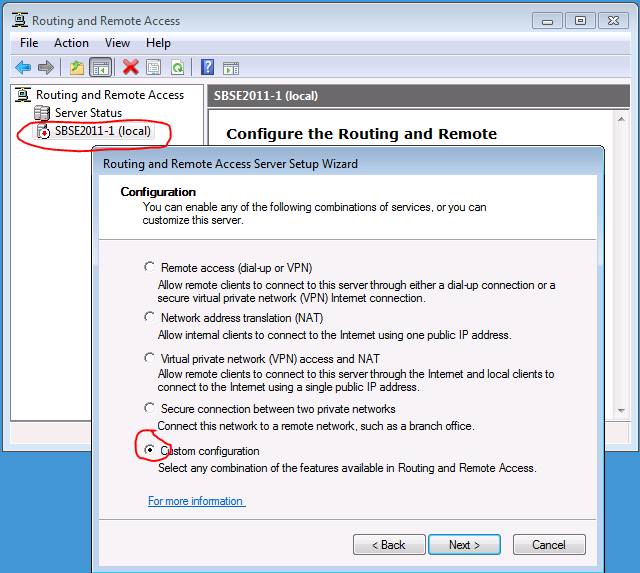
Open the newly created RRAS console, under Administrative Tools, and then right click on the server name and choose Configure and Enable Routing and Remote Access.  Select Next, and then choose Custom Configuration, and Next.

image

Select VPN Access and LAN Routing in the next window.
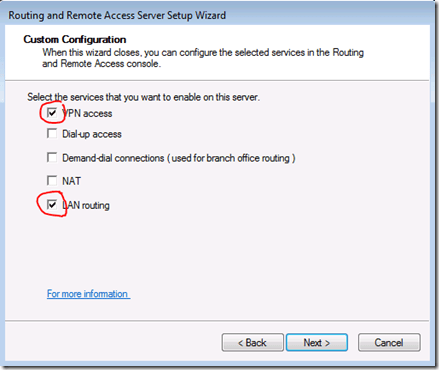
image

Choose Next, Finish, accept the notification that a default Network Policy Server policy has been created, confirm to start the service (RRAS), and wait for it to complete.

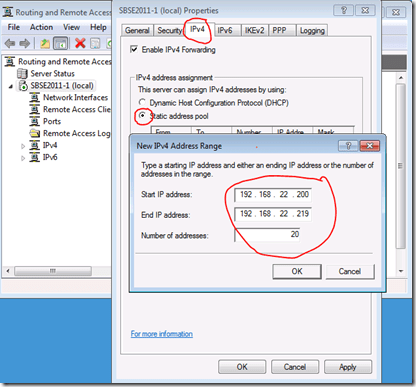
SBS Essentials is not the DHCP server for the network in a default configuration. Though you may be able to configure a DHCP relay it is simplest to create a static address pool for VPN clients from which they can obtain an IP address.  To do so in the RRAS console right click on the server name and choose properties. Under the IPv4 tab select Static Address Pool, Add, and then enter a range of IP’s to be assigned to the VPN clients. Make sure you have enough to support the total number of simultaneous VPN clients you will have.  This range needs to be part of the same subnet as the server itself, and the IP’s selected cannot overlap with any existing DHCP scopes or statically assigned devices on the network.
image

You also need to verify the number of available PPTP ports is sufficient to support the maximum number of simultaneous VPN connections.  The default with SBS Essentials is 50, which should be more than enough. However if you wish to make adjustments it can be set from 1 and 128. You can also reduce the number of ports for other protocols not in use if you like, though there is no need.  To configure right click on Ports in the RRAS console below the server name, and choose properties.  To make changes highlight the port type and click Configure:

image

Add a Group:

Next we will create a group for VPN users.  Only members of this group will be granted access to the server using the VPN connection. Open Active Directory Users and Computers, expand your domain, right click on Users and choose New, then Group.

image

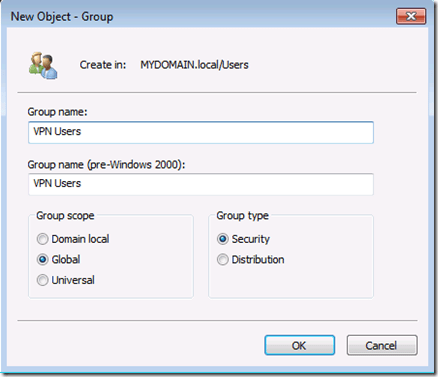
Enter a name for your group such as “VPN Users” and select Global & Security. Click OK.
image

You can now double click on the newly created group and add members by adding individual users or existing groups. For example you might want to add the Domain Users group, if you want to allow all users access. You can manually type these in and click Check Names, or choose Advanced and Find to browse and locate users and groups.

image

Configure NPS:

The final server configuration is to add a policy to define who has access to the server using the VPN. In server 2003 and earlier, if RADIUS was not configured, the common way of allowing access was to simply select “Allow Access” in each user’s profile.  This still works, but it is better to make use of NPS and have polices defining protocols, user, hours of access, and more, so I suggest leaving this set as Control Access through NPS Network Policy”.

image

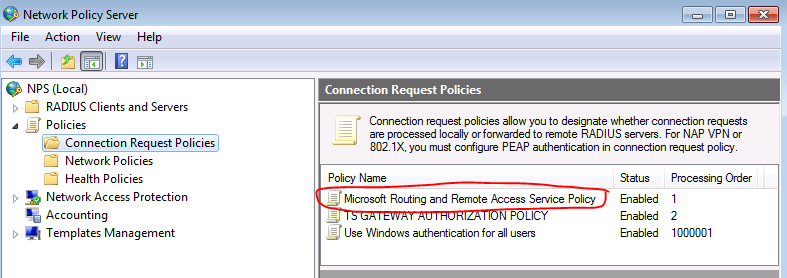
Again under Administrative Tools, open the Network Policy server console, expand Policies, and click on Connection Request Policies.  You will note to the right, configuring Radius has already created the default Microsoft Routing and Remote Access Service Policy.

image

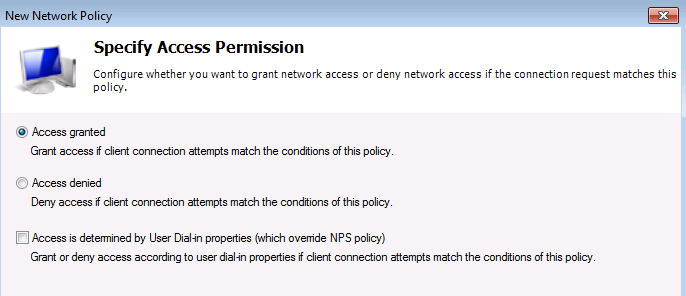
We will add a new Network Policy.  Right click on Network Policies and choose New, enter a policy name such as “ VPN User Access”, select Remote Access Server (VPN Dial-up), and Next

image

In the Specify Conditions window scroll down to find the User Groups option, click Add, Add Groups, enter the name of the group you created earlier (VPN Users), and OK.

image

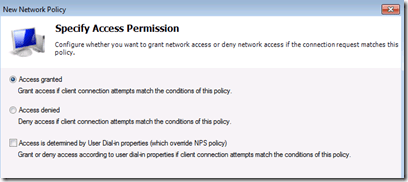
In the next two windows you can accept defaults;
image

image

Under Configure Constraints choose NAS port type, then under Configure Dial-up and VPN tunnel types select Virtual (VPN), which will automatically check the same under Other.

image

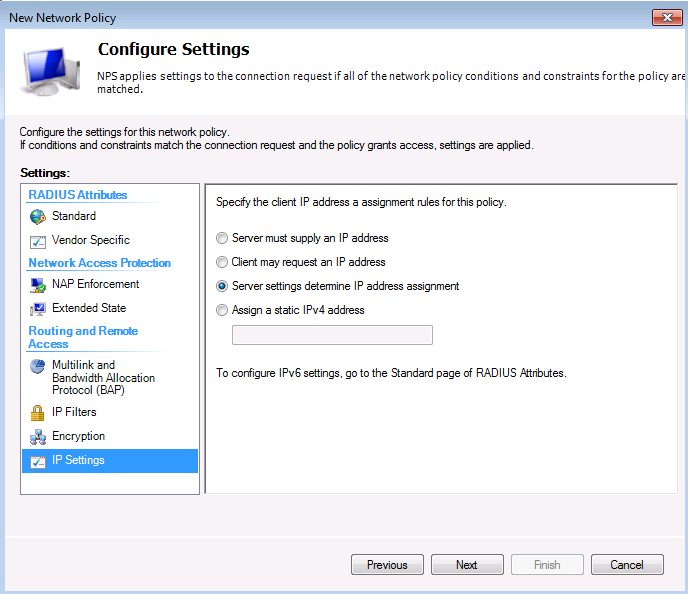
Accept defaults under Configure Settings, click Next and Finnish.

image

Though you can add many restrictions within the policy, I recommend configuring with the SBS standards as above and thoroughly testing your VPN before tightening security.  You can also create multiple policies with different restrictions for different groups if needed.

Windows Firewall:

The above configuration should have automatically configured the necessary Firewall Exceptions for RRAS, but to verify compare to the following.

In the Windows Firewall console:

image

In the Windows Firewall with advanced Security console (Note: The L2TP-In policy was created, but is not necessary for our configuration.):

image

Router Configuration:

You will also have to manually configure your router to forward the PPTP protocol and enable GRE pass-through.  In an ideal world if UPnP is enabled on the router (which I don’t recommend) the SBS will configure port forwarding for port 1723, but it will not address GRE.  Configuring a router to forward VPN traffic is done in a  multitude of different ways depending on the router used.  Most of the inexpensive SOHO routers are configured by forwarding port 1723 to the IP address of the SBS, and under the firewall section select “allow PPTP pass-through”.  Some others allow you to forward the PPTP service rather than the port, which both forwards port 1723 and enables GRE pass-through.  Still others have different methods or require manual commands.  Keep in mind GRE is a protocol (protocol 47) and not port 47 so it cannot be configured with a forwarding rule. You can test if port forwarding is properly configured by entering 1723 in the “port” box at http://www.canyouseeme.org/ however this will not test for GRE pass-through.  If the VPN connection fails with a 721 or 806 error, it usually indicates GRE is blocked.  Keep in mind GRE and/or PPTP can be blocked by third party security software on your server, or an ISP that does not support the protocol.

While on the subject of routers, it was mentioned above when creating the static address pool in RRAS that; “the IP’s selected cannot overlap with any existing DHCP scopes or statically assigned devices on the network”.  I strongly recommend verifying that the router’s DHCP address range available to clients does not conflict with that of the static address pool.  If your router supports exclusions, add the RRAS static address range, or in the example above we used 192.168.22.200-219 for the static address pool, so set the router’s DHCP range to something like 192.168.22.100-199.  Again make sure neither conflict with any devices that may have a static address such as a printer.

A note about routing: An important fact to note that is that when traffic is sent from one network segment to another, as is done with a VPN, that all segments in the path between the client and host must use a different network ID (Subnet) for routing to take place. For example, if the remote client and server sites both were to use 192.168.0.X locally, the VPN will connect, but you cannot access resources. This is important to be aware of since SBS Essentials defaults to having the router determine the subnet, and if the default router settings are used, it is common to have them overlap with the client site. It is always best to use uncommon subnets for the corporate site. Therefore avoid the common/default subnets listed below and use something like 192.168.123.x when setting up the SBS site.

  • Avoid the following subnets as they are common router or user defaults with the first two being extremely common: 192.168.0.x, 192.168.1.x, 192.168.2.x, 192.168.100.x, 192.168.111.x, 10.0.0.x, 10.0.1.x, 10.1.1.x, 10.10.10.x, 172.16.1.x

Client Configuration:

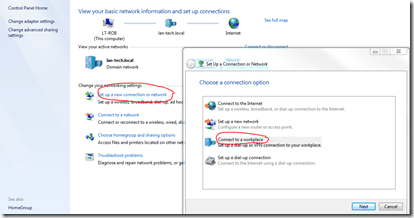
Creating client access is very straight forward. Open the Network and Sharing Center in control panel, and click on Connect to a workplace, and Next.
image

Choose No, create a new connection, and in the next window select Use my Internet connection (VPN).  In the resulting window enter the public IP or the FQDN of your SBS site, and a ‘friendly’ name for the connection.   Select allow other people to use this connection, and/or don’t connect now, if you wish.

image

In the final window enter a user name (member of your VPN User Group) and password.  I do not recommend choosing the save password option, for security reasons.  Then click connect.  If all is in place you should now be able to connect to the server and other resources on the network.  You may wish to test by Pinging the server IP.

Name Resolution:

You will likely not be able to access resources using either their NetBIOS or DNS name. At this point you are best to connect using the IP address such as  \\192.168.123.123\ShareName.  If you wish to use DNS names you need to configure the VPN (Virtual NIC) under adapter settings to point to the SBS for DNS, and add the DNS suffix.  For more details see: VPN client name resolution

Connection Manager:

With SBS 2003 there was an option to create a deployable VPN client named “Connection Manager”. This was a fully configured client that did allow you access to the server using DNS names, and was very easy for clients to install on their remote computer.  This is not longer available but if interested you can create your own installation package, with connection and DNS options pre-configured, using CMAK (Connection Manager Administration Kit). For details see:  http://technet.microsoft.com/en-us/library/cc753977(WS.10).aspx

Updated Jan 31/2011:

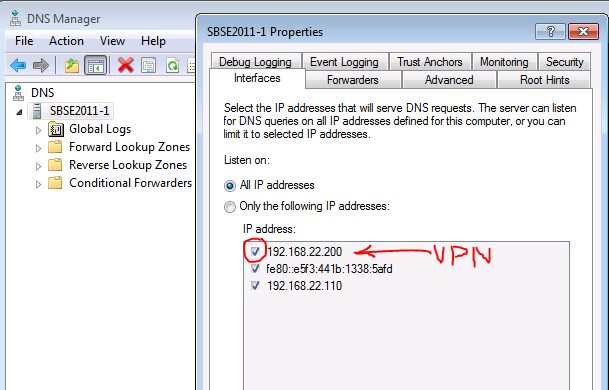
After the first client has connected by VPN, check the DNS management console and see if the VPN’s virtual adapter IP has been added under Interfaces. If so you need to uncheck it, or client machines will receive this as their DNS server IP. You can find the VPN IP by running IPconfig and look next to the PPP adapter.

image

image

Configure Cisco ASA for SBS 2008/2011 Network using CLI

I recently posted an article entitled “Configure Cisco ASA for SBS 2008/2011 Network using ASDM” which uses the GUI, a very lengthy process, but perhaps easier to understand for those not familiar with the Cisco Command Line Interface (CLI) like me.  However, I did promise to also post the handful of necessary commands to achieve the same thing using the command line. Please find the matching commands below using the same options and sample IP’s as in the previous post. You may wish to review the previous article should you require an explanation of why the various command are necessary. Note: this was done using ASA Version 8.2(5).

Basic router configuration; router name, domain, outside/WAN static IP and subnet mask, and management access:

hostname Cisco-ASA5505
domain-name MyDomain.local
Interface vlan2
ip address  123.123.123.123 255.255.255.248
no http 192.168.123.0 255.255.255.0 inside
http 192.168.123.0 255.255.255.0 inside
no telnet 192.168.123.0 255.255.255.0 inside
telnet 192.168.123.0 255.255.255.0 inside
enable password MyPassword

Disable DHCP on the Inside/LAN interface and set inside/LAN IP:

no dhcpd enable inside
Interface vlan1
no ip address
ip address  192.168.123.254 255.255.255.0
same-security-traffic permit inter-interface

Set default gateway on Outside/WAN interface:

route outside 0.0.0.0 0.0.0.0 123.123.123.121 1

Configure port forwarding for port 25 (SMTP/Exchange), port 443 (Https/RWW/RWA/OWA/Sharepoint), and port 987 (Sharepoint):

name 192.168.123.10 SBS-Server
asdm location 192.168.123.10 255.255.255.255 inside

static (inside,outside)  tcp interface 25 192.168.123.10 25 netmask 255.255.255.255 tcp 0 0 udp 0
static (inside,outside)  tcp interface 443 192.168.123.10 443 netmask 255.255.255.255 tcp 0 0 udp 0
static (inside,outside)  tcp interface 987 192.168.123.10 987 netmask 255.255.255.255 tcp 0 0 udp 0

access-list outside_access_in remark Allow SMTP traffic
access-list outside_access_in extended permit tcp any interface outside eq smtp
access-list outside_access_in remark Allow SSL-OWA-RWA Traffic
access-list outside_access_in extended permit tcp any interface outside eq https
access-list outside_access_in remark Allow SharePoint traffic
access-list outside_access_in extended permit tcp any interface outside eq 987
access-group outside_access_in in interface outside

Allow pings from LAN to Internet:

policy-map global_policy
class inspection_default
inspect icmp

Allow Tracert (requires ping policy changes above):

access-list outside_access_in line 3 remark Allow Tracert
access-list outside_access_in line 4 extended permit icmp any any

Save:

write mem