Archive for the ‘Networking’ Category

Remote PC firewall on or off ?

I was asked; “how can I tell from a command line if the firewall is enabled on a PC on our network, using a command line?”

Netsh is a very powerful tool for querying and setting the status of most anything network related. There are both the ‘netsh firewall’ and ‘netsh advfirewall’ options depending if XP, or Vista and newer.  I will deal with the advanced firewall as it is commonly used with Vista and Win 7 these days. The following command will return the available options:

C:\>netsh advfirewall show

The following commands are available:

Commands in this context:
show allprofiles – Displays properties for all profiles.
show currentprofile – Displays properties for the active profile.
show domainprofile – Displays properties for the domain properties.
show global    – Displays the global properties.
show privateprofile – Displays properties for the private profile.
show publicprofile – Displays properties for the public profile.
show store     – Displays the policy store for the current interactive session.

As you are aware the Advanced firewall can be set differently for domain, home, or public networks.  We are concerned with how it is set now, while on our network so we will use the show currentprofile option.  The result returns numerous details. By piping the results to the find command we can limit the output and simply determine if the Windows firewall is on or off  ( note: /I ignores case of the text in quotes):

C:\>netsh advfirewall show currentprofile |find “State” /I
State                                 OFF

Chances are you will not want to run to the machine to check so you can make use of Sysinternals/Microsoft’s PSexec to run netsh, or any command, on a remote machine.  You will need to run this with admin privileges for the remote machine. Therefore it is generally done from the server using a domain admin account.

C:\PSTools>psexec \\PC1 netsh advfirewall show currentprofile |find “state” /I

PsExec v1.98 – Execute processes remotely
Copyright (C) 2001-2010 Mark Russinovich
Sysinternals – http://www.sysinternals.com

Starting netsh on PC1…ice on PC1…
State                                 OFF
(the output will often end with the following when run remotely: netsh exited on PC1 with error code 0.)

PSexec can be downloaded for free from: http://technet.microsoft.com/en-us/sysinternals/bb897553.aspx

SBS connect / connectcomputer wizard fails

Generally when a computer cannot join the domain using http://connect (SBS 2008 & 2011) or http://SBSname/connectcomputer (SBS 2003) it is due to inability to correctly resolve the name of the domain controller in a timely fashion. Below is a list of common reasons for the connect wizards to fail.

In an SBS domain, the server should be the DHCP server, and if so, items 3 and 4 below should be automatically set through DHCP.  However if addressing is statically assigned or you are using a router you may need to make changes. Items 3 and 4 are also basic networking requirements of a Windows Domain, not just important for joining the domain.

1. If there is more than 1 network adapter installed, wired or wireless, disable all but 1 until domain joined.  If at all possible, make it a wired connection, not wireless. 

2. Many new PC’s also show a Bluetooth connection under “Network Connections”, this should be disabled as well while running the wizard.  If you are using a Bluetooth mouse and/or keyboard these will have to be temporarily replaced.

3. Make sure, using IPconfig /all, that the client’s DNS points ONLY to your internal DNS servers, in this case the SBS.  Do not allow a router or ISP to be added even as an alternate.

4. IPconfig /all should also show next to “Primary DNS Suffix”” your internal domain suffix such as MyDomain.local.  If not you need to add the domain suffix to the client machine. To do so insert it in the “DNS suffix for this connection” box under the DNS tab of the NIC’s advanced TCP/IP IPv4 properties

5. If there are any 3rd party firewalls or security suites installed, disable them until joined to the domain.  The Windows firewall should not need to be disabled.

6. If still failing add the connect web site to the “trusted” sites list in Internet Explorer under Tools | Internet Options | Security |trusted Sites

7. If all else fails you can skip the wizard and use a 3rd party utility called ProfWiz.  

It is important to note that using the connect and connectcomputer wizards is very important.  With SBS 2003 it is especially critical to do so as it performs a long list of tasks other than just joining the domain.  It copies the local user’s profile, configures the user and computer environments, changes permissions, installs SBS related features, makes changes to networking, and much more.  Susan Bradley’s blog outlines this in detail: “So exactly “what” does connect computer do anyway?”  However SBS 2008 and SBS 2011 control most of this through Group Policy.  The key bonus feature with the SBS 2008/2011 wizard is its ability to import current users’ local profiles. Though I still strongly recommend using the wizard, it will only import a local workgroup profile.  If the wizard fails or you are wanting to import a previous domain profile, you may want to consider using Profwiz.  Profwiz by forensit.com a simple little tool that will join the PC to the domain and reset the permissions of an existing profile allowing it to be used as the new domain profile (i.e. import users settings like desktop items, favorites, Documents, and application configurations). For instructions on downloading and running see:  https://blog.lan-tech.ca/2011/05/19/sbs-and-profwiz/

SBS 2008 / 2011 adding an SSL certificate

[Note: some links point to SBS 2008 configurations, some to SBS 2011, the procedure is the same for both]

Just a quick comment to address the many internet posts suggesting that SBS requires a multi-name SSL certificate (UCC – Unified Communications Certificate).  This is not true.  SBS is designed to use a simple, inexpensive, single name certificate, and it is quite easy to install.  A basic GoDaddy or other vendor certificate is all that is required.  Sean Daniel outlines the process very nicely in his post entitled “Installing a GoDaddy Standard SSL Certificate on SBS 2008 “.  Keep in mind the FQDN for your site as recorded in your public DNS records, the certificate name, and public name used in the “Internet Address Wizard” (see step #7), all must be exactly the same.  As a mater of fact, although it is possible to use a UCC certificate, the wizard will not install it for you, you would have to do so manually.  There is no need for the additional cost or time involved with multi-name certificates.  (The link below will take you to the Godaddy site and should have a menu bar at the top offering you a very good first year discount)

Go Daddy $12.99 SSL Sale!

The primary argument for using a UCC cert is to make use of auto-discovery.   Though you do not need auto-discovery, if you wish to make use of it you still do not need a UCC certificate.  You can in fact configure auto-discovery using a single name certificate and creating an SRV DNS record by following the ThirdTier.net instructions; “Setting up Autodiscover for SBS 2011

Alternatively, you can avoid buying an SSL certificate at all.  After running the SBS “Internet Address Management Wizard”, a self-signed certificate is generated in the SBS Share: \\SBSname\Public\Downloads\Certificate Distribution Package  .  Machines that are joined to the domain after this will have the certificate automatically installed.  If you generate a new certificate (by re-running the wizard), or have non-domain joined computers or devices, you need to manually copy and install the certificate.  To distribute / install the certificate on the PC’s, please see “How Do I Distribute the SBS 2008 Self-Signed SSL Certificate to My Users?”  This is often not as easy to do on other devices such as smart phones.  Therefore using a 3rd party certificate becomes much more attractive, as nothing has to be installed on the connecting device.

Should you have a dynamic public IP at the SBS site, I recommend reading “Using DDNS services with SBS 2008/2011” which outlines using a dynamic IP, a DDNS service, and configuring DNS and certificates.

Ping command…..needs to close

I had a client today advise they were unable to send or receive e-mail using Outlook.  Upon initial inspection this was the case and Outlook showed as disconnected (using Exchange).  There were no other obvious issues, web browsing and all network services “seemed” to be working properly.  However, there were frequent pop-ups with the message:   

TCP/IP ping command has encountered a problem and needs to close

Pinging did work fine, for the record. While doing a quick search for possible solutions I came across many others with a similar problem, so I thought I would take a moment to post my findings. 

The Event logs had additional errors the key one being:  Event ID: 4226,  Source: Tcpip,  TCP/IP has reached the security limit imposed on the number of concurrent TCP connect attempts.

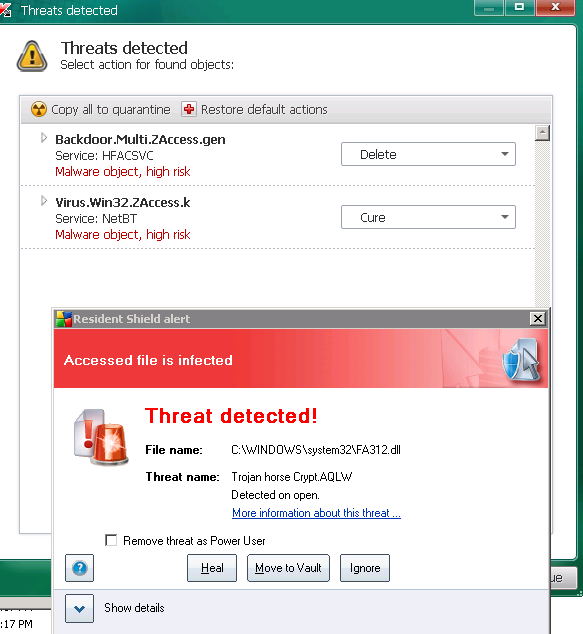
Though there could be other causes, this usually indicates some sort of malware, as confirmed by EventID.net 

Kaspersky’s Anti-rootkit utility TDSSKiller located 2 viruses, and AVG a third as shown in the image below. Keep in mind other viruses could present themselves in the same way.  Clearing all temp folders and a full scan by multiple other malware detection apps did not reveal any other issues, but one must always be concerned that “once infected, always suspected”.   Outlook now worked properly with no repairs required to the application or networking.

image

Connect to Windows VPN at Logon

The internet is littered with questions about VPN connection and authentication issues as a result of using cached credentials.

  • How can I automatically connect my Windows VPN at start up?
  • Why do I have to re-enter my user credentials when connecting my corporate VPN?
  • How do I get Group Policy to apply to VPN connected users?
  • How do I use my work domain user account when I work from home using a VPN?
  • Why won’t my logon script run when connecting by VPN?

You can connect from any PC using a VPN, but in most cases you do so after having logged onto the PC first. If this is a “domain joined” corporate PC, when you logon without the domain controller present, you are not authenticating to the domain but rather using the credentials cached on the local computer from a previous logon.  As a result Group Policy cannot be updated, logon scripts are not applied, and most often you have to re-enter your user credentials when you do choose to connect to the office via VPN.

It is possible to connect to the VPN at logon resulting in an experience similar to that of the office, except of course for the reduced file transfer speed,  However, there are few conditions that must be met to do so:

  1. This applies only to the Windows VPN client. Newer Cisco VPN clients and a few others do offer methods to connect the VPN before logon, but they use different processes.
  2. The computer must be a member of the domain, and therefore Pro, Ultimate, or Enterprise versions of the operating system.  At logon you will be providing domain credentials which are automatically passed to the local logon, thus they must be the same.  Using the same username and password is not enough as logon credentials include domain or computer names.  Domain\JDoe is not the same as LocalPCname\JDoe.  If the computer is not already a member of the domain, it is possible to join a remote domain using the VPN connection.  To do so please see:  https://blog.lan-tech.ca/2012/07/25/how-to-join-a-windows-domain-using-a-vpn/
  3. Should the PC not be domain joined and you wish to automate the VPN connection, after logon, please see: https://blog.lan-tech.ca/2013/06/08/rasdial-automate-vpn-connections/
  4. When you create the VPN connection you must check the box “allow other people to use this connection”.

image

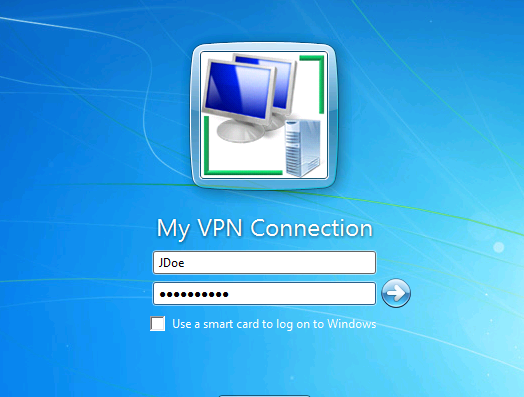
Having met these conditions, at logon there is now an option to connect using the VPN during logon.

Windows Vista and Windows 7:

At logon select “Switch User” and a new blue icon will appear in the lower right next to the familiar red Shut Down icon.

image

Clicking the icon will allow you to use the VPN connection, and simultaneously connect and authenticate to the corporate domain, and log on to your local PC

image

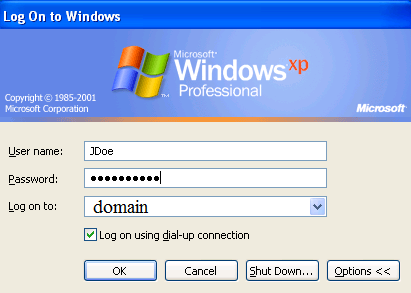
Windows XP:

At logon after pressing ctrl+alt+del, if you click the “Options” button there will new be a check box “Logon using Dial-up connection” which will use the VPN connection, and simultaneously connect and authenticate to the corporate domain, and log on to your local PC

image

Windows 8:

Please see the more recent post to enable on a Win 8 PC

Slow Links:

Depending on the performance of the VPN connection, it is sometimes necessary for the network administrator to “tweak” a few Group Policies for slow network detection.  The following policies can assist with this:

Server 2008 / 2008 R2 / SBS 2008 / SBS 2011:

  • Computer Configuration | Policies | Administrative Templates | System | Group Policy | Group Policy slow link detection
  • Computer Configuration | Policies | Administrative Templates | System | Scripts | Run logon scripts synchronously
  • Computer Configuration | Policies | Administrative Templates | Network | Offline Files | Configure slow-link mode
  • Computer Configuration | Policies | Administrative Templates | Network | Offline Files | Configure slow link speed

Server 2003 / SBS 2003 / SBS 2003 R2:

  • Computer Configuration | Administrative Templates | System | Logon | Always wait for the network at computer startup and login
  • Computer Configuration | Administrative Templates | System | Group Policy | Group Policy slow link detection
  • Computer Configuration | Administrative Templates | System | Scripts | Run logon scripts synchronously
  • Computer Configuration | Administrative Templates | Network | Offline Files | Configure slow-link mode
  • Computer Configuration | Administrative Templates | Network | Offline Files | Configure slow link speed

Client Deployment:

Network administrators may also want to considered creating a deployable VPN client for consistency, security, and with a company logo.  An earlier post outlines how to do so in detail:

https://blog.lan-tech.ca/2012/01/30/windows-vpn-client-deployment/

Configuring Hyper-V Core

There are already dozens of articles relating to configuring Microsoft’s Hyper-V Server 2008 R2 (the free core version), however a colleague’s intimidation of command line server management inspired me to post my notes to ease his mind and perhaps those of a few readers as well.  Yes, it is a command line only version of server 2008 R2, with only a 15 line/option GUI to assist with the most basic configurations……..

image

Yet, after some minor configuration and enabling some basic services, you can manage the server in a very similar way you would manage others servers with; Hyper-V Manager, administrative tools, remote access, a file explorer, and even a web browser.

It is worth noting that there are definite advantages to using this version of Hyper-V.  It is free, it supports more than 32GB of RAM (server 2008 R2 standard does not, you need Enterprise or Datacenter editions), smaller footprint, and a somewhat limited attack surface.

Notes:

  • I am assuming Hyper-V core is successfully installed and you are at the point of configuring, if not the following links may help you get to this point Test Hyper-V compatibility, Step-by-Step Guide to Getting Started with Hyper-V
  • The assumption in this configuration is the Domain Controller and DNS server will be a virtual machine on the Hyper-V host. As a result it is recommended the Hyper-V host is not joined to the domain as no domain logon server will be available until after the guest VM has been started.
  • “Management PC” refers to the PC, or server, from which you wish to manage the Hyper-V host
  • All command line entries below, on both server and management PC, must be done from an elevated command prompt. On the server the default is elevated, which is confirmed by the “Administrator” on command window title bar

Server Configurations (Hyper-V host):

Run native Hyper-V GUI configuration tool:

  • The configuration tool (as in image above, should automatically start at logon but if not, from a command line, enter sconfig
  • Item #1: Leave as a workgroup
  • Item #2: Enter the computer name
  • Item #8: Configure the network: Use a static IP.  I recommend at least primary server be an internal DNS server, secondary an ISP. (Keep in mind on a domain joined server/PC you should not combine internal and public DNS servers, but this is not domain joined).  Best practices suggests 2 NIC’s should be enabled, one for management and the other for use by VM’s, though this is not necessary.
  • Item #9: Set date and time
  • Item #5: Set Windows update settings auto or manual.
  • Item #6: Download and install all updates, reboot as necessary
  • Item #3: Add any local admin accounts. I recommend adding new account with a name matching the login account of the remote management PC.  The names must match for some services to work.
  • Item #4: Configure remote management by enabling sub-options 1 to 3
  • Item #7: Enable remote desktop access (note this is still command line only)
  • Item #15 Exit to a command line

DNS:

As stated the Hyper-V machine is not a member of the domain, therefore it is recommended the following additions be made to assist with name resolution

Use the Hosts file to allow the Hyper-V host to resolve the name of the management PC.  From an elevated command prompt , open the Hosts file using Notepad by entering: notepad c:\Windows\System32\drivers\etc\hosts .  Add a record in the Hosts file for your management PC/s using

IP <tab> Pc’s DNS name <tab> # a note (optional) <enter>
eg: 192.168.123.123     PCname.MyDomain.local    # management PC

(Note: it is very important hit return, after every entry including the last line, and then save. For more information about Hosts and Lmhosts files, and their syntax see: https://blog.lan-tech.ca/2012/04/26/hosts-and-lmhosts-files/

Add the domain suffix to the domain search list within the registry to further assist with DNS name resolution.  Start the registry editor using regedit and locate the following registry key:

     HKLM\System\CurrentControlSet\Services\TCPIP\Parameters\SearchList

Then add your domain suffix such as mydomain.local (separate multiple suffixes, if needed, with commas)

Permissions:

To configure additional permissions on the Hyper-V host download Hvremote.wsf from:   http://archive.msdn.microsoft.com/HVRemote  to a USB drive or CD.  Then from a command line copy HVremote to local directory such as Temp folder.  DOS commands are as follows (assume HVremote is on a USB drive labeled D:

cd\
md Temp
copy D:\FolderName\hvremote.wsf  C:\Temp\hvremote.wsf

Run the following commands from the directory where hvremote is located to grant Hyper-V administrators the necessary permissions to do so.  This asdds the admin to the “Distributed COM User’s group”. Again from an elevated command prompt, run the following command using the user you created under Item #3 above in the initial configuration GUI.

     Cscript hvremote.wsf /add:user

If this is the first time hvremote has been used to add a user a reboot may be required

Firewall:

The necessary firewall exceptions should have been enabled by Item #’s 3 & 7 above.  You may also want to be able to ping (IPv4) the server for testing. To do so from a command line enter:

netsh firewall set icmpsetting 8

Or use the new command for “Windows Firewall with advanced Security”

     netsh advfirewall firewall add rule name=”ICMP Allow incoming V4 echo request” protocol=icmpv4:8,any dir=in action=allow

(Note: if cutting and pasting the above command, you will have to substitute the quotation marks using your keyboard.  This site’s/font’s quotation marks are not standard ascii characters)

For additional firewall information relating to pings see:  http://dpotter.net/technical/2010/02/enable-ping-on-windows-server-2008-2/


Management PC Configurations:

DNS:

If the PC is a member of a domain, you can add a Host (A) record to the DNS management console for the Hyper-V host, or you can make an entry in the management PC’s Hosts file similar to the instructions for the server. This will ‘point’ this to the server such as:

IP <tab> Server’s DNS name <tab> # a note (optional) <enter>
eg: 192.168.123.123     HVServerName.MyDomain.local     # Hyper-V host

Permissions:

As on the Hyper-V host, download HVremote from http://archive.msdn.microsoft.com/HVRemote  or copy from your USB Key to a local directory as below:

     cd\
md Temp
copy D:\FolderName\hvremote.wsf C:\Temp\hvremote.wsf

Using an elevated command prompt run the following commands from the directory where HVremote is located.  Where the Hyper-v host is not part of the domain you must enable anonymous DCOM access using:

     Cscript hvremote.wsf /mode:client /anondcom:grant

This one command must be run from an non-elevated command line:

Cmdkey /add:ServerComputerName /user:ServerComputerName\UserName /pass:UserPassword

Firewall:

There are 4 Hyper-V Management Client firewall exceptions that need to be enabled.  Running the following command, from an elevated command prompt, will do so:

     Cscript hvremote.wsf /mode:client /FirewallHyperVClient:Enable

You also need allow rules for MMC exceptions (management consoles) which can be applied with:

    Cscript hvremote.wsf /mode:client /mmc:enable

If you have other 3rd party firewall software installed, you need to manually configure it with the same exceptions.

If you wish to use the Disk Management component of the Computer Management MMC for the remote host, you need to enable the inbound “Remote Volume Management – Virtual Disk Service Loader (RPC)” exception with:

     netsh advfirewall firewall set rule name=”Remote Volume Management – Virtual Disk Service Loader (RPC)” new enable=yes

You also have to set the “Virtual Disk service” on the Hyper-V server to Automatic and start it.

sc config vds start= auto
sc start vds
    (not needed if rebooting – will automatically start)

Reboot:

To apply all changes a reboot of the PC is recommended.

Testing connectivity:

When complete test and review the output using the commands below.  For details and troubleshooting download the documentation for HVRemote from:  http://archive.msdn.microsoft.com/HVRemote

From the server:

     Cscript hvremote /mode:server /show /target:clientcomputername

From the client PC:

Cscript hvremote /mode:client /show /target:ServerComputerName


Remote Management Tools:

RSAT tools:

Download and install RSAT (Remote Server Administration Tools) on the management PC making sure you have the RSAT version compatible with that PC’s operating system. The link for Win7 SP1 is below.  With these tools you can now connect the Hyper-V host and manage it from a PC using  all those familiar tools like Computer Management, Disk Management, Windows Firewall with Advanced security, Task Sheduler, etc., and of course the most important; Hyper-V manager which will allow you to create and manage your VM’s the same as you would if you had the full GUI version of Server 2008 R2 as a host.

http://www.microsoft.com/download/en/details.aspx?id=7887

Remote Console (RDP):

You can access the Hyper-V console (still command line only) using a standard RDP connection. You can also install “Portable Apps” which you can then run from an RDP session.  See further down in this list of Remote management tools.

     Mstsc -v:<Hyper-V host name>

Portable Apps:

You can run standard “portable apps” on the console, or during a remote desktop session such as:

Windows Explorer Equivalent A43:

http://www.alterion.us/a43/index.html

Firefox Web Browser (for security reason web browsing from the host is not recommended):

http://portableapps.com/apps/internet/firefox_portable

Others:

http://www.portablefreeware.com/all.php

Powershell:

To remotely run PowerShell you will need Powershell 2. which is available from Windows updates. To install and enable please see the following article http://geekswithblogs.net/twickers/archive/2009/11/04/136013.aspx  With it from the Host console, or remotely, you can manage many services using scripts/cmdlets from:

http://pshyperv.codeplex.com/

Others:

http://www.portablefreeware.com/all.php

PSExec:

PSExec is a tool developed by Sysinternals, now Microsoft that allows you to run DOS commands on remote machines:

http://technet.microsoft.com/en-us/sysinternals/bb897553

Hyper-V Monitor Gadget:

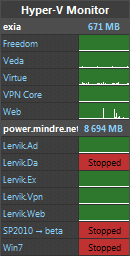
A great desktop gadget for monitoring the status of your Hyper-V servers, status and perfomance, as well as the ability to start and stop.  Requires permissions and services as outlined earlier.

http://hypervmonitor.codeplex.com/


Additional Resources:

Configure Hyper-V Remote Management in seconds

http://blogs.technet.com/b/jhoward/archive/2008/11/14/configure-hyper-v-remote-management-in-seconds.aspx

Full HVRemote documentation and download:

http://archive.msdn.microsoft.com/HVRemote/Release/ProjectReleases.aspx?ReleaseId=3084

Install and Configure Hyper-V Tools for Remote Administration

http://technet.microsoft.com/en-us/library/cc794756(WS.10).aspx

How to use the “netsh advfirewall firewall” context

http://support.microsoft.com/kb/947709

How to Enable Remote Administration of Server Core via MMC using NETSH

http://blogs.technet.com/b/askds/archive/2008/06/05/how-to-enable-remote-administration-of-server-core-via-mmc-using-netsh.aspx
Hosts and LMHosts files

Though rare, there still is an occational need or advantage to using Hosts and LMHosts files.  Though simple text files, the syntax used is critical.  The following is a repost from an older blog of mine.  I have done so in hopes that it may be helpful to some folk, and also it will be useful in and upcoming post regarding Hyper-V configuration and management.

There are two files in the %systemroot%\system32\drivers\etc directory that can be used for name resolution. The Hosts file, used for DNS name resolution, and the LMHosts.sam file used for NetBIOS name resolution. In an age where DNS dominates your network both locally and throughout the Internet, these two files are seldom ever used, but they can be very useful in a few situations. Both are simple text files that match names to IP addresses, and are very easy to create and implement. Most people are familiar with these files, but are often frustrated when they do not work as expected. This is usually due to the fact that they have some very simple, but specific requirements, for them to work at all.

LMHosts (NetBIOS names):

The primary use today for an LMHosts file, is for name resolution over a VPN. If DNS is configured on the host and client machines there should be no need of static text files for resolving names, but it does work well, and many folks uses them as a dependable simple solution. The catch is there are a few gotcha’s you need to be aware of:

  • The LMHosts file in it’s default form, is named lmhosts.sam The .sam represents sample. If you are planning on using this file it needs to be saved without a file extension – lmhosts. Be careful if using a text editor like NotePad as it will add a .txt file extension to the name. The safest method is to save the file using quotes, “lmhosts” to assure no extensions are added.
  • Text following a # in the LMHosts file is a comment and can be ignored or deleted.
  • A typical entry would look like:

192.168.100.101 COMPUTERNAME #PRE #my notes

  • When making a new entry you must hit enter at the end of the line, which adds a “carriage return”
  • Use the Tab key between items in each line rather than spaces (recommended but not necessary), but there must be a space.
  • Though it is not needed, adding the #PRE parameter or extension will load the entry into the local NetBIOS name cache when the computer boots. This allows for a slightly faster resolving of the name, before it has been added to the cache.
  • Most entries such as #PRE, #DOM, DOMAIN names and such are case sensitive. Always use uppercase to be safe.
  • It is a good idea to add the domain name as well. This requires two lines, and uses extremely critical formatting. A sample would be:

192.168.100.10 DCNAME #PRE #DOM:YOUR-DOMAIN
192.168.100.10 “YOUR-DOMAIN x1b” #PRE

There must be exactly 20 characters, including spaces, between the quotes in “YOUR-DOMAIN x1b”, and the spaces need to be between the domain name and the x1b. The domain name used is the NetBIOS name, not the FQDN. If your domain name exceeds 15 characters, you must truncate it at the 15th character, it will still work.

If you find this last step tedious, the University Of Sait Louis has a little Java script that will create these two lines for you: http://bflinux.slu.edu/LSI/tools/lmhosts.html

Hosts (DNS names):

The Hosts file today seems to be more used for blocking unwanted web sites. This is done by simply entering the website address and substituting the IP address with the localhost IP address such as:

127.0.0.1 www.unwantedsite.com#advertising site

There are subscription services that will actually update your Hosts file, according to a schedule, with a list of known unwanted sites.

Another handy use of the Hosts file is to create abbreviations for your own use. For example quick access to a website like Google can be achieved adding an abbreviation like ‘G”, or your firewall with ‘F”, or I frequently uses it for accessing client sites with remote desktop using 3 letter acronyms such as ACL for Acme Corp Ltd. :

64.233.187.99 G #Google

192.168.100.254 F #my firewall

123.123.123.123 ACL #Acme Corp Ltd

Most of the rules that apply to the LMHosts file, apply to the Hosts file as well:

  • The Hosts file already has no file extension, so there is no need to change it like the LMHosts file. Just be careful when editing you don’t accidentally add one such as .txt when using NotePad or a similar editor.
  • Text following a # in the Hosts file is a comment, and can be ignored or deleted
  • A typical entry would look like:

123.123.123.123 ftp.acme.com#company FTP site

  • When making a new entry you must hit enter at the end of the line, which adds a “carriage return”
  • Use the Tab key between items in each line rather than spaces (recommended but not necessary), but there must be a space.

Keep in mind when editing these files you can run into conflicts, or ineffective changes if you do not reboot or purge the local name caches. To clear the NetBIOS cache ( and PREload), at a command line enter (R is case sensitive):

nbtstat -R

To clear the DNS cache, at a command line enter:

ipconfig /flushdns

For the record, the Hosts file can also be used for IPv6 addressing. Vista for example includes the IPV6 localhost entry, by default:

::1 localhost

Rogue DHCP Servers

On occasion you may be consulted about network issues which suggested a rogue or unknown DHCP server present on the network.  This can show up is several ways including the discovery of a PC with incorrect IP addressing, most often the wrong DNS server, or in an SBS environment the SBS DHCP service has shut down due to the presence of another DHCP server.  The dilemma is how to locate it.  There are a few tools that can be helpful with the process.

You may also have a case of an unknown device in the DHCP management console under address leases.  Some of these tools can be useful in isolating those as well.

Determine the DHCP server’s IP:

The first step is to locate the DHCP server’s IP.  You may be fortunate and have discovered the incorrect addressing on a PC.  In this case the DHCP server will be listed in the IPconfig /all results.  Alternatively you can use two different tools.

The first is Microsoft’s DHCPloc.exe (DHCP locator).  It can be downloaded as an individual executable from http://www.petri.co.il/download_free_reskit_tools.htm or as part of the Server Support Tools on the server’s installation CD.

Warning:  DHCPloc should not be run on the DHCP server itself.  Doing so can cause the DHCP server to stop responding to DHCP requests.

At a command line, from the directory where you have saved DHCPloc enter
  DHCPloc.exe <the workstation’s IP>
You may have to hit enter twice. You will be prompted to enter d, q, or h. Enter d for discover, and again you may have to hit enter twice.  It should return the IP of the DHCP server, or servers, and an offered DHCP address.
DHCPloc syntax:
http://technet.microsoft.com/en-us/library/cc778483.aspx

You may want to temporarily disable the network’s default DHCP service while running these tests.

image

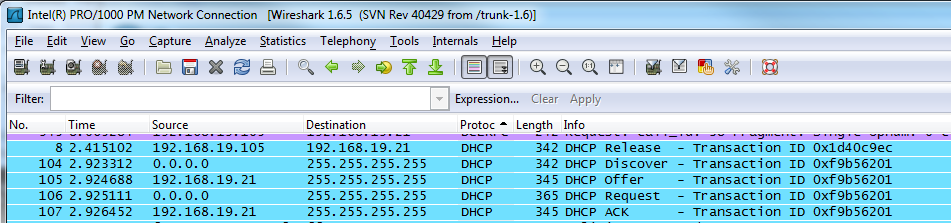
The second method is to use Wireshark, from http://www.wireshark.org, a network packet analyzer and a much a more powerful tool.  Install Wireshark on a workstation, start a scan, and run an ipconfig /release and /renew to force a DHCP request.  Once complete you can filter the log by protocol and locate the DHCP related packets.  Do this quickly as Wireshark collects a substantial amount of data very quickly.  There are tutorials available to become familiar with Wireshark.

image


Find the MAC Address:

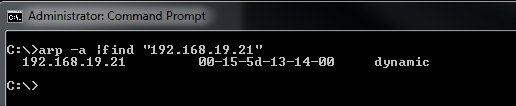
With any luck you now have the IP of the DHCP server.  Next is to find the device’s MAC address.  By now it should have been recorded in the arp table, but if not try pinging the IP.  Then from a command line run  arp –a  or arp –a |find “IP address”  to recover the MAC address of the device.

image


Determine the Manufacturer:

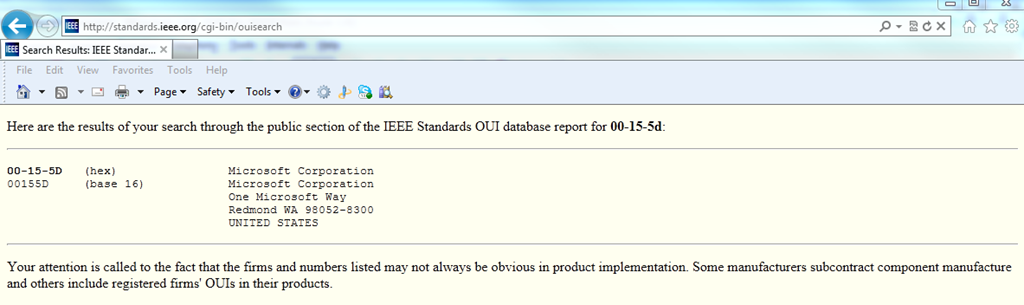
The fist 6 characters of the MAC address are assigned to the manufacturer, therefore we may be able to determine the make of the device in question.  In the example above we would use 00-15-5d  in conjunction with a site such as  http://standards.ieee.org/develop/regauth/oui/public.html and determine the registered manufacturer/vendor was Microsoft Corporation.  This may or may not be helpful since in this case it simply indicates it is a Virtual machine.  Often it will provide results such as Cisco-Linksys, D-Link Corp., Apple Inc. which may give you a better indication as to the type of device, perhaps a Linksys router installed by an employee to add wireless to his or her office.

image


Locate the device:

Physical location is much harder to establish, especially if it has been intentionally hidden.  It is always best practice to keep a floor plan with all network drops and to disconnect any unused network drops at the patch panel, but it doesn’t do much to protect you.  If you have managed switches you can locate the port to which the IP or MAC address is connected and start tracing from there.  However, if you do not have managed switches you are best to run a continuous ping  (ping  –t 192.168.19.21) and start unplugging cables at the patch panel until you have dropped packets .  A little crude, but effective.

I will publish an article in the near future to more proactively address this issue using DHCP filtering.

Windows Phone 7 subnet calculator

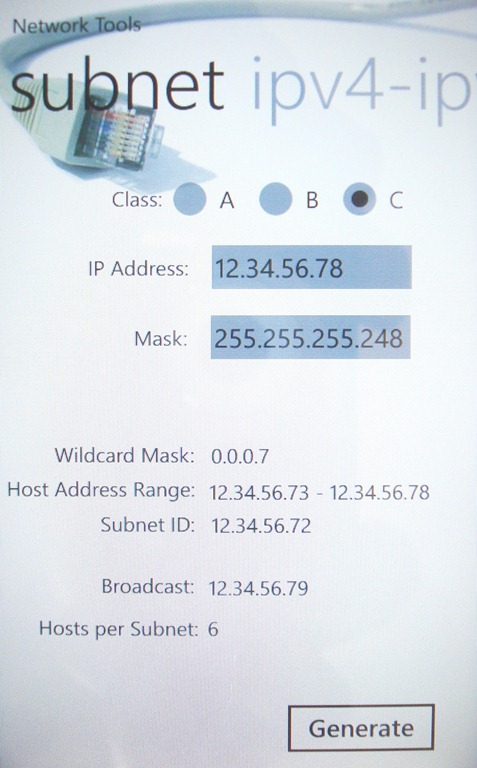
On occasion I have a need to determine if a specific IP falls within a given subnet.  If for example it were an IP such as 192.168.1.80, and the network is defined as 192.168.1.0/24  (24 = subnet mask of 255.255.255.0) it is pretty obvious.  However when using classless subnetting and less common subnet masks, such as those supplied by ISP’s, it is a little more involved.  As a second example consider the IP 12.34.56.80.  Is it part of the same subnet as 12.34.56.78/29 (29 = subnet mask of 255.255.255.248) ? 

You can certainly do manual calculations using binary numbers like 00001100.00100010.00111000.01100100, or with the Internet readily at hand you can use subnetting calculators.  I recently stumbled on a great little free app for Windows Phone 7 called Network_CalculatorV2.  It is a very handy tool to have in your pocket the few times you might need it rather than searching the internet for that site you found last year, but can’t seem to find now.  It will also do pings to IP’s and DNS names, but it is the network calculator that I found particularly useful and simple to use.

To download search the “Marketplace” for Network_CalculatorV2 or visit:  http://www.windowsphone.com/en-CA/apps/ad048e80-70b1-4c98-9a85-fa644150a9ff

Am I logged onto a virtual or physical machine ?

I was asked; “When logging onto a remote machine, how do I know if it is a physical or virtual, server or PC” ?  Since the experience is “virtually” the same, it is not readily apparent.  There are a few ways to verify but in my opinion the simplest is to run systeminfo from a command line.  Within the output, next to “System Manufacturer” and “System Model:” it will show:

  • On a VM running on Hyper-V => “Microsoft Corporation” and “Virtual Machine”
  • On a VM running on VMware Server => “VMware, Inc.” and “VMware Virtual Platform”
  • On a physical machine => “System Manufacturer” or the actual manufacturer, and the motherboard model number such as D945GNT (Intel)

To parse the results of systeminfo and only return the information to determine if virtual or not, run:

systeminfo |find “System Model”

image