TS/RDS performance issues.

Are you having Terminal Server (Remote Desktop Services) performance issues when logging on, redirecting printers, or the print spooler hanging?  Eric Guo has a recent post outlining these performance issues can be due to; “hundreds or thousands of Inactive TS Ports”…..”in certain scenarios on 2003 Terminal Servers and 2008/2008 R2 RDS Servers.”  The first server I checked had hundreds. He has provided a tool “InactiveTSPortList” on CodePlex that will allow you to list and/or delete the inactive ports (requires Live ID sign in):

http://social.microsoft.com/Forums/en-US/partnerwinserver7rcthreads/thread/c860f54b-2d16-495f-9e5f-d28d72d63302

Direct link to Codeplex:

http://inactivetsport.codeplex.com/

Some people are discovering the SBS daily reports are showing the Windows Firewall is not enabled, Windows Firewall is not running, when in fact it is definitely enabled.  In several of the cases I have seen you can resolve by renaming the Repository folder.  To do so:

  • Open the Services management console and stop the “Windows Management Instrumentation” service.  If it keeps restarting, you may have to temporarily set to disabled.
  • Locate the “Repository” folder in C:\Windows\System32\wbem\ and rename to something like OLD_Repository .  Rename rather than delete the folder so you can revert back if for some reason it were necessary.
  • Restart/re-enable the “Windows Management Instrumentation” service
  • Reboot

Probably only a select few will encounter this problem as it would only affect those setting up DomainsAtCost as a Domain registrar and DNS manager, in combination with Google Apps. However, there are many posts stating folk are unable to configure Google Apps with this registrar as Google cannot verify the domain ownership due to it not recognizing the necessary DNS Txt  record. Perhaps the few having problems ‘resolving’ this issue may find it helpful.

Before Google will activate your new Google Apps account it understandably needs to verify domain ownership. There are several ways to do so relating to your web site but if you do not have a website for your domain, you are limited to adding a DNS record with whomever manages DNS for your Domain. In the past Google requested you create a Host [A} record, but a year ago they switched to using Txt records. The Google instructions are simple and straight forward, you just enter a lengthy 68 character text string in the “Text” box and then either leave the “Host” box empty or enter an @ symbol.  (see: http://www.google.com/support/a/bin/answer.py?answer=183895 )image

However if you are with DomainsAtCost and using their Advanced DNS Management the @ symbol is the catch. Their site instead requires you manually enter the domain name yourdomain.abc in the Host field. Doing so will very quickly update DNS and allow Google apps to verify your domain ownership. The DomainsAtCost site will accept the @ but it will not be resolvable by internet based DNS servers. i.e. it doesn’t work. You can test if your Txt record has propagated to public DNS servers by entering  txt:yourdomain.abc  in the MX lookup box at http://www.mxtoolbox.com/

Once domain ownership has been verified by Google you can continue the set up by adding your MX records to your DomainsAtCost DNS configuration. It is interesting though that in the DomainsAtCost Host field for the MX record, which does require the domain name, if you insert the @ character when you save it it will automatically convert to the domain name. This does not happen in the Txt record Host field.

Internet forums are full of questions entitled “where is my missing drive space”, or “HELP! I am running out of drive space on the system partition”. There are some known issues, addressed below, where SBS is known to generate large log files but very often it is due to hidden contents of user folders. The Redirected Folders feature is usually enabled  with SBS and with the default Group Policy a users folder is protected and hidden from view by all others, including Domain Administrators. Therefore when browsing to a user’s private folders such as My Documents, not only will you be denied access, but the properties of the folder will show:  Size = 0 bytes, and Contains = 0 Files, 0 Folders.

image

This is due to a permission set by group policy, within the Small Business Server Folder Redirection Policy, when the folder was created.

image

Editing the policy will not change existing folder permissions. You can change the permissions if required, though I strongly discourage doing so if for no other reason that user’s have a right to privacy. If you feel you must, Susan Bradley has nicely outlined the process in the following link:  http://msmvps.com/blogs/bradley/archive/2010/02/28/getting-access-to-the-my-documents-redirected-folders.aspx

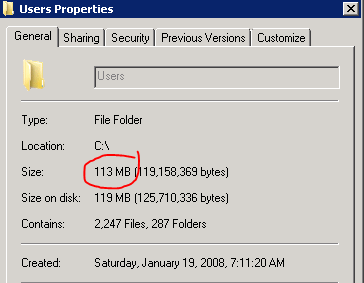
However, even though you cannot open the file, it is possible to see the contents of the folders (folder and file names) and the size of the contents by using an application named Treesize Professional from:  http://www.jam-software.com/treesize/  There is a 30 day free trial period, but I recommend buying it to have in your “tool box” to quickly locate that user that has 30GB of movies saved in their redirected my documents. Treesize will provide a very nice graphical overview of drive space distribution and you can quickly drill down to the source of the problem. As an example; in the following two images of the same directory, Windows shows 113 MB in use, where Treesize includes the hidden directories and accurately reveals 58.4 GB of consumed drive space.

image

image

Treesize can be used in many other ways for storage management but is invaluable in locating folders that are consuming large amounts of space on your drives.

Other known issues:

Tree size can also help to locate other space consuming culprits. Once located the information and links below, organized by file paths, may be able to assist with resolving.

The following link reviews numerous known file locations that have a tendency to accumulate large log files. This link is extremely valuable in addressing the key space issues with SBS:  http://blogs.technet.com/b/sbs/archive/2010/03/02/recovering-disk-space-on-the-c-drive-in-small-business-server-2008.aspx

  • C:\inetpub\logs\LogFiles
  • C:\Program Files\Windows Small Business Server\Logs\
  • C:\Program Files\Windows Small Business Server\Logs\WebWorkplace
  • C:\Program Files\Windows Small Business Server\Logs\MonitoringServiceLogs
  • C:\Program Files\Windows Small Business Server\Data\badmail
  • C:\Windows\system32\winevt\logs\
  • c:\Windows\system32\certlog
  • C:\Windows\SYSYSI\SSEE\MSSQL.2005\MSSQL
  • C:\Windows\System32\LogFiles\

C:\WSUS  Windows Server Update Services can build up many unnecessary updates that can be cleaned up by running the WSUS “Server Cleanup Wizard” located under Administrative Tools | Windows Server Update Services | SBSname | Options | Server Cleanup Wizard

C:\Program Files\Microsoft\Exchange Server\Mailbox\xxxx Storage Group Keep in mind deleted e-mails are retained in the Exchange database until you do a backup using an Exchange aware backup application such as the built-in SBS backup utility.

C:\Windows\winsxs:   See: “How to Alleviate Disk Space Pressure Caused By a Large Windows Component Store (WinSxS) Directory”  http://support.microsoft.com/?kbid=2592038  https://support.microsoft.com/en-us/kb/2795190

C:\Windows\System32\logfiles\WMI\trace.log  You can stop this logging by editing the registry key (if necessary) to 0
HKEY_LOCAL_MACHINE\SYSTEM\CurrentControlSet\Control\WMI\GlobalLogger\Start = 0

You may also want to review an excellent article by Lee Wilbur on regaining space and managing the system partition:  http://www.lwcomputing.com/tips/static/bootdrivesize.asp

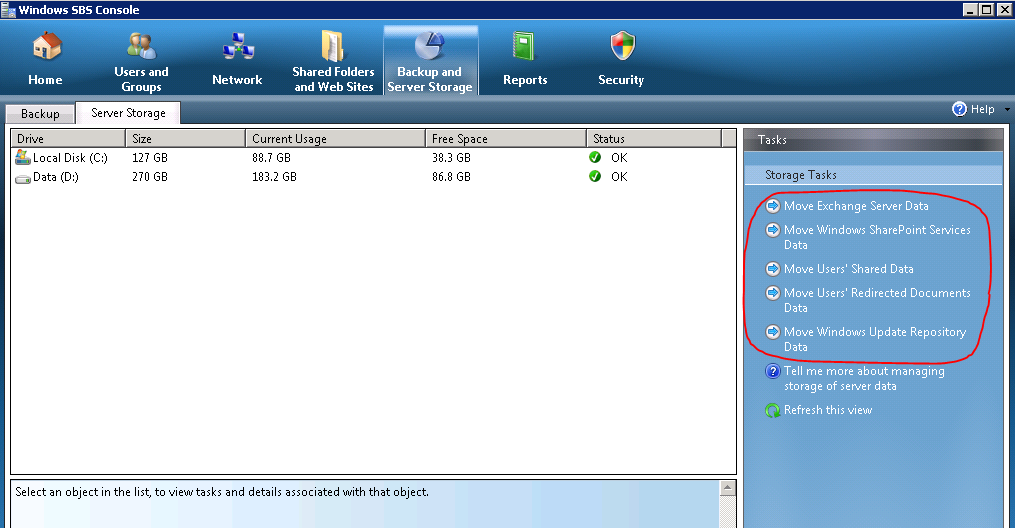
Should you need to gain additional space you can also move some of the SBS data files to another drive or partition such as Exchange, Users Shared Data and Redirected Folders, Sharepoint, and WSUS. To do so use the SBS wizards in the SBS console:  http://technet.microsoft.com/en-us/library/cc527581(WS.10).aspx

image


Added Nov 30, 2011…….

C:\ProgramData\Microsoft\Windows\WER\ReportQueue  This contains error reports generated by Windows. These files on some systems, though not hidden, the folder properties show as 0 MB. TreeSize will also display the properties of this folder correctly. Though I don’t recommend disabling the reporting you can do so by going to: control panel | problem reports and solutions | advanced settings | off

C:\WINDOWS\system32\LogFiles\HTTPERR  These are HTTP error logs much of which is generated by IIS. If there are a large number of errors you should look into why, but you can reduce the chances of it filling up with log files again by applying the following  http://support.microsoft.com/kb/820729


Remember you can always download a trial copy of SBS to use for testing configurations and modifications from the Microsoft Evaluation Download Center:

http://technet.microsoft.com/en-ca/evalcenter/default.aspx?ocid=aff-c-ca-jtc–MVP52

Often a small business cannot justify the cost of acquiring a static IP from their ISP. It is still possible to host e-mail and other services using a dynamic public IP, but you will need to use a DDNS service (Dynamic Domain Name Service). The following instructions use services offered by No-IP ( www.no-ip.comsee link below), my preference, but similar services are offered by other vendors such as http://www.dyndns.org .

The following assumes you have already purchased a domain name from a registrar. There is no need to host it with your DDNS provider but if they support your domain suffix, such as .com, you can transfer it to them for management simplicity if you wish. You can also purchase a domain through most DDNS service providers if you do not already have one. However, for the purpose of this article it is assumed the domain is with another registrar.

Reliable Dynamic DNS

Set up DNS records:

I recommend purchasing and configuring the necessary services first, followed by making the changes with your domain registrar so that there is no interruption of service if the domain name is already in use. You will need to open an account with No-IP and then purchase their Plus Managed DNS service ($24.95/year). To locate, on the No-IP menu choose Services, managed DNS, No-IP Plus, learn more. Then simply enter your public domain name, click “add my domain”, and then proceed to check out.

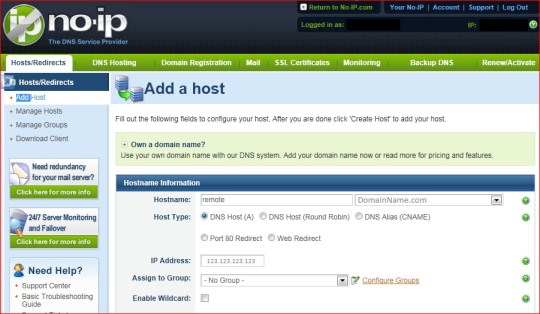
Once complete, you need to configure your DNS records. To access the management screen select “Your No-IP” from the top of the screen, DNS hosting, then modify next to your domain name. No-IP sets up assumed common DNS records like ftp.DomainName.comwhich you can leave, or I would recommend removing and just creating the records you need. Click on “Add a host” . In the dropdown list to the right of Hostname, select your domain. In the window to the left enter the name you will use to connect to your server. This can be anything you like but if using a certificate, self-signed or purchased, it must match this name. Common names are mail, the name of the server, or the default with Small Business Server 2008 is “remote”. Click the “Create Host” button at the bottom to save.
Next you need to create an MX record for mail delivery. The MX record would usually uses the Host record you just created, but if you plan to use a different Host name you need to repeat the above process for the additional Host record.

Return to the “Managed Hosts” page and click on “Modify” next to DomainName.com (the root). In the bottom section of the page under mail options enter the Host record you created (not an IP) and click the Update button.

Chances are if you are using a DDNS service you have only one server (one MX record). You may want to consider a backup MX service such as the one offered by No-IP. This is added as a second, lower priority, MX record and in the event your server is off line, the No-IP service stores any mail destined for your server for up to 7 days until your server is back on line. It then automatically forwards all mail to your server. One of the nice features of the No-IP Backup MX service over others is it offers an online usage report. Often you may not be aware your server was off-line due to an ISP outage. The Usage report will record when and how long.

If you have other services such as a web page hosted with a 3rd party or at a second site, you need to create another host record for www.DomainName.compointing to the appropriate IP. If not an IP and you need to redirect to another URL you can use the “Web Redirect” option.

Configure the DDNS client:

The DDNS client needs to be downloaded and installed on a PC or server on your network that is always on, and does not sleep or hibernate. It will monitor your public IP and update No-IP should the IP change. Many newer routers support DDNS services internally, but they require the “Custom DNS” option for No-IP, which most do not. The best bet is to install the No-IP client on your server. It can be downloaded from the No-IP site by choosing the Download tab on the home page.

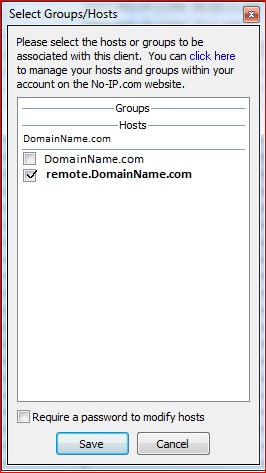
Once installed, start the No-IP DUC client from the programs menu. Enter your e-mail address and password you used to set up your No-IP account. There should be a popup window as below, but if not click “Select Host” in the client management window. Check the box next to the Host record or records you wish to update with this public IP, and save. I do not recommend choosing the root domain unless you want ALL traffic for your domain directed to this IP.
Next you need to make sure this runs at all times even upon reboot by running the No-IP client as a service. In the No-IP client select file, preferences, check the box “Run as a system service”. At the bottom, if there is only one network adapter installed, you can leave as “Windows Default”. If more than one network adapter select the appropriate one from the drop down list, then click OK to save. This should be the Internet facing network adapter.
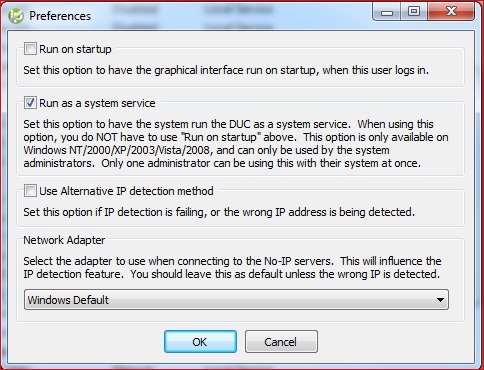
You can close the No-IP client but for future reference note there are some useful troubleshooting tools built in for testing your server, especially to see if the appropriate ports are open for the services you are offering via the Internet.

Set Domain to use No-IP DNS servers::

The final step is to change your Domain registrar to use No-IP’s DNS servers. With many registrars such as http://www.networksolutions.com you can make these entries yourself, but with some others you have to call or open a trouble ticket and have the service provider make the changes. No-IP’s DNS servers are listed below. You do not have to use all 5.

ns2.no-ip.com (204.16.254.6)

ns1.no-ip.com (69.72.255.6)

ns3.no-ip.com (69.65.5.106)

ns4.no-ip.com (72.5.169.6)

ns5.no-ip.com (75.102.59.82)

Note: DNS changes can take up to 48 hours to propagate the various Internet DNS servers, however usually less than 8 hours. One of the advantages of a DDNS service is in the future if your IP changes due to a move or ISP change, the DNS changes are immediate. For this reason some technicians choose to use a DDNS service even if using a static IP as it can make for faster recovery in a disaster situation, when a server has to be set up in a new location.

One possible issue with hosting your own services and using a dynamic IP is the ISP blocking specific ports such as 25 which will not allow you to host a mail server. There are services such as NO-IP’s “Mail Reflector” which allow you to use ports other than the standard port 25.

SSL Certificates:

Once your DDNS service is configured you may want to purchase a 3rd party SSL certificate from a vendor such as www.godaddy.com . The certificate eliminates the need of installing the SBS self-signed certificate on remote devices connecting to your server. This will work with a dynamic IP and a DDNS service but as mentioned the name created by the SBS to be used remotely (in our example remote.DomainName.com), the public DNS record, and the SSL certificate must all be the same.  For details regarding installing an SSL certificate on SBS 2008/2011 see:  https://blog.lan-tech.ca/2012/05/17/sbs-2008-2011-adding-an-ssl-certificate/

Reliable Dynamic DNS

Many clients today want to be able to send and/or receive messages with large attachments. By default SBS has built-in limits of 10 MB for both. To keep this simple and short I will not go into into practical limits or all the detailed options available. I do however recommend reading the link below, from which the information was gathered to get a better understanding of all limits and parameters:

http://blogs.technet.com/b/sbs/archive/2008/10/28/how-do-i-change-message-size-limits-in-exchange-2007.aspx

Note: This assumes a default SBS 2008/2010 environment, not an Exchange standalone (non-SBS) configuration and you have not edited the default send/receive connectors. If in doubt you can verify the connector names with the commands at the end of the article .

To raise the current default limit from 10 MB to 25 MB (as an example) cut and past the following 3 lines, one by one, into the EMS (Exchange Management Shell) located under All Programs / Microsoft Exchange Server 20xx. You need to substitute your SBS server name for ServerName.

  • Set-TransportConfig –MaxSendSize 25MB –MaxReceiveSize 25MB
  • Set-ReceiveConnector “Windows SBS Internet Receive ServerName” –MaxMessageSize 25MB
  • Set-SendConnector “Windows SBS Internet Send ServerName” –MaxMessageSize 25MB

Should you wish to review the current settings or connector names you can use the following commands.

  • Get-TransportConfig | ft name, MaxSendSize, MaxReceiveSize
  • Get-ReceiveConnector | ft name, MaxMessageSize
  • Get-SendConnector | ft name, MaxMessageSize
  • Get-mailbox | ft name, MaxSendSize, MaxReceiveSize

Have you ever suddenly had odd characters appearing when you type, or perhaps not odd but not what you expected? This is quite common with Dell PC’s in Canada that by default have additional language options enabled, but I am sure it happens in other parts of the world as well and with other PC models. You may see for example an ” É ” when you type a ” ? ”

Windows has a “switch” to enable/disable the alternate language keyboard. The Windows 7 default is to hold the left alt key and press the corresponding shift key at the same time. If you prefer, you can change the characters used to control the “switch” or disable it all together under Control Panel | Region and Language |  Keyboards and Languages | Change Keyboards | Advanced Key settings | highlight “Between input languages” and click Change Key Sequence. There are other shortcuts in the same location you may wish to edit while there.

Updated Feb 5/2012:

It seems some Dell computers, even though under Region and Language keyboard settings as noted above are set to use the left alt+shift key as the combination to switch between keyboard language styles, they actually use the left ctrl+shift keys.

Also, you may have decided to permanently change the language and keyboard settings under:  Control Panel | Region and Language |  Keyboards and Languages | Change Keyboards | General.  If so, note that it will only affect the logged on user, it does not affect the actual initial computer logon.  To do so you must also go to  Region and Language | Administrative | Copy settings | and check the box “Welcome Screen and system accounts”.  Checking the other option, the “New user accounts” box, will apply the same edited Region and Language settings to any new user accounts you create, but if there are other existing user accounts to which you want to apply the changes, you will have to do so manually one by one.

When installing Simply accounting (in this case specifically Simply 2011) it requires opening firewall ports on the server to allow clients to use the Connection Manager to access data . Simply provides the following information in its help files:

image

However for most installations you only require 4 rules. You can use the server’s “Windows Firewall with Advanced Security” console to manually create a each rule one by one by generating new rules, browsing to the related service (.exe), and set to “allow”, or you can use a command line and netsh to create the rules. Again a little tedious entering each lengthy command one at a time.

The easiest method is to use a simple batch file with the four commands included in the script below. To make the batch file a little more informative I have added a few lines with description, the ability to opt out, and to be able to verify each command completed successfully. However using just the 4 netsh lines is all you require. The netsh commands included are tailored to only allow access from the local subnet for added security.

Simply copy the lines below to notepad and save as a batch file using a name like AddRules.bat  There are a few related notes:

  • When saving use quotes around the name such as “AddRules.bat” in the Notepad ‘save as’ box, to ensure the .txt suffix will not be added to the name
  • Each netsh commands is one single line. It is wraps in the blog article.
  • When ready to run the batch file right click on it and choose “run as administrator (i.e. elevated privileges)

————————————————————————–

Echo Off
CLS
Echo  Batch file to configure Windows Firewall
Echo    for Sage Simply Accounting 2011 using
Echo      Windows Firewall with Advanced Security
Echo        [Access will be limited to local subnet]
Echo.
Echo click Ctrl+C to escape
Pause
Echo on

netsh advfirewall firewall add rule name=”Simply Connection Manager” dir=in program=”C:\Program Files (x86)\Winsim\ConnectionManager\SimplyConnectionManager.exe” remoteip=localsubnet action=allow

netsh advfirewall firewall add rule name=”Simply Tray Icon” dir=in program=”C:\Program Files (x86)\Winsim\ConnectionManager\Simply.SystemTrayIcon.exe” remoteip=localsubnet action=allow

netsh advfirewall firewall add rule name=”Simply MySQL” dir=in program=”C:\Program Files (x86)\Winsim\ConnectionManager\MySqlBinary\5.0.38\mysql\mysqld-nt.exe” remoteip=localsubnet action=allow

netsh advfirewall firewall add rule name=”Simply MySQL Admin” dir=in program=”C:\Program Files (x86)\Winsim\ConnectionManager\MySqlBinary\5.0.38\mysql\mysqladmin.exe” remoteip=localsubnet action=allow

Echo off
Echo  “ok” should have been displayed after each rule was applied
Echo     Refresh Windows Firewall with Advanced Security to view added rules
Pause
Exit

Update/Note:  I have noticed when cutting and pasting from this article the quotation marks become unrecognized characters on most systems.  Simply paste the abov text in notepad and use Find & Replace to replace all with standard keyboard quotation characters.

“Help! I cannot log onto my server, how do reset the domain admin’s password?”  This has been asked a thousand times. Rather than continually advising folk or posting elsewhere I thought it best to blog a few methods and in future provide a link to this site, feel free to do so yourself as well. Hopefully the following information will be used in a responsible manor. Keep in mind none of the following is my original material though have tried to give credit when possible. Use at your own risk, there are no guarantees or warrantees associated with any of the material below, and make sure you back up anything you can still access through shares and such before attempting. I have tried other methods not listed below that have corrupted Active Directory and resulted in server rebuilds or restores, so a backup is critical.

If it is a Domain Controller most of the free or inexpensive password tools will not work. You can buy enterprise software that will do the job, the most common being:
http://www.lostpassword.com/windows-enterprise.htm

Alternatively, the following is free, works well, but it involves many steps. Basically you reset the ASR password and then create a service that will automatically run when the server restarts to reset the password. To fully understand all the details, make sure you review all of the links within the article.  http://www.petri.co.il/reset_domain_admin_password_in_windows_server_2008_ad.htm

There is a newer method that is easier with Server 2008 / Server 2008 R2 / SBS 2008 / SBS 2011  (I have not tested on server 2003, though the necessary files do exist). The original site outlining this seems to be off-line so I have posted the contents of the original site below. However, in an attempt to give credit to the author the original site link was: http://fracktured.com/2010/09/03/how-to-reset-lost-sbs-2008-domain-admin-password/  There is also a video outlining the same process that has since been posted at: http://www.youtube.com/watch?v=Ar-VoO9ogHc&feature=player_embedded#

The steps are as follows:

· Restart the server and boot to the DVD

· After selecting the appropriate installation language, select Repair Your Computer

· Start command prompt, and change the command line path to C:\ by entering c:\

· Enter cd c:\windows\system32

· Enter ren utilman.exe *.bak

· Enter copy cmd.exe utilman.exe

· Restart the server. this time do not boot to the DVD, just boot normally

· At the login screen, press the Windows+U keys on your keyboard. this will bring up the command prompt

· Enter net user [server admin username] [new password]

· On a regular Server 2008 install, [server admin username] will probably be administrator, but it could be any domain username with domain admin rights. [new password] will be the new password you want to set. If password complexity is enabled (which is the default on Server 2008) you will need have some UPPER case letters and/or numbers and/or symbols in the password.

· On SBS 2008, the administrator account is disabled by default. Even if you reset the administrator password, you still won’t be able to login because the account will still be disabled. Instead of administrator, you would use the server admin user name that was used when the server was first setup. If you don’t know the user name, you can enter net user to get a list of all domain user accounts. It won’t show you what users have what privileges, but it could help jog your memory.

· Now go back to the login screen and log in with the user name and new password you just set. for user name, be sure to use the domain\username format

· Once you have verified that you can log in with the new password, repeat steps 1-4

· Enter ren utilman.bak *.exe

· Restart the server and boot normally


The Microsoft Virtual Academy is a relatively new source for on-line training in a multitude of topic areas including; virtualization, Office 365, private and public cloud, SQL and Windows Azure, System Centre, Security and much more. There are numerous courses already available in these topic areas with many more to be added in the future. Best of all it’s completely FREE !

Sign up and get started with your training here:

http://www.microsoftvirtualacademy.com/Home.aspx?ocid=aff-c-ca-jtc–MVP52