I just installed “Security Update for Windows Services 3.0 x 64 KB2596911” on a clients SBS 2008 server, as 1 of 6 updates, only to have it fail.  Upon reboot neither Sharepoint website or the WSUS console were functioning.  In addition the Application Event Log was full of Event ID 5084, Source MSSQL$MICROSOFT##SSEE informational events.  A quick Google showed many folk have encountered similar issues, for example:

http://social.technet.microsoft.com/Forums/en-US/sharepointadmin/thread/e8391454-a5b2-418f-8dab-324c430ce219

In my case after the reboot I was able to resolve by downloading the single update from the link below, right clicking and choosing run as administrator, and wait, and wait, and wait!  Be patient, the update though small took about 45 minutes to complete but it was successful, and all services restarted.  Though it did not prompt for a reboot I felt it was best to do so and everything still functioned properly.

http://www.microsoft.com/en-us/download/details.aspx?id=30274

For the record, there is no mention of it in the KB article, but during the install it advises that you need volume licensing to use the update.  I choose to accept the notification and continue, working on the assumption the licensing referred to the base product.  In my case this was being installed on Small Business Server where Sharepoint is an integrated component.

This may not be a solution in all cases, but it was a simple, though tedious, repair for this server.

Yahoo Mail Down

Having had a couple of calls; “I can’t log into Yahoo Mail” I decided to follow up.  It seems the internet is all a “Twitter” with reports from numerous countries that Yahoo Mail has been off-line for a couple of hours now.   This combined with last weeks hack of >400,000 mail accounts cannot be good for business.  Ironic that today’s top story on CNN is about Marissa Mayer the new CEO of Yahoo.

You can view the current status of Yahoo Mail on-line/off-line at http://downrightnow.com/yahoomail

A common question is; “why are my users missing from the SBS console, under the users tab?” 

If a user is created in the “SBS way” by using the “Add new user account” wizard under Users and Groups | Users tab of the SBS console, as they should be, they will automatically appear in the console.  However if a user was created within Active Directory, not using the Wizard, or possibly after a migration, they may not be shown in the console.  To resolve this:

  1. Open the Active Directory Users and Computers console, locate the users, which are probably under the Domain | Users Organizational Unit (OU), and move them to the Domain | MyBusiness | Users | SBSUsers OU
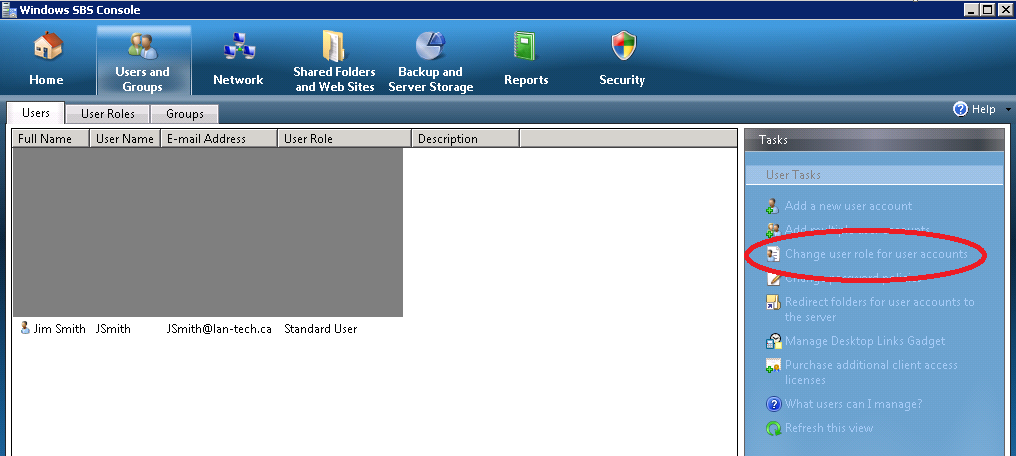
  2. In the SBS console under Users and groups | Users | menu on the right – choose “Change user role for user accounts”.  When running the wizard select what type of privileges you wish to give the user/s (Network Admin, Standard User, or Standard User with Admin Links) and choose to replace or add to existing permissions. Next select the users to which you want to apply the updates.  Note you need to check the box “Display all user accounts in Active Directory” for your missing users to appear in the list.  Select the user/s, click add, and then change user role.

This will update the users permissions and the features available to them, based on the assigned role, and add them to the SBS console.

There are a few blog articles that advise differently suggesting you have to make a change using ADSIedit.  Personally I have never run into this, but if the above steps do not work for you it is an alternate solution.  Keep in mind this method only adds them to the SBS console it does not edit or add other permissions and features as the User Role wizard would. 

Go to:  ADSIedit under Administrative tools | right click on ADSIedit | connect to | accept all defaults – click OK | expand Default naming context | expand DC=<your domain>, DC=local | expand the container that holds your user/s (probably  CN=Users) | right click on each user container and choose properties | scroll down to msSBSCreationState | highlight and click edit | enter in the “Value” box  Created | exit choosing OK | OK. 

image

I was asked; “how can I tell from a command line if the firewall is enabled on a PC on our network, using a command line?”

Netsh is a very powerful tool for querying and setting the status of most anything network related. There are both the ‘netsh firewall’ and ‘netsh advfirewall’ options depending if XP, or Vista and newer.  I will deal with the advanced firewall as it is commonly used with Vista and Win 7 these days. The following command will return the available options:

C:\>netsh advfirewall show

The following commands are available:

Commands in this context:
show allprofiles – Displays properties for all profiles.
show currentprofile – Displays properties for the active profile.
show domainprofile – Displays properties for the domain properties.
show global    – Displays the global properties.
show privateprofile – Displays properties for the private profile.
show publicprofile – Displays properties for the public profile.
show store     – Displays the policy store for the current interactive session.

As you are aware the Advanced firewall can be set differently for domain, home, or public networks.  We are concerned with how it is set now, while on our network so we will use the show currentprofile option.  The result returns numerous details. By piping the results to the find command we can limit the output and simply determine if the Windows firewall is on or off  ( note: /I ignores case of the text in quotes):

C:\>netsh advfirewall show currentprofile |find “State” /I
State                                 OFF

Chances are you will not want to run to the machine to check so you can make use of Sysinternals/Microsoft’s PSexec to run netsh, or any command, on a remote machine.  You will need to run this with admin privileges for the remote machine. Therefore it is generally done from the server using a domain admin account.

C:\PSTools>psexec \\PC1 netsh advfirewall show currentprofile |find “state” /I

PsExec v1.98 – Execute processes remotely
Copyright (C) 2001-2010 Mark Russinovich
Sysinternals – http://www.sysinternals.com

Starting netsh on PC1…ice on PC1…
State                                 OFF
(the output will often end with the following when run remotely: netsh exited on PC1 with error code 0.)

PSexec can be downloaded for free from: http://technet.microsoft.com/en-us/sysinternals/bb897553.aspx

There have been numerous problems reported after installing Microsoft update KB2720211

  • WSUS server stops synchronizing with Microsoft Update
  • Website Verifications are not accurate
  • WSUS server stops working and also fails to reinstall
  • Errors in errorlog for Windows internal database
  • Some have reported backups fail to run on SBS

Should any of these be plaguing your systems Microsoft just released a TechNet Blog article addressing these issues which may be of some help:

http://blogs.technet.com/b/sus/archive/2012/06/20/wsus-kb272011-common-issues-encountered-and-how-to-fix-them.aspx

If interested in reading about end user reports, currently the key links to follow are:

http://social.technet.microsoft.com/Forums/en-US/winserverwsus/thread/e918a191-ef6d-4c4b-b83a-7a4ae20a5217

http://byronwright.blogspot.nl/2012/06/kb-2720211-kills-wsus.html

http://tinyurl.com/c2clhht

http://www.experts-exchange.com/OS/Microsoft_Operating_Systems/Server/SBS_Small_Business_Server/Q_27758486.html#a38107387

Google/Bing KB2720211 to locate more.

Generally when a computer cannot join the domain using http://connect (SBS 2008 & 2011) or http://SBSname/connectcomputer (SBS 2003) it is due to inability to correctly resolve the name of the domain controller in a timely fashion. Below is a list of common reasons for the connect wizards to fail.

In an SBS domain, the server should be the DHCP server, and if so, items 3 and 4 below should be automatically set through DHCP.  However if addressing is statically assigned or you are using a router you may need to make changes. Items 3 and 4 are also basic networking requirements of a Windows Domain, not just important for joining the domain.

1. If there is more than 1 network adapter installed, wired or wireless, disable all but 1 until domain joined.  If at all possible, make it a wired connection, not wireless. 

2. Many new PC’s also show a Bluetooth connection under “Network Connections”, this should be disabled as well while running the wizard.  If you are using a Bluetooth mouse and/or keyboard these will have to be temporarily replaced.

3. Make sure, using IPconfig /all, that the client’s DNS points ONLY to your internal DNS servers, in this case the SBS.  Do not allow a router or ISP to be added even as an alternate.

4. IPconfig /all should also show next to “Primary DNS Suffix”” your internal domain suffix such as MyDomain.local.  If not you need to add the domain suffix to the client machine. To do so insert it in the “DNS suffix for this connection” box under the DNS tab of the NIC’s advanced TCP/IP IPv4 properties

5. If there are any 3rd party firewalls or security suites installed, disable them until joined to the domain.  The Windows firewall should not need to be disabled.

6. If still failing add the connect web site to the “trusted” sites list in Internet Explorer under Tools | Internet Options | Security |trusted Sites

7. If all else fails you can skip the wizard and use a 3rd party utility called ProfWiz.  

It is important to note that using the connect and connectcomputer wizards is very important.  With SBS 2003 it is especially critical to do so as it performs a long list of tasks other than just joining the domain.  It copies the local user’s profile, configures the user and computer environments, changes permissions, installs SBS related features, makes changes to networking, and much more.  Susan Bradley’s blog outlines this in detail: “So exactly “what” does connect computer do anyway?”  However SBS 2008 and SBS 2011 control most of this through Group Policy.  The key bonus feature with the SBS 2008/2011 wizard is its ability to import current users’ local profiles. Though I still strongly recommend using the wizard, it will only import a local workgroup profile.  If the wizard fails or you are wanting to import a previous domain profile, you may want to consider using Profwiz.  Profwiz by forensit.com a simple little tool that will join the PC to the domain and reset the permissions of an existing profile allowing it to be used as the new domain profile (i.e. import users settings like desktop items, favorites, Documents, and application configurations). For instructions on downloading and running see:  https://blog.lan-tech.ca/2011/05/19/sbs-and-profwiz/

It seems the Attributes tab is missing on the user profile in Active directory after a migration from SBS 2003 to SBS 2008 and SBS 2011.  Normally this is hidden, but easily reviled by selecting on the AD menu bar; View, and then Advanced Features, however this is not so after a migration.  The issue was addressed in a post by Stuart Hudman  http://social.technet.microsoft.com/forums/en-US/winserverManagement/thread/6e6ef6bd-b5c9-4f16-b346-097832e3b93c/  but I was recently asked to help locate the exact location for the required changes, so I have posted detailed instructions below.

As always, you should have a good backup, including system state, before editing AD.
Note: the values to add, such as “11,{c7436f12-a27f-4cab-aaca-2bd27ed1b773}” need to be exact , without quotes. All three entries are similar but copy carefully as they are not the same. There will probably be multiple entries already present under the attribute, you are just adding one more….assuming it is not already present, which you should check first.

-open ADSIedit.msc
-at the top of the ‘tree’ right click on ADSIedit and choose “connect to”
-under connection point select “select a well known Naming context” and in that window choose “Configuration”
-under computer leave as “Default (Domain or server that you logged into)” Assuming you are logged onto the SBS
-click OK
-expand (click on the +) CN=configuration, DC=<your domain>, DC=local
-expand CD=DisplaySpecifiers
-click on CN=your language. The language # can be found on http://support.microsoft.com/kb/324097 (for example US English is 409, so CN=409  (this is the language you chose when setting up the server)
-in the right hand window locate CN=User-Display right click on it and choose properties.
-Locate AdminPropertyPages, highlight it and click “edit” and add the line 11,{c7436f12-a27f-4cab-aaca-2bd27ed1b773}
-in the right hand window locate CN=Computer-Display right click on it and choose properties.
-Locate AdminPropertyPages, highlight it and click “edit” and add the line 12,{c7436f12-a27f-4cab-aaca-2bd27ed1b773}
-in the right hand window locate CN= Default-Display right click on it and choose properties.
-Locate AdminPropertyPages, highlight it and click “edit” and add the line 4,{c7436f12-a27f-4cab-aaca-2bd27ed1b773}

[Note: some links point to SBS 2008 configurations, some to SBS 2011, the procedure is the same for both]

Just a quick comment to address the many internet posts suggesting that SBS requires a multi-name SSL certificate (UCC – Unified Communications Certificate).  This is not true.  SBS is designed to use a simple, inexpensive, single name certificate, and it is quite easy to install.  A basic GoDaddy or other vendor certificate is all that is required.  Sean Daniel outlines the process very nicely in his post entitled “Installing a GoDaddy Standard SSL Certificate on SBS 2008 “.  Keep in mind the FQDN for your site as recorded in your public DNS records, the certificate name, and public name used in the “Internet Address Wizard” (see step #7), all must be exactly the same.  As a mater of fact, although it is possible to use a UCC certificate, the wizard will not install it for you, you would have to do so manually.  There is no need for the additional cost or time involved with multi-name certificates.  (The link below will take you to the Godaddy site and should have a menu bar at the top offering you a very good first year discount)

Go Daddy $12.99 SSL Sale!

The primary argument for using a UCC cert is to make use of auto-discovery.   Though you do not need auto-discovery, if you wish to make use of it you still do not need a UCC certificate.  You can in fact configure auto-discovery using a single name certificate and creating an SRV DNS record by following the ThirdTier.net instructions; “Setting up Autodiscover for SBS 2011

Alternatively, you can avoid buying an SSL certificate at all.  After running the SBS “Internet Address Management Wizard”, a self-signed certificate is generated in the SBS Share: \\SBSname\Public\Downloads\Certificate Distribution Package  .  Machines that are joined to the domain after this will have the certificate automatically installed.  If you generate a new certificate (by re-running the wizard), or have non-domain joined computers or devices, you need to manually copy and install the certificate.  To distribute / install the certificate on the PC’s, please see “How Do I Distribute the SBS 2008 Self-Signed SSL Certificate to My Users?”  This is often not as easy to do on other devices such as smart phones.  Therefore using a 3rd party certificate becomes much more attractive, as nothing has to be installed on the connecting device.

Should you have a dynamic public IP at the SBS site, I recommend reading “Using DDNS services with SBS 2008/2011” which outlines using a dynamic IP, a DDNS service, and configuring DNS and certificates.

SBS Migration

There are dozens of articles and white papers regarding migrating SBS version 20xx to version 20xx but many people seem to have difficulty locating these.  The following is a collection of some of the more popular options and methods.

Firstly there is no upgrade option, and if you have never done a migration I strongly recommend carefully reviewing documentation and try a migration in a test lab first as it is a lengthy procedure due to all the components included in an SBS environment.  You might want to considering hiring someone experienced with doing so, or perhaps buy a Migration “Kit” from swingmigration.com  SwingMigration.com specialize in migrations, and in particular SBS.  They provide detailed documentation for you specific migration scenario, some basic tools, 90 days support for the migration, and a method that allows you to revert back to your original configuration at any point.

If you want to go it on your own, or just read up on the topic, thee links may be of some help.

SBS 2003 to SBS 2003

Migrating Windows Small Business Server 2003 to New Hardware

SBS 2003 to SBS 2008

Migrating to Windows Small Business Server 2008 from Windows Small Business Server 2003

Philip Elder’s: SBS 2003 to SBS 2008 Migration Guide

Windows Small Business Server 2008 – Build information (Wiki)

SBS 2003 to SBS 2011

Migrate to Windows Small Business Server 2011 Standard from Windows Small Business Server 2003

Philip Elder’s: SBS 2003 to SBS 2011 Migration Guide

Glen Knight’s: Migrate Small Business Server 2003 to Small Business Server 2011 ( SBS 2011 migration guide )

SBS 2011 Standard Migrations – Keys to Success

Small Business Server 2011 Standard Build document (wiki)

SBS 2003 to SBS 2011 migration issues that you can call 1-800-Microsoft (or your local Microsoft support) and will get support and hotfixes included at no charge

SBS 2003 to SBS 2011 Essentials

Migrating Windows SBS 2003 to Windows SBS 2011 Essentials

Migrate All Mailboxes to the Cloud with a Cutover Exchange Migration

Robert Pearman’s: Migrating to SBS 2011 Essentials eBook

Windows Small Business Server 2011 Essentials Build document (Wiki)

SBS 2003 to Server 2008 R2 and Exchange

Glen Knight’s: Migrate Small Business Server 2003 to Exchange 2010 and Windows 2008 R2

Server 2003 standard with Exchange to SBS 2008

Glen Knight’s:Migrate Windows 2003 with Exchange to Small Business Server 2008

SBS 2008 to SBS 2011

Migrate to Windows Small Business Server 2011 Standard from Windows Small Business Server 2008

SBS 2011 to SBS 2011

Migrate Windows Small Business Server 2011 Standard to New Hardware

Migrating Windows SBS 2011 Essentials to New Hardware

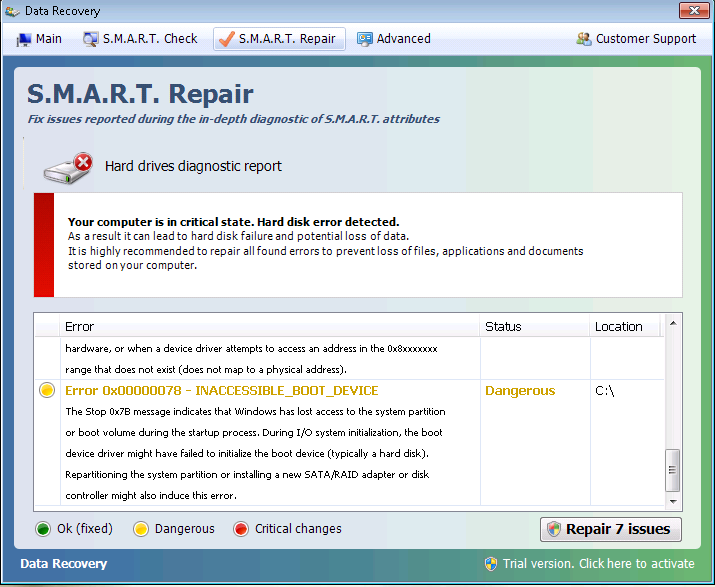
I am not a security expert, nor do I profess to be any sort of virus removal expert, but from time to time we all have to deal with their removal.  A couple of my earlier articles relating to viruses seem to be popular so I thought I would share my latest conquest. Perhaps not the best method but it worked for me. This one reared its self as a popup warning with “S.M.A.R.T. Repair” and advised of hard drive issues.  This is another variation of the “FakeAlert” virus that has been known over the last number of years as XP Security 2011, Security Shield, XP Antivirus 2010, MAC Security, and so on.

image

Generally best practice is to remove a drive and attach it to another computer for scanning or as a minimum boot to safe mode.  However, we do not always have that luxury and often have to try to repair remotely such in this case….

  • My first step was to login as a different user than the one that was recently infected 

Often the virus will not be active within another user’s profile, at least not until triggered.  The most common trigger being accessing the internet with a browser.

  • Next I created an additional admin account as soon as possible

This may or may not be possible at this point depending on the virus, but when it becomes option I do so incase this account gets infected and I have to start over.

Most often I try to do a system restore right away.  Though this will not completely remove a virus, often it will disable it to allow you to do a thorough clean up with tools like Malwarebytes, TDSSKiller, and other anti-malware apps.  You may have only seconds to start system restore after logon before the virus gets up and running and disables it. In these cases you can add a shortcut to the All Programs / Start Up folder with the following path %systemroot%\system32\rstrui.exe so that it automatically starts at logon, then log off and back on.  It seems in many cases if you can get to the second window of System Restore before the virus completes its ‘boot up sequence’ it will run.  In other cases it is either completely disabled, or all restore points have been removed.

I had read this virus removes desktop items and program menu items and puts them in a temp folder.  In this case do not use a temp file cleaner and not knowing where or how the files were stored, I didn’t want to use System Restore.

  • Next step was to copy Malwarebytes from a network share, and run.

Do not use a browser on the infected PC to download Malwarebytes as the browser will often trigger installation of the virus in the current user profile.  I usually at this point run it in “Quick Scan” mode.  There is a good chance this will kill the virus.  It did so in my case, and does require a reboot.

image

  • Upon reboot I ran TDSSKiller to check for any root kits.

In this case it was clean.  The virus also had hidden many stem files and short cuts.  For this,,,

  • I use an application called “Unhide” which returned hidden files and shortcuts to a viewable state.

In some cases you may have to locate folders and manually unhide all files within the folder and subfolders using a command window and   attrib  -H  *.*  /S /D   This virus also removed all personal desktop items, and all items within the folders of the Start Menu of the infected user.  Based on the log file generated by Unhide, it may have restored these had I been logged in as the user when it was run.

Now logged in as the infected user, I was able to manually restore their missing desktop and Start Menu items by 

  • Copying the missing files from C:\Users\<infected user name>\AppData\Local\Temp\smtmp\1, & 4 to their appropriate locations
  • I also had to manually add back start menu items such as My Music using the properties option of the task bar
  • Next verify any existing anti-virus and/or anti-malware software is running, if not you may have to re-install
  • Final step was to run a Malawrebytes “Full Scan” while logged in as the infected user.

All of this was performed remoty and apparently successful, but always remember “once infected, always suspected”.  You can never be 100% sure the system is perfectly clean unless you do a full wipe and restore.

An excellent site for troubleshooting all types of viruses is bleepingcomputer.com  and if interested in reading more about the FakeAlert viruses, and how you were infected see: “Stopping Fake Antivirus: How to Keep Scareware off Your Network